HDMI Handshaking: How It Works and Why It Matters
Published: 23 Nov 2025
HDMI (High-Definition Multimedia Interface) is the standard technology used to transmit high-quality audio and video signals between devices like TVs, gaming consoles, laptops, and projectors. However, sometimes, users experience problems such as a “No Signal” error, flickering screens, or audio issues.
One major cause of these issues is HDMI handshaking failure. So, guys, in this article, we’ll explore:
- What is HDMI handshaking
- How it works
- Common HDMI handshaking problems
- How to fix these issues
- Ways to prevent HDMI handshaking errors in the future
By the end of this guide, you’ll understand HDMI handshaking and how to troubleshoot problems effectively.
What is HDMI Handshaking?
HDMI handshaking is the way two HDMI devices talk to each other when they are connected. It helps them work together properly by making sure they understand each other’s settings.
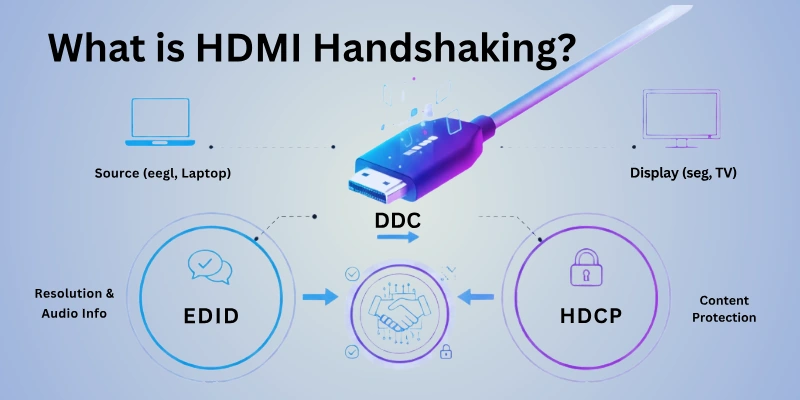
When you connect a device (like a laptop, gaming console, or DVD player) to a TV or monitor with an HDMI cable, they go through a few steps:
- Checking Device Information: The TV tells the device what screen resolution and sound formats it can support.
- Security Check (HDCP): If you are watching a movie from a streaming service or Blu-ray, the devices confirm that the content is protected from copying.
- Final Connection: After these checks, video and sound start working.
If this process fails, you might see a “No Signal” message, a black screen, or no sound.
How HDMI Handshaking Works?
HDMI handshaking happens quickly, but there are several important steps involved. Here’s how it works:
Step 1: Device Recognition
- When you plug in an HDMI cable, the two devices (TV and source device) detect each other.
- The TV checks what type of device is connected (laptop, gaming console, DVD player, etc.).
Step 2: Exchange of Display Information (EDID)
- The TV sends its EDID (Extended Display Identification Data) to the source device.
- EDID tells the source device what resolutions, refresh rates, and audio formats the TV supports.
- The source device adjusts its settings to match what the TV can handle.
Step 3: Security Check (HDCP Authentication)
- If the content is copyrighted (like a Netflix movie or Blu-ray), the devices check HDCP (High-bandwidth Digital Content Protection).
- If the security check fails, the screen may stay black, or the content may not play.
Step 4: Finalizing the Connection
- Once everything is verified, the devices start sending video and audio signals.
- If the handshake is successful, the display works properly.
- If it fails, you may see a “No Signal” message, flickering screen, or no sound.
Common HDMI Handshaking Issues
Sometimes, HDMI handshaking doesn’t work properly. This can cause different problems, such as:
1. “No Signal” Message
- The TV or monitor does not recognize the connected device.
- Possible causes: Faulty HDMI cable, incorrect input source, or handshaking failure.
2. Black Screen or Flickering Display
- The screen may go black or keep turning on and off.
- Possible causes: The source device is sending a resolution the TV doesn’t support.
3. No Sound or Distorted Audio
- The video works, but there is no sound or poor audio quality.
- Possible causes: Audio format mismatch or HDMI handshake failure.
4. HDCP Errors (Protected Content Won’t Play)
- Streaming services like Netflix or Blu-ray movies don’t work.
- Possible causes: The TV or HDMI cable does not support HDCP security.
5. Long Time to Connect or Frequent Disconnection
- The connection works, but it takes too long to set up or keeps cutting off.
- Possible causes: Loose HDMI cable, software bugs, or signal interference.
Causes of HDMI Handshaking Failure
HDMI handshaking can fail for several reasons. Here are some common causes:
1. Faulty or Loose HDMI Cable
- A damaged or loose HDMI cable can prevent proper communication between devices.
- Solution: Try a different HDMI cable and ensure it is securely plugged in.
2. Incompatible Resolution or Refresh Rate
- If the source device sends a resolution that the TV doesn’t support, the screen may stay black.
- Solution: Adjust the resolution settings on the source device to match the TV’s supported resolution.
3. HDCP Authentication Failure
- If the TV or HDMI cable doesn’t support HDCP (High-bandwidth Digital Content Protection), protected content like Netflix or Blu-ray movies won’t play.
- Solution: Use an HDCP-compliant HDMI cable and device.
4. Outdated Firmware
- Older TVs or devices may have outdated software that causes handshaking issues.
- Solution: Update the firmware on both the TV and source device.
5. Wrong HDMI Input Selection
- If the TV is set to the wrong HDMI input, it won’t detect the device.
- Solution: Select the correct HDMI input using the TV remote.
6. Power-On Sequence Issues
- Some devices need to be turned on in a specific order to establish a proper HDMI handshake.
- Solution: Try turning on the TV first, then the source device (or vice versa).
How to Fix HDMI Handshaking Issues?
If you’re facing HDMI handshaking problems, here are some simple solutions to fix them:
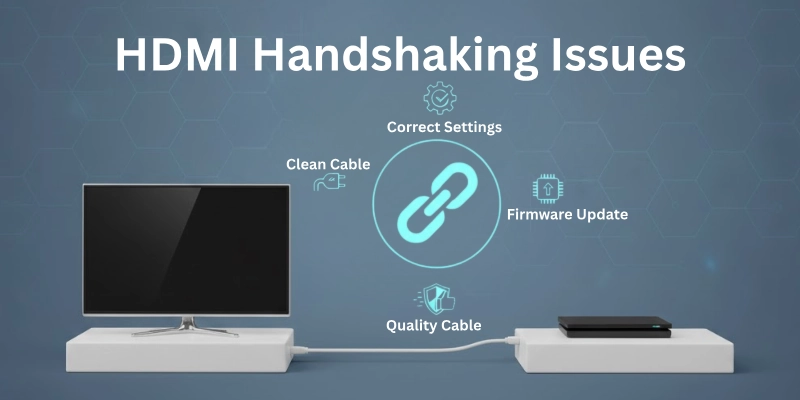
1. Check and Replace the HDMI Cable
- Unplug the HDMI cable and plug it back in securely.
- Try using a different HDMI cable to see if the problem is with the cable.
2. Select the Correct HDMI Input
- Use your TV remote to switch to the correct HDMI input (HDMI 1, HDMI 2, etc.).
- If unsure, try changing inputs one by one.
3. Restart Both Devices
- Turn off both the TV and the source device (laptop, gaming console, etc.).
- Unplug them from power for a minute, then plug them back in and turn them on.
4. Adjust Display Settings
- If the screen is blank, change the resolution settings on the source device.
- Match the resolution to what the TV supports (e.g., 1080p, 4K).
5. Follow the Correct Power-On Sequence
- Some devices require a specific order when turning on.
- Try turning on the TV first, then the source device (or vice versa).
6. Update Firmware
- Outdated software can cause handshake failures.
- Check for updates on both the TV and the source device.
7. Use a Different HDMI Port
- Some HDMI ports may not work properly.
- Try plugging the HDMI cable into another port on the TV.
8. Disable HDMI-CEC (if necessary)
- HDMI-CEC (Consumer Electronics Control) can sometimes interfere with the handshake.
- Turn it off in the TV’s settings and check if the connection improves.
How to Prevent HDMI Handshaking Issues?
To avoid HDMI connection problems in the future, follow these simple tips:
1. Use High-Quality HDMI Cables
- Cheap or damaged cables can cause handshaking failures.
- Always use a good-quality HDMI cable that supports the latest standards (e.g., HDMI 2.0 or HDMI 2.1).
2. Keep Firmware Updated
- Check for software updates on your TV, gaming console, or streaming device.
- Updating the firmware can fix bugs and improve HDMI compatibility.
3. Turn Devices On in the Right Order
- Some devices work better when powered on in a specific sequence.
- Try turning on the TV first, then the source device, or vice versa.
4. Avoid Frequent Plugging and Unplugging
- Constantly disconnecting and reconnecting the HDMI cable can wear out ports.
- Use a dedicated HDMI port for each device and avoid switching frequently.
5. Keep HDMI Ports Clean and Secure
- Dust and dirt in HDMI ports can cause poor connections.
- Use compressed air to clean ports and ensure the cable is fully plugged in.
6. Use a Powered HDMI Splitter (If Needed)
- If you’re using multiple HDMI devices, a powered HDMI splitter can help maintain a strong connection.
7. Check for HDCP Compatibility
- If you stream content from services like Netflix or play Blu-ray movies, ensure your devices and cables support HDCP.
Following these steps can minimize HDMI handshaking problems and allow you to enjoy a smooth viewing experience.
Final Thoughts
In this guide, we covered everything about what is HDMI handshaking, how it works, common issues, and solutions to fix them. We also shared tips on preventing handshake failures for a seamless experience.
As an expert recommendation, always use high-quality HDMI cables, keep your firmware updated, and follow the correct power-on sequence to avoid frequent connectivity issues.
This website is your go-to source for everything HDMI. Make sure to bookmark it for more guides and troubleshooting tips!
FAQs
Here are some of the most commonly asked questions related to HDMI handshaking:
This happens when the TV and the source device fail to complete the HDMI handshake. It could be due to a loose or faulty cable or the wrong input source. Try a different HDMI cable and select the correct HDMI input.
If the screen flickers, goes black, or shows “No Signal,” the HDMI cable might be faulty. Try using another cable to see if the issue disappears. A high-quality HDMI cable can help prevent handshake failures.
Frequent disconnections can be caused by a loose cable or outdated firmware. Ensure the cable is securely plugged in and try a different HDMI port. Updating your TV and device firmware can also help.
They can be minimized but not always completely avoided. Using good HDMI cables, keeping firmware updated, and following the correct power-on sequence can prevent most issues.
Yes, a failed handshake can cause no sound or distorted audio. Adjusting audio settings or using a different HDMI port can help fix this issue.
Yes, HDMI-CEC can interfere with handshaking and cause disconnections. Disabling HDMI-CEC in your TV’s settings may resolve the issue.

- Be Respectful
- Stay Relevant
- Stay Positive
- True Feedback
- Encourage Discussion
- Avoid Spamming
- No Fake News
- Don't Copy-Paste
- No Personal Attacks
- Be Respectful
- Stay Relevant
- Stay Positive
- True Feedback
- Encourage Discussion
- Avoid Spamming
- No Fake News
- Don't Copy-Paste
- No Personal Attacks
