What is HDMI Downscaling? Fix Display Resolution
Published: 24 Dec 2025
Have you ever connected a high-resolution device to an older display only to find that the screen won’t support it? That’s where HDMI downscaling comes into play.
It allows you to convert a higher-resolution HDMI signal into a lower resolution, ensuring compatibility with older TVs, monitors, or projectors.
This article will explore the definition of HDMI downscaling, how it works, why it’s necessary, the devices that support it, and potential drawbacks to consider.
So, without wasting any time, let’s dig in!
What is HDMI Downscaling?
HDMI downscaling is the process of reducing a video signal’s resolution to match the capabilities of a display that cannot support higher resolutions.
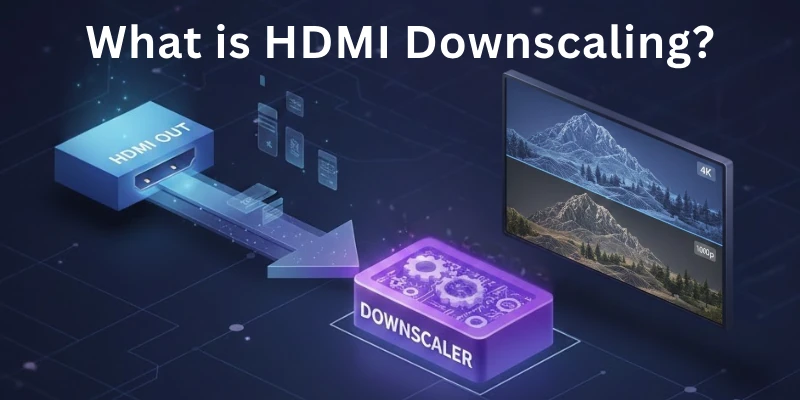
For example, if a 4K source is connected to a 1080p or 720p screen, a downscaler adjusts the signal so that the display can properly show the content. This is useful for maintaining compatibility between modern HDMI devices and older screens, avoiding errors like “unsupported resolution” or no signal output.
Why is HDMI Downscaling Necessary?
HDMI downscaling is needed for high-resolution video work on older or lower-resolution screens. Without it, some displays may not show the video properly.
- Fixes Compatibility Issues – Helps new devices work with old screens.
- Prevents Display Errors – Avoids blank screens, flickering, or “unsupported resolution” messages.
- Improves Performance – Reduces the load on some devices for smoother video.
- Useful for Gaming & Streaming – Ensures a better experience on lower-resolution screens.
- Saves Money – There is no need to buy a new display just to match the device’s resolution.
How HDMI Downscaling Works?
HDMI downscaling changes a high-resolution video signal into a lower resolution to work on older or less powerful screens. This is done using special hardware devices or software.
Role of Hardware Scalers and Converters
- Hardware scalers are small devices that automatically adjust video resolution without needing extra settings.
- HDMI converters change signals from high resolution (like 4K) to lower resolution (like 1080p or 720p).
- These devices work instantly, making sure the video plays smoothly without problems.
Downscaling Methods (Algorithms)
Different methods are used to resize the video while keeping it clear:
- Nearest Neighbor – Simple but may look blocky, as it just picks the closest pixels.
- Bilinear Scaling – Blends pixels to make the video look smoother.
- Bicubic Scaling – Uses more details to keep the video sharp and high quality.
Hardware vs. Software Downscaling
- Hardware-Based Downscaling – Done by special devices; works instantly and is best for real-time video.
- Software-Based Downscaling – Done using apps or settings in a device; takes longer and may slow down performance.
Hardware-based downscaling is better for smooth video playback, while software-based downscaling is useful for editing videos before playing them.
Common Applications of HDMI Downscaling
HDMI downscaling is helpful in many everyday situations where high-resolution video needs to work on lower-resolution screens.
- Using New Devices on Old TVs – Makes modern gaming consoles, streaming sticks, and Blu-ray players work on older TVs.
- Projectors with Low Resolution – Helps projectors display high-quality video properly.
- Multiple Screens with Different Resolutions – Ensures all screens show the same content clearly.
- Recording and Streaming – Reduces video size for smoother streaming and easier editing.
- Faster Gaming – Some gamers lower resolution to reduce lag and improve performance.
- Business and Education – Helps presentations and lectures work well on different screens.
HDMI Downscaling vs. Upscaling
HDMI downscaling and upscaling are opposite processes that adjust video resolution to match different display needs.
| Feature | HDMI Downscaling | HDMI Upscaling |
| What It Does | Lowers resolution (e.g., 4K → 1080p) | Increases resolution (e.g., 1080p → 4K) |
| Purpose | Makes high-resolution video work on lower-resolution screens | Makes low-resolution video look better on high-resolution screens |
| Common Uses | Connecting modern devices to older TVs, projectors, or monitors | Improving older videos for newer 4K or HD displays |
| Image Quality | May lose some details, but avoids errors like flickering or blank screens | Tries to add sharpness, but may not match true high-resolution quality |
| Best For | Compatibility and smooth playback on older screens | Enhancing older videos for a better viewing experience |
Both downscaling and upscaling can be useful in some situations. Downscaling ensures everything works together while upscaling makes things look better on high-resolution screens.
Devices and Adapters for HDMI Downscaling
Several devices and adapters help with HDMI downscaling by adjusting video resolution for different screens.
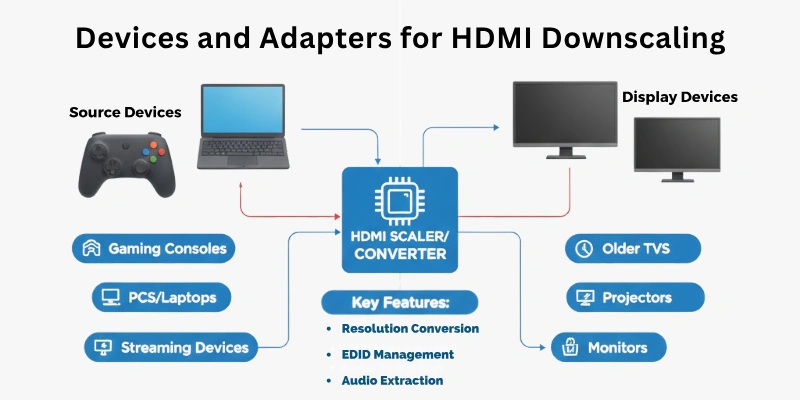
- HDMI Downscalers – Standalone devices that automatically lower resolution (e.g., 4K to 1080p) for older TVs or monitors.
- HDMI Converters – Convert HDMI signals into other formats (e.g., HDMI to VGA) while adjusting resolution.
- AV to HDMI Adapters – Help older devices with AV ports connect to HDMI screens with downscaling support.
- Gaming Scalers – Special downscalers designed to work with lower-resolution displays for gaming consoles.
- Video Capture Cards – Allow users to record or stream video in a lower resolution while maintaining smooth performance.
These devices ensure that high-resolution video works properly on older or lower-resolution screens.
Pros and Cons of HDMI Downscaling
Here are some of the major advantages and disadvantages of HDMI downscaling:
Pros
- Makes New Devices Work on Old Screens – Allows modern gadgets to connect to older TVs or monitors.
- Fixes Compatibility Issues – Prevents errors like “unsupported resolution” messages.
- Improves Performance – Reduces strain on some devices, leading to smoother video.
- Good for Streaming and Recording – Helps capture and stream video at lower resolutions.
- Cost-Effective – No need to buy a new display just for resolution support.
Cons
- Loss of Image Quality – Lower resolution means less detail in the video.
- May Cause Blurry or Pixelated Video – Some downscaling methods reduce sharpness.
- Not All Devices Support It – Some screens or devices may not work properly with downscaling.
- Audio Issues Possible – Some downscalers do not adjust audio, causing sync problems.
- Limited Use for High-Resolution Content – Not ideal for watching 4K movies on a low-resolution screen.
How to Choose the Best HDMI Downscaler?
Choosing the right HDMI downscaler depends on your needs and the devices you are using. Here are some key factors to consider:
- Resolution Support – Make sure the downscaler supports both your input (e.g., 4K, 1080p) and output resolution (e.g., 1080p, 720p).
- Compatibility – Check if the device works with your TV, monitor, gaming console, or projector.
- Audio Handling – Some downscalers only adjust video, so choose one that also supports audio if needed.
- Lag and Performance – Look for a low-latency downscaler, especially for gaming or live streaming.
- Connection Type – Ensure it has the right ports, such as HDMI to HDMI or HDMI to VGA, depending on your setup.
- Build Quality and Brand – Choose a reliable brand with good reviews for long-term use.
- Price vs. Features – Compare different models to find the best balance between cost and performance.
Troubleshooting HDMI Downscaling Issues
If your HDMI downscaler is not working properly, here are some common issues and how to fix them:
- No Signal or Black Screen – Check if the downscaler supports your device’s resolution and try using a different HDMI cable.
- Blurry or Distorted Image – Adjust the output resolution in your device settings or try a different downscaling method.
- No Audio Output – Ensure the downscaler supports audio and check if your device’s audio settings are correct.
- Lag or Delay – Use a high-quality, low-latency downscaler, especially for gaming or live streaming.
- Incompatible Device Error – Verify that both your input and output devices support HDMI downscaling.
- Flashing or Flickering Screen – Test a different power source or use a better HDMI cable to avoid connection issues.
Follow these steps, you can fix most HDMI downscaling problems and ensure smooth video playback.
Conclusion
This article explored HDMI downscaling, how it works, why it is needed, and its everyday applications. Guys, if you need to use a high-resolution source with a lower-resolution display, investing in a good-quality HDMI downscaler is essential. Look for one with minimal latency, proper resolution support, and audio pass-through to ensure the best experience.
If you are still confused, check the FAQs section, which covers the most common concerns about HDMI downscaling.
FAQs
Here are some of the most commonly asked questions related to HDMI downscaling:
HDMI downscaling converts a high-quality video stream (e.g., 4K) to a lesser resolution (e.g., 1080p). This makes the movie suitable for older or lower-resolution screens. It helps to prevent display issues and blank screens.
Some older TVs, monitors, or projectors cannot display high resolutions. Downscaling makes sure that the video stream can be shown on the screen. As long as there are no resolution problems, playback will go smoothly.
Yes, downscaling lowers the resolution, resulting in less detail and clarity. The image may appear slightly blurred or less crisp. However, a decent downscaler can reduce quality loss.
No, not every HDMI splitter can downscale video. Some simply copy the signal without adjusting the resolution. Before purchasing, you must review the product specs.
Some computers and devices allow software-based downscaling through display settings. However, not all devices support this option. Hardware downscaling is often needed for HDMI sources like gaming consoles or media players.
No, downscaling usually affects only video resolution. If the device supports proper audio pass-through, audio should remain the same. However, some converters may cause minor audio syncing issues.
Yes, HDMI downscalers are available separately or built into some HDMI converters. These devices change the video resolution to fit different screens. They are often used for gaming, streaming, and home theaters.


- Be Respectful
- Stay Relevant
- Stay Positive
- True Feedback
- Encourage Discussion
- Avoid Spamming
- No Fake News
- Don't Copy-Paste
- No Personal Attacks
- Be Respectful
- Stay Relevant
- Stay Positive
- True Feedback
- Encourage Discussion
- Avoid Spamming
- No Fake News
- Don't Copy-Paste
- No Personal Attacks
