What is HDMI CEC: Learn How It Works Easily
Published: 7 Jan 2026
HDMI is a common technology that we use every day to connect devices like TVs, soundbars, gaming consoles, and set-top boxes. But while using HDMI, you may have seen a term called HDMI CEC.
It sounds technical, but it’s actually a very helpful feature that makes your life easier. In this article, we’ll explain what is HDMI CEC, how it works, why it’s useful, and how you can use it to control multiple devices with just one remote.
What is HDMI CEC?
HDMI CEC stands for HDMI Consumer Electronics Control. It is a special feature that allows you to control different HDMI-connected devices using just one remote control.
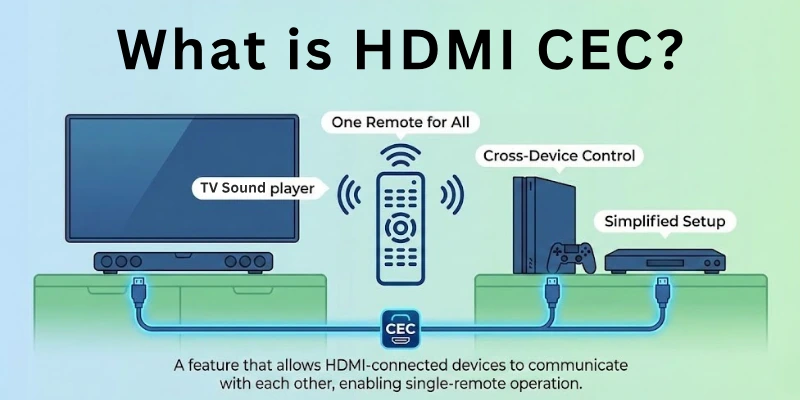
In simple words, HDMI CEC lets your TV, soundbar, Blu-ray player, and other devices “talk” to each other through the HDMI cable. This means you don’t need a separate remote for every device. For example, when you turn on your Blu-ray player, your TV can automatically turn on and switch to the correct HDMI input. Or you can use your TV remote to control the volume of your soundbar.
HDMI CEC’s main purpose is to make your home entertainment system easier to use and reduce the number of remotes you need.
How Does HDMI CEC Work?
HDMI CEC works by sending control signals through the same HDMI cable that connects your devices. It uses a special communication system that allows one device to send commands to another.
When you connect your TV, soundbar, gaming console, or Blu-ray player using HDMI cables, they can share information with each other using CEC commands. These commands are built into the HDMI system and help your devices work together smoothly.
For example, if you press the power button on your TV remote, it can also turn on your soundbar and set-top box at the same time. Or if you play a movie on your Blu-ray player, your TV will automatically turn on and switch to the right input without you doing anything extra.
So basically, HDMI CEC lets all your devices talk to each other through the HDMI cable, making everything easier and more convenient for you.
History and Evolution of HDMI CEC
HDMI CEC was introduced with HDMI version 1.0 in 2002. It was created as part of the original HDMI standard to make devices work better together. In the beginning, it had limited features. Only basic commands like power on/off and input switching were supported.
Later, HDMI versions improved CEC functionality. New versions allowed more control features like volume control, playback commands, and better device communication. Different brands started giving CEC their own names.
Today, HDMI CEC is a common feature in most modern TVs and home entertainment systems. The goal of CEC has always been the same:
- To make it easier for users to control multiple devices using just one remote.
As technology grows, CEC keeps getting better and smarter.
Different Names of HDMI CEC by Brands
Many companies use their own special names for HDMI CEC, but the function is the same. Here are the most common names:
- Samsung – Anynet+
- LG – Simplink
- Sony – Bravia Sync
- Panasonic – Viera Link
- Toshiba – Regza Link
- Philips – EasyLink
- Sharp – Aquos Link
- Hitachi – HDMI-CEC
- Mitsubishi – NetCommand for HDMI
- Onkyo – RIHD (Remote Interactive over HDMI)
- Pioneer – Kuro Link
- Insignia / Dynex – INlink
Note: Even though the names are different, they all mean the same thing—HDMI Consumer Electronics Control (CEC).
How to Enable or Disable HDMI CEC
The option is usually found in your device’s Settings menu. It may not be labeled as “HDMI CEC” — each brand uses a different name.
Steps to Enable or Disable HDMI CEC on Different Devices:
For Samsung TVs (Anynet+):
- Go to Settings
- Select General
- Choose External Device Manager
- Select Anynet+ (HDMI-CEC)
- Turn it On or Off
For LG TVs (Simplink):
- Press Settings on remote
- Go to All Settings > General
- Select Simplink (HDMI-CEC)
- Turn it On or Off
For Sony TVs (Bravia Sync):
- Press Home on remote
- Go to Settings > External Inputs
- Select Bravia Sync settings
- Enable or disable Bravia Sync Control
For Panasonic TVs (Viera Link):
- Press Menu on remote
- Go to Setup > HDMI Control
- Select Viera Link Control
- Turn it On or Off
For Philips TVs (EasyLink):
- Go to Settings > Installation
- Select Preferences > EasyLink
- Enable or disable EasyLink Control
For Toshiba TVs (Regza Link):
- Press Menu on remote
- Go to Settings > HDMI Settings
- Turn Regza Link (HDMI CEC) On or Off
Tip:
- Make sure all connected devices also have HDMI CEC enabled, not just your TV.
- Use CEC-compatible HDMI cables for proper communication.
Common Problems with HDMI CEC and How to Fix Them
Here is the quick overview guide:
| Problem | Fix (Solution) |
| HDMI CEC not working at all | Make sure HDMI CEC is turned ON in all connected devices (TV, soundbar, Blu-ray, etc.) |
| TV remote doesn’t control other devices | Check if CEC is enabled on those devices, try restarting all devices, and use CEC-compatible HDMI cables |
| Auto power on/off not working | Turn CEC off and then ON again; ensure correct settings in both TV and device menus |
| HDMI input not switching automatically | Try another HDMI port, check if auto input switching is enabled, and update firmware on TV |
| Delayed or no response from devices | Reboot all devices, use better-quality HDMI cables, and turn off unused HDMI-connected devices |
| Devices from different brands not syncing well | Some brands may have partial CEC support; try keeping most devices from the same brand if possible |
| CEC setting resets after software update | After an update, go back into settings and re-enable CEC manually |
| Volume control not working via TV remote | Check if the audio output is set correctly (e.g., set to external speakers or soundbar), and enable audio control in TV settings |
| Too many devices causing confusion | Disconnect or disable CEC on devices you don’t need, and keep CEC active only on main devices like TV and soundbar |
| Remote commands randomly stop | Try fresh batteries, reboot all devices, and disable and re-enable HDMI CEC on each device |
Is HDMI CEC the Same as ARC/eARC?
No, HDMI CEC and ARC/eARC are not the same — they are different features but both work through HDMI.
Key Differences:
Just give it a look:
| Feature | HDMI CEC | HDMI ARC / eARC |
| Main Purpose | Device control | Audio transfer |
| Controls devices? | Yes | No |
| Sends audio? | No | Yes |
| Needs extra cable? | No | No (audio goes through HDMI) |
| Remote sharing? | Yes | No |
| Enhanced version available? | No | Yes (eARC is the advanced version of ARC) |
In simple:
- HDMI CEC = Control system
- ARC/eARC = Audio system
They work together sometimes, but they serve different purposes.
Advantages and Disadvantages of HDMI CEC
Here are some of the major pros and cons of using HDMI CEC:
Advantages of HDMI CEC:
- Control multiple devices with one remote: Makes life easier—no need for separate remotes.
- Automatic power on/off: All devices turn on or off together, saving time.
- Auto input switching: TV switches to the correct HDMI source automatically.
- Easy to use: Simple setup and convenient operation for users.
- Improves user experience: Everything works smoothly and feels more connected.
- Energy efficient: Turns off all devices together, reducing power usage.
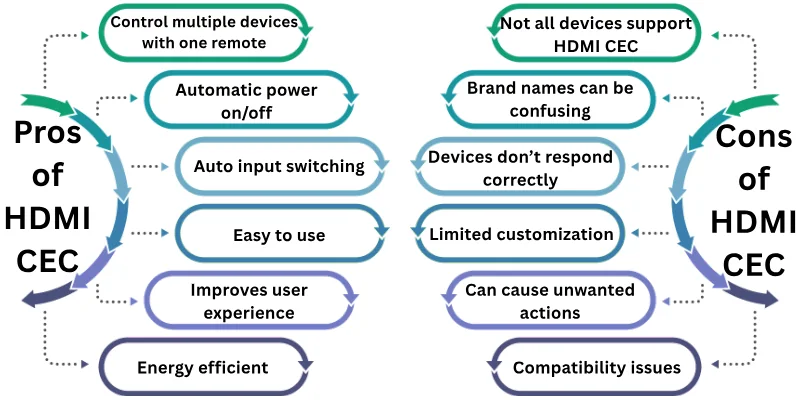
Disadvantages of HDMI CEC:
- Not all devices support HDMI CEC: Older or cheaper models may not have this feature.
- Different brand names can be confusing: Users may not recognize CEC due to different names like Anynet+, Simplink, etc.
- Sometimes devices don’t respond correctly: Some commands may fail or cause unexpected behavior.
- Limited customization: You cannot fully control how all devices respond to commands.
- Can cause unwanted actions: For example, turning off your TV might also turn off another device you still need.
- Compatibility issues: Devices from different brands may not work together perfectly with CEC.
Do You Really Need HDMI CEC?
It depends on how you use your home devices.
If you have a TV, soundbar, gaming console, Blu-ray player, or other devices connected with HDMI, HDMI CEC can make things easier.
Why You Might Need HDMI CEC:
- You want to control everything with one remote.
- You want your TV and sound system to turn on/off together.
- You want your TV to automatically switch to the right input when you turn on another device (like a gaming console).
- You like a simple, smooth home theater experience.
Why You Might Not Need HDMI CEC:
- You only use one device with your TV.
- You prefer using separate remotes for each device.
- Your devices are older and don’t support HDMI CEC properly.
- You have faced issues or bugs while using it.
HDMI CEC is not required, but it’s helpful for those who want more comfort and convenience. HDMI CEC is worth using if you like a clean setup with fewer remotes.
Conclusion
After learning everything about What is HDMI CEC (Consumer Electronics Control), I personally recommend giving this feature a try, especially if you’re tired of juggling multiple remotes. It’s a small setting that can make a big difference in how smoothly your TV, soundbar, and other HDMI-connected devices work together.
And yes, if your devices support it, don’t hesitate to enable it; you might be surprised how much easier things become. Thanks for reading, and I hope this guide helped you understand HDMI CEC better.
FAQs
Here are some of the most commonly asked questions related to HDMI CEC explanation:
Yes, HDMI CEC can work with different brands. But sometimes the features may not work perfectly. Some brands support more CEC functions than others. It’s better if most of your devices are from the same brand.
No, HDMI CEC does not need special cables. But using a good quality HDMI cable helps avoid connection problems. Cheap or damaged cables can cause CEC to fail. Always choose certified HDMI cables.
No, in many devices HDMI CEC is turned off by default. You must go into your device settings and turn it on manually. Check both your TV and other devices. Make sure CEC is enabled on all connected devices.
No, HDMI CEC is a safe feature that won’t harm your devices. It only sends simple control signals. However, sometimes, it may cause confusion or glitches. You can always turn it off if needed.
Sometimes, not all devices fully support every CEC feature, or the settings may not be properly configured. Software bugs or outdated firmware can also cause issues. Try updating your devices and rechecking settings.



- Be Respectful
- Stay Relevant
- Stay Positive
- True Feedback
- Encourage Discussion
- Avoid Spamming
- No Fake News
- Don't Copy-Paste
- No Personal Attacks
- Be Respectful
- Stay Relevant
- Stay Positive
- True Feedback
- Encourage Discussion
- Avoid Spamming
- No Fake News
- Don't Copy-Paste
- No Personal Attacks
