Use HDMI Cable with Mobile – Simple Connection Steps
Published: 4 Oct 2025
In today’s digital age, smartphones have become powerful multimedia devices capable of handling everything from streaming videos to gaming and productivity tasks.
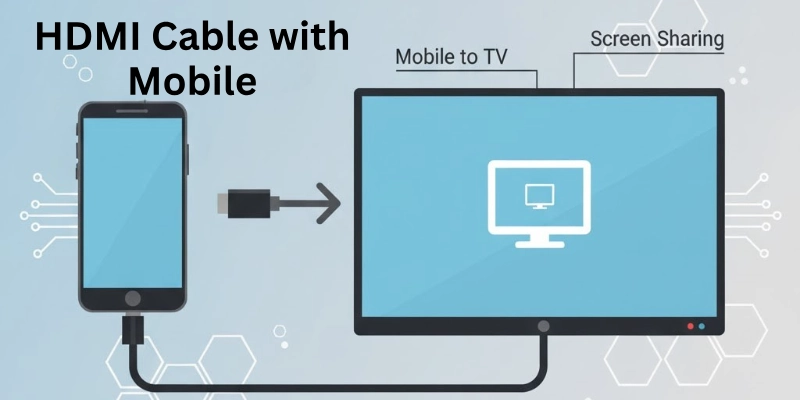
However, mobile devices’ small screen sizes can sometimes limit the experience. This is where HDMI (High-Definition Multimedia Interface) comes into play. Connecting your mobile device to a larger screen, such as a TV or monitor, can provide a more immersive experience.
This article will explore how to use HDMI cable with mobile device, the necessary equipment, and some troubleshooting tips.
Can All Mobile Phones Use HDMI?
Not all mobile phones can directly connect to an HDMI cable. Here’s how to check if your phone supports HDMI:
- Check your phone’s port: Look at your phone’s charging port. If it is a USB-C or Micro-USB port, it might support HDMI with the right adapter.
- Check the phone’s manual or website: Look for words like HDMI output, MHL, or Slimport. These mean your phone can work with HDMI.
- Older phones: Some older phones have a special mini-HDMI or micro-HDMI port. If your phone has this, it can directly connect to an HDMI cable.
What Do You Need to Connect Your Phone to HDMI?
To connect your phone to a TV or monitor using HDMI, you will need the following:
a. HDMI Cable
This is the cable that connects your phone (through an adapter) to the TV or monitor. HDMI cables are widely available and come in different lengths.
b. Adapter
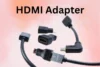
Since most phones do not have an HDMI port, you will need an adapter. The type of adapter depends on your phone’s charging port:
- USB-C to HDMI Adapter: For modern Android phones and iPhones with a USB-C port.
- Micro-USB to HDMI Adapter: For older Android phones with a Micro-USB port.
- Lightning to HDMI Adapter: For iPhones and iPads with a Lightning port.
c. TV or Monitor
You need a TV, monitor, or projector with an HDMI port. Most modern TVs have at least one HDMI port.
General Steps to Connect Any Mobile Phone to HDMI
These steps apply to most mobile phones. You’ll need an HDMI cable, an adapter (specific to your phone’s port), and a TV or monitor with an HDMI port.
Step 1: Check Your Phone’s Port
- Look at your phone’s charging port. It could be USB-C, Micro-USB, or Lightning (for iPhones).
- Make sure your phone supports HDMI output. Check the phone’s manual or website for terms like HDMI output, MHL, or Slimport.
Step 2: Get the Right Adapter
Buy an adapter that matches your phone’s port:
- USB-C to HDMI Adapter for modern Android phones and iPhones with USB-C.
- Micro-USB to HDMI Adapter for older Android phones.
- Lightning to HDMI Adapter for iPhones with Lightning ports.
Step 3: Connect the Adapter to Your Phone
- Plug the adapter into your phone’s charging port.
Step 4: Connect the HDMI Cable
- Connect one end of the HDMI cable to the adapter.
- Connect the other end of the HDMI cable to the HDMI port on your TV or monitor.
Step 5: Switch the TV to the Correct HDMI Input
- Use your TV remote to select the HDMI input where your phone is connected. For example, if you plugged the cable into HDMI 1, select HDMI 1 on your TV.
Step 6: Check Your Phone Screen
- Your phone’s screen should now appear on the TV. If it doesn’t, check the connections and make sure everything is plugged in properly.
Step 7: Enjoy!
- You can now watch videos, play games, or show photos on the big screen.
How to Connect an Android Phone to HDMI
Android phones may have different ports (USB-C or Micro-USB), but the steps are similar. Here’s how to connect an Android phone to HDMI:
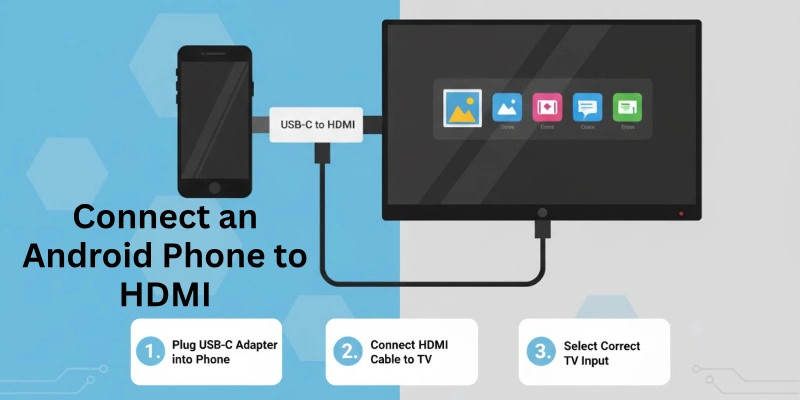
Step 1: Check Your Android Phone’s Port
- Most modern Android phones use USB-C, while older ones use Micro-USB.
Step 2: Get the Right Adapter
- For USB-C phones: Use a USB-C to HDMI adapter.
- For Micro-USB phones: Use a Micro-USB to HDMI adapter or an MHL/Slimport adapter.
Step 3: Connect the Adapter and HDMI Cable
- Plug the adapter into your phone’s charging port.
- Connect the HDMI cable to the adapter and the TV.
Step 4: Switch the TV to the Correct HDMI Input
- Use your TV remote to select the HDMI input where your phone is connected.
Step 5: Enable Screen Mirroring (if needed)
- Some Android phones automatically mirror the screen. If not, go to Settings > Connected Devices > HDMI and enable screen mirroring.
Step 6: Enjoy!
- Your Android phone’s screen will now appear on the TV.
How to Connect an iPhone to HDMI
iPhones use either a Lightning port (older models) or a USB-C port (iPhone 15 and newer). Here’s how to connect an iPhone to HDMI:
Step 1: Check Your iPhone’s Port
- If your iPhone has a Lightning port, you’ll need a Lightning to HDMI adapter.
- If your iPhone has a USB-C port, you’ll need a USB-C to HDMI adapter.
Step 2: Get the Right Adapter
- For Lightning iPhones: Use a Lightning to HDMI adapter.
- For USB-C iPhones: Use a USB-C to HDMI adapter.
Step 3: Connect the Adapter and HDMI Cable
- Plug the adapter into your iPhone’s charging port.
- Connect the HDMI cable to the adapter and the TV.
Step 4: Switch the TV to the Correct HDMI Input
- Use your TV remote to select the HDMI input where your iPhone is connected.
Step 5: Check Your iPhone Screen
- Your iPhone screen should automatically appear on the TV. If not, go to Settings > Display & Brightness and check the display settings.
Step 6: Enjoy!
- You can now watch videos, play games, or show photos from your iPhone on the big screen.
What Can You Do After Connecting Mobile to TV with HDMI?
After you connect your mobile to the TV, you can:
- Enjoy movies, shows, and videos from your mobile on a larger display for a better viewing experience.
- Play your favorite mobile games with a bigger screen and more fun.
- Share your travel memories or family videos with everyone in the room without passing your phone.
- Display your school or office presentations directly from your mobile on the TV screen.
- Join your Zoom, Google Meet, or other online classes and meetings on a bigger screen to see clearly.
- Work on your mobile and use the TV screen to view content side by side.
- Read PDF files, eBooks, or Word documents without straining your eyes.
- Play saved videos from your mobile without using internet or Wi-Fi.
- Use educational apps, fitness apps, or even social media apps with better visuals.
- Play your mobile music playlists and enjoy louder, clearer audio using your TV speakers.
- Connect your mobile and make WhatsApp, Skype, or Zoom video calls with everyone in the room watching and joining.
- Show a full slideshow of your gallery or special event photos on the TV screen.
- Stream live cricket, football, or other sports events from mobile to enjoy with friends and family.
- Watch your favorite exercise or dance tutorials on a bigger screen and follow easily.
Important Tips to Remember
Connecting your mobile phone to a TV using an HDMI cable is a great way to enjoy content on a bigger screen.
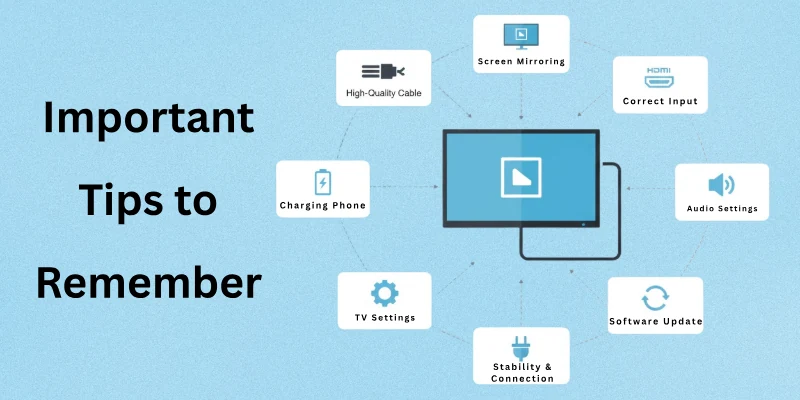
However, to ensure a smooth and hassle-free experience, here are some important tips to remember:
- Use a high-quality HDMI cable and adapter.
- Keep your phone charged or use a charging adapter.
- Ensure your TV supports HDMI and the required resolution.
- Enable screen mirroring or HDMI output in your phone settings.
- Use the correct adapter for your phone’s port (USB-C, Micro-USB, or Lightning).
- Select the correct HDMI input on your TV.
- Restart your phone and TV if the connection fails.
- Update your phone’s software for compatibility.
- Test with a different HDMI cable or adapter if needed.
- Adjust display settings for proper screen fit.
- Secure all connections to avoid flickering or disconnections.
- Check audio settings to route sound through the TV.
- Avoid overheating by taking breaks during prolonged use.
- Explore advanced features like 4K or HDR if supported.
Common Problems and Easy Solutions
Here are some of the most suddenly occurred errors with their solutions:
| Problem (Mobile Related) | Easy Solution |
| Mobile is not connecting to HDMI adapter | Make sure your phone supports HDMI or MHL. Some phones do not support HDMI output. Check your phone model online. |
| Mobile battery drains quickly after connection | Use a charging cable or a powered adapter while using HDMI connection. |
| Mobile screen goes black or freezes after connecting | Restart your phone and reconnect the adapter. Try using another HDMI cable or adapter. |
| No sound is coming from mobile to TV | Check if your mobile is on silent or volume is low. Also, go to sound settings and enable HDMI audio output if available. |
| Mobile shows “No signal” or “Unsupported device” | Make sure the adapter is correct for your phone model. Some cheap adapters do not work properly. Try using an original or branded adapter. |
| Video plays on phone but not on TV | Some phones block HDMI output for certain apps. Try playing the video from your mobile gallery or use another video player app. |
| Phone keeps disconnecting again and again | Check if your mobile port is loose or dirty. Clean it gently and try again. Also, try another adapter if the issue continues. |
| HDMI connection works but screen size is not full | Go to mobile settings or display settings and change the screen ratio or mirroring option. |
| Mobile gets hot while using HDMI cable | This is common. Avoid long use or take small breaks. Close background apps to reduce heat. |
Conclusion
In this article, you learned everything about how to use HDMI cable with mobile in a simple and easy way. Personally, I feel this is one of the best methods to enjoy videos, games, and work tasks on a bigger screen without any hassle. I often use it myself, especially when watching family videos or attending online meetings.
Now, I highly recommend you read the next and last section to get some extra tips that will make your HDMI experience even smoother.
FAQs
Here are some of the most commonly asked questions related to HDMI cable with cellphone usage:
Not all mobile phones support HDMI connection. Some phones need a special adapter like MHL or SlimPort. You should check your phone model online first. If it does not support HDMI, it won’t work.
No, HDMI does not need internet or Wi-Fi. It just sends video and sound from mobile to TV. But if you watch YouTube or Netflix, internet is needed. HDMI only shares what your mobile is showing.
This happens if the adapter or cable is not working. Maybe the HDMI port is wrong—try another port. Check if your phone supports HDMI output. Also restart both phone and TV and try again.
Yes, you can charge your phone at the same time. Use an HDMI adapter that has a charging port. It’s better to keep charging, as HDMI drains battery. Not all adapters support charging, so check before buying.
Some apps block HDMI output for privacy or security. Netflix or Prime Video may not show on some phones. Try using another video player or download videos. This problem is from the app, not your cable.
It depends on your mobile phone type. Android phones often need MHL or USB-C to HDMI adapter. iPhones need a Lightning to HDMI (AV) adapter. Always check your phone’s port before buying.
Yes, if your old TV has an HDMI port, it will work. Just plug the cable into the HDMI slot of the TV. Then choose the correct HDMI input on your TV remote. If no HDMI port, you can’t use this method.
Check if TV volume is turned up. Sometimes, sound stays on mobile instead of TV. Restart both devices and reconnect the cable. Also check settings in your phone or adapter.
Yes, you can use it for video calls like WhatsApp or Zoom. The video will show on TV, but audio may still be on phone. Use Bluetooth speakers if needed for better sound. It’s a good way to enjoy big-screen calling.
No, HDMI doesn’t slow down your mobile. But long use may heat up the phone or drain battery. Using a charger during connection helps. Always use good quality cables to avoid problems.

- Be Respectful
- Stay Relevant
- Stay Positive
- True Feedback
- Encourage Discussion
- Avoid Spamming
- No Fake News
- Don't Copy-Paste
- No Personal Attacks
- Be Respectful
- Stay Relevant
- Stay Positive
- True Feedback
- Encourage Discussion
- Avoid Spamming
- No Fake News
- Don't Copy-Paste
- No Personal Attacks
