Using HDMI Adapter – Simple Setup Steps Explained
Published: 7 Oct 2025
If you are wondering how to use HDMI adapter, this article is just for you. HDMI stands for High-Definition Multimedia Interface, and it is used to send high-quality video and sound from one device to another.
Many modern devices like laptops, phones, or cameras may not have a direct HDMI port. That’s where an HDMI adapter becomes helpful.
In this guide, we will explain how to use HDMI adapter step by step, using very simple and clear language so that anyone, even a beginner, can understand it easily.
What is HDMI Adapter?
HDMI stands for High-Definition Multimedia Interface. It is a special type of cable or connector that helps send high-quality video and audio signals from one device to another.
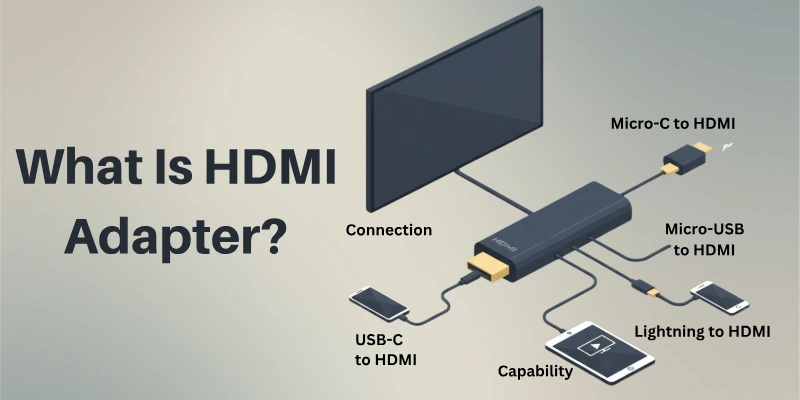
An HDMI adapter is a small device that helps you connect devices that do not have an HDMI port but still need to display video or sound on a screen or monitor.
For example:
- You can connect your laptop to a TV
- Or mobile phone to a projector
- Or camera to a big screen
Why Do We Need HDMI Adapter?
Here are some of the common situations where you need HDMI adapter:
- Laptop without HDMI port → Use USB-C to HDMI adapter
- Mobile phone with Type-C port → Use USB-C to HDMI adapter
- iPhone or iPad → Use Lightning to HDMI adapter
- Old desktop computer → Use VGA to HDMI adapter
- MacBook → Use Thunderbolt to HDMI adapter
- Laptop or PC with DisplayPort → Use DisplayPort to HDMI adapter
- Camera or DSLR with mini HDMI port → Use Mini HDMI to HDMI adapter
- Tablet or camera with micro HDMI port → Use Micro HDMI to HDMI adapter
- Old gaming console → Use AV to HDMI adapter
- Raspberry Pi → Use Micro HDMI to HDMI adapter
Types of HDMI Adapters
There are different types of HDMI adapters based on the device you use. Each type helps you connect your device to a TV, monitor, or projector when a regular HDMI cable doesn’t fit directly.
- USB-C to HDMI Adapter: This adapter is used with modern laptops, tablets, and smartphones that have a USB-C port. It helps connect the device to a screen using an HDMI cable.
- Lightning to HDMI Adapter: This type is used for iPhones and iPads. It allows you to share your screen on a bigger display like a TV.
- Thunderbolt to HDMI Adapter: This adapter is used for MacBooks and other Apple devices that have a Thunderbolt port. It works similarly to USB-C adapters but is specially made for Apple devices.
- VGA to HDMI Adapter: Older desktop computers and some laptops have a VGA port instead of HDMI. This adapter helps connect those old devices to an HDMI screen.
- DisplayPort to HDMI Adapter: Some computers have a DisplayPort instead of HDMI. This adapter helps convert the DisplayPort signal into an HDMI signal.
- Mini HDMI to HDMI Adapter: Some DSLR cameras, tablets, or camcorders have a Mini HDMI port. You can use this adapter to connect them to a TV or monitor.
- Micro HDMI to HDMI Adapter: Micro HDMI ports are found in some tablets, cameras, and Raspberry Pi devices. This adapter helps connect such devices to HDMI screens.
- AV to HDMI Adapter: This adapter is used for very old devices like DVD players or old gaming consoles that use red, white, and yellow AV cables. It helps you connect those devices to modern TVs with HDMI ports.
What You Need Before Using HDMI Adapter
Before using an HDMI adapter, you should have a few things ready. These are the basic items you need to make sure everything works smoothly.
- HDMI Adapter: Choose the right adapter for your device. For example, if you have a mobile phone, you may need a Type-C to HDMI adapter, or if you have an old computer, a VGA to HDMI adapter.
- HDMI Cable: Most adapters only allow connection. You still need an HDMI cable to connect the adapter to the TV, monitor, or projector.
- Source Device: This is the device you want to connect — it could be a laptop, phone, tablet, camera, desktop computer, etc.
- Display Device: This is the screen you want to show your content on — such as a TV, computer monitor, or projector.
- Power Supply (if needed): Some adapters, like VGA to HDMI or AV to HDMI adapters, may need an extra power source to work properly. These often come with a USB power cable.
- Supported Ports: Make sure your devices have the correct ports that match the adapter. For example, your laptop must have a USB-C port if you are using a USB-C to HDMI adapter.
How to Use HDMI Adapter – Step-by-Step
Let’s now learn how to connect your device to a TV, monitor, or projector using an HDMI adapter.
Follow these easy steps to complete the setup:
Step 1: Check Your Device’s Port
Look at the port on your device (laptop, phone, etc.) and identify what type it is. For example, if your laptop has a USB-C port, you’ll need a USB-C to HDMI adapter.
Step 2: Choose the Right HDMI Adapter
Make sure the adapter matches the port on your device and the HDMI port on your display. For example, if your laptop has a USB-C port, buy a USB-C to HDMI adapter.
Step 3: Connect the Adapter to Your Device
Plug the adapter into the port on your device. For example:
- If it’s a USB-C to HDMI adapter, plug the USB-C end into your laptop or phone.
- If it’s a VGA to HDMI adapter, plug the VGA end into your device.
Step 4: Connect the HDMI Cable
Take an HDMI cable and plug one end into the HDMI port on the adapter. Plug the other end into the HDMI port on your TV, monitor, or projector.
Step 5: Turn On Your Devices
- Turn on your device (laptop, phone, etc.).
- Turn on your display (TV, monitor, or projector).
Step 6: Select the Correct Input on Your Display
Use your TV or monitor’s remote control to select the correct HDMI input. For example:
- If you plugged the HDMI cable into HDMI 1, select HDMI 1 as the input source.
- If you plugged it into HDMI 2, select HDMI 2.
Step 7: Adjust Settings (If Needed)
Sometimes, your device might not automatically display on the screen. In that case:
- On a laptop, press the Windows key + P (for Windows) or Command + F1 (for Mac) to choose how you want the display to work (e.g., duplicate screen, extend screen, or only show on the external display).
- On a phone or tablet, go to Settings > Display > HDMI Output (this may vary depending on your device).
Troubleshooting Tips
If your display isn’t working, try these steps:
- Check Connections: Make sure the adapter, HDMI cable, and ports are properly connected.
- Restart Devices: Turn off your device and display, then turn them back on.
- Update Drivers: On your laptop or computer, update the graphics drivers.
- Try Another Cable: Sometimes, the HDMI cable might be faulty. Try using a different one.
- Check Compatibility: Ensure your adapter is compatible with your device and display.
Advantages of Using HDMI Adapters
Here are some of the major pros of HDMI adapters:
- Easy to Use: Just plug and play. No special setup or installation is needed.
- Portable: Most HDMI adapters are small and lightweight. You can easily carry them in your bag or pocket.
- Versatile: HDMI adapters work with many different devices like laptops, smartphones, tablets, TVs, monitors, and projectors.
- High-Quality Output: HDMI supports high-definition video and clear audio, so you get better display and sound.
- Cost-Effective Solution: Instead of buying a new device with an HDMI port, you can simply use an adapter and save money.
- Multi-Device Support: You can use one adapter for different devices (if ports match), making it a flexible option.
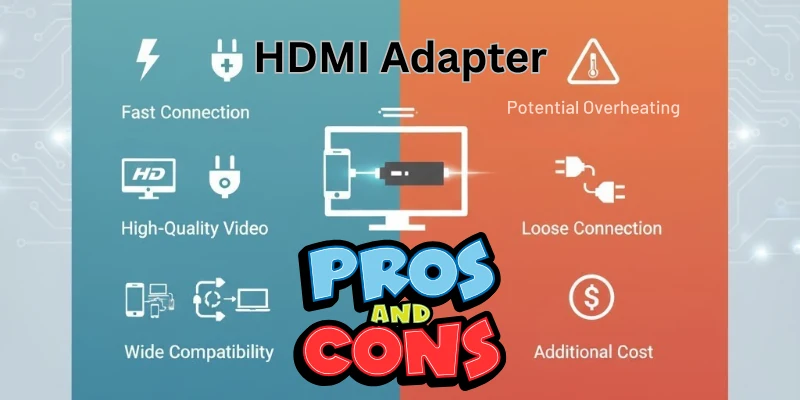
Disadvantages of Using HDMI Adapters
Here are some of the major cons of HDMI adapters:
- Extra Cost: You need to buy the adapter separately, and sometimes you also need a good HDMI cable.
- May Not Work with All Devices: Some devices don’t support HDMI output, even if the adapter fits the port.
- Quality Issues: Low-quality adapters can reduce video or audio quality and may not last long.
- Need for Power (Sometimes): Some adapters need external power to work properly, which means you’ll need a USB port or charger too.
- Bulky Setup: Using an adapter adds extra cables, which can make the setup look messy or less portable.
- Lag or Delay: In rare cases, there may be a small delay in video or audio output, especially if the adapter is poor in quality.
- Less Durable: Cheap or unbranded adapters may break easily or stop working after a few uses.
Things to Remember
Before or while using an HDMI adapter, here are some important things to keep in mind:
- Power: Some HDMI adapters need external power to work properly. Always check the instructions or look for a power input on the adapter.
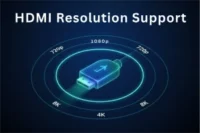
- Resolution Support: Make sure your adapter supports the resolution you want (like 720p, 1080p, or 4K). If the resolution is not supported, the display quality may be poor or not work at all.
- Audio Transmission: Most modern HDMI adapters carry both video and audio signals. However, some older or cheaper adapters may only support video. Always check the product specifications before buying.
- Cable Quality: A low-quality or damaged HDMI cable can affect performance. Always use a good-quality HDMI cable for better video and sound output.
- Device Compatibility: Not all adapters work with all devices. For example, some smartphones need specific adapters that support MHL or DisplayPort Alternate Mode. Always check whether your device supports HDMI output.
- Adapter Type Matters: Using the wrong type of adapter (e.g., trying to connect VGA to HDMI without a converter chip) may not work. Know the difference between simple adapters and active converters.
- Driver or Software (in rare cases): Most adapters are plug-and-play, but a few may need drivers or apps, especially for older systems or certain USB-based adapters.
Conclusion
In this article, we learned how to use HDMI adapter simply and step-by-step. Personally, I recommend choosing a good-quality HDMI adapter that matches your device’s port type. Always check compatibility, resolution support, and brand reliability before buying. A small investment in the right adapter can save you from bigger issues later.
Still have questions in mind? Don’t forget to check out the FAQs section below for more helpful answers!
FAQs
Here are some of the most commonly asked questions related to using HDMI adapters:
Yes, in most cases. The adapter connects your device to the HDMI cable, which then connects to the screen. The HDMI cable sends the video and audio signals to your screen. Without it, the adapter alone cannot complete the connection.
Yes. HDMI carries both video and audio signals. You don’t need a separate audio cable. It gives clear sound along with high-quality video.
No. Choose an adapter according to the port of your device. Each device has a different port type. Using the wrong adapter will not work properly.
Yes, if your TV has an HDMI input. Most modern TVs have at least one HDMI port. Check the back or side of your TV to find it.
Yes, but your phone must support video output through USB-C or lightning port. Not all phones support HDMI output. Check your phone’s specifications before buying an adapter.

- Be Respectful
- Stay Relevant
- Stay Positive
- True Feedback
- Encourage Discussion
- Avoid Spamming
- No Fake News
- Don't Copy-Paste
- No Personal Attacks
- Be Respectful
- Stay Relevant
- Stay Positive
- True Feedback
- Encourage Discussion
- Avoid Spamming
- No Fake News
- Don't Copy-Paste
- No Personal Attacks
