HDMI Output vs Input: Learn How to Record Properly
Published: 22 Sep 2025
If you are looking for how to record HDMI output or how to record HDMI input, this guide is for you. In this article, we will cover both topics in detail.
You will learn what tools you need, how to set up the connection, and how to record HDMI step by step. We will also share useful tips, common issues, and FAQs to help you understand everything easily.
What is HDMI Recording?
HDMI recording means saving the video and audio that comes through an HDMI cable. It is used when you want to record what is showing on another device, like a TV, gaming console, or camera.
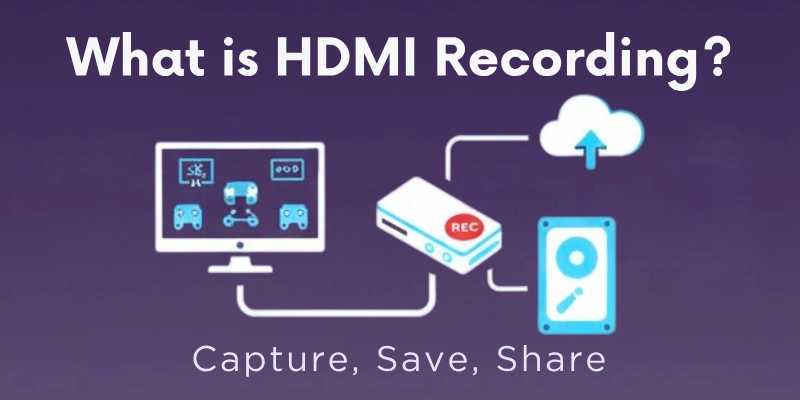
People use HDMI recording for many reasons. Some common ones are:
- To record games from a PlayStation or Xbox.
- To save live streaming videos or shows.
- To record presentations or meetings.
- To make video tutorials or lessons.
- To copy movies or videos from another device.
HDMI recording helps you keep a copy of the content so you can watch it later, upload it, or share it with others.
HDMI Output vs Input – Simple Concept
It’s important to know the difference between HDMI output and HDMI input to understand HDMI recording.
- HDMI Output means the device sends video and sound signals. For example, a laptop, gaming console, or DVD player sends the signal to a TV or monitor.
- HDMI Input means the device receives video and sound signals. For example, a TV, monitor, or capture card receives the signal from another device.
You can remember it like this:
- Output = Sending the video
- Input = Receiving the video
Both are important when you want to record HDMI. You need to know which device is giving the signal and which is receiving it to set up your recording properly.
Can You Record HDMI Output and Input?
Yes, you can record HDMI output and input — but there are some important things to know.
- Recording HDMI output is common and easy. You just need the right tools like an HDMI capture card and recording software. The device (like a laptop or gaming console) sends the video through HDMI output, and you record it using another device.
- Recording HDMI input is different. Most devices like laptops do not have HDMI input. That means they cannot receive and record video directly from another device through HDMI.
But don’t worry! You can still record HDMI input by using a capture card. The capture card works as an HDMI input device. It receives the signal from your output device (like a gaming console), and then your laptop or PC records it using special software.
So yes — you can record both output and input, but the setup depends on the type of devices you have and whether you use a capture card or not.
Step-by-Step Guide: How to Record HDMI Output
If you want to record HDMI output from a device like a laptop, gaming console, or camera — here’s an easy step-by-step guide for you.
Step 1
Choose an HDMI Capture Card:
You need an HDMI capture card. This small device helps you receive HDMI output and record it. Some popular brands are: Elgato, AVerMedia, Razer Ripsaw.
Step 2
Connect the Devices:
- Connect the HDMI output of your source device (like PlayStation or camera) to the input port of the capture card.
- Then, connect the capture card to your PC or laptop using a USB cable.
Step 3
Install Recording Software:
On your laptop or PC, install recording software like:
- OBS Studio (free and popular)
- Elgato Game Capture Software
- XSplit
This software will help you view and record the video coming through the HDMI.
Step 4
Set Up the Software:
- Open the software.
- Select the capture card as the video source.
- Adjust the video resolution and audio settings if needed.
Step 5
Start Recording:
Now, click the “Start Recording” button on your software. Whatever is coming from your HDMI output device will be recorded on your PC.
Step 6
Save the File:
After recording, stop the software and save your video file on your computer. You can now edit or share it easily.
Step-by-Step Guide: How to Record HDMI Input
Many people get confused with HDMI input recording. The truth is — most laptops or PCs don’t have HDMI input ports, so you can’t record HDMI input directly.
But you can still record it using a capture card.
Here’s how you can do it step by step:
Step 1
Get an HDMI Capture Card:
An HDMI capture card is the main tool here. It receives HDMI input from your source device and sends the video to your computer for recording.
Step 2
Connect Your Devices:
- Connect the HDMI cable from your source device (e.g., gaming console, camera, DVD player) to the input port on the capture card.
- Then, connect the capture card’s USB cable to your laptop or PC. The PC will now act like an HDMI input device using this capture card.
Step 3
You need software on your computer to view and record the HDMI input signal. Some popular options include:
- OBS Studio (Free)
- XSplit
- Elgato Game Capture
Step 4
Set Up the Software:
- Open the software.
- Select the capture card as the input source.
- Check if the video signal is showing properly on your screen.
Step 5
Start Recording:
Click on “Start Recording”. Your HDMI input will now be recorded and saved on your computer.
Step 6
Stop and Save Your Recording:
Once done, stop the recording and save the video file on your PC. Now you can use it for editing, uploading, or watching later.
Best HDMI Recording Tools
To record HDMI easily, you need two things:
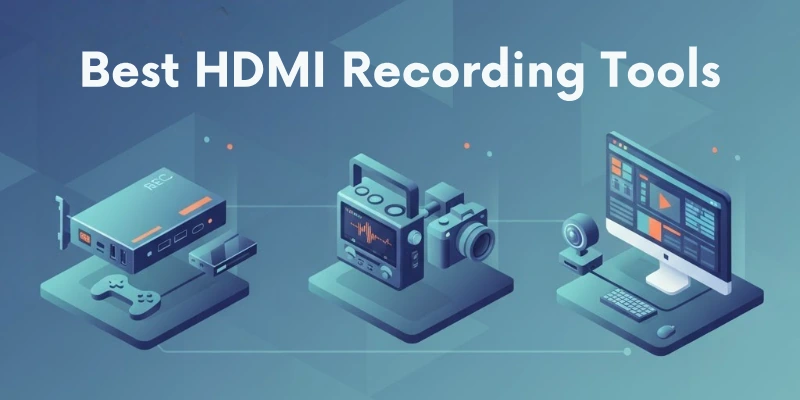
- Hardware tools (like capture cards)
- Software tools (recording apps)
Here are some of the best options:
Best Hardware Tools – HDMI Capture Cards
Give them a try:
| Tool Name | What It Does | Good For |
| Elgato HD60 S | Records high-quality video (1080p) | Gaming, streaming |
| AVerMedia Live Gamer Portable 2 Plus | Easy to use, works without PC too | Gamers and YouTubers |
| Razer Ripsaw HD | Records 1080p video and clear audio | Beginners and streamers |
| UCEC USB 2.0 Capture Card | Budget-friendly capture card | Simple home use |
Best Software Tools – Recording Software
Just give them a try:
| Software Name | What It Does | Free or Paid |
| OBS Studio | Records and streams video, very popular | Free |
| Elgato Game Capture Software | Works well with Elgato devices | Free (with Elgato) |
| XSplit Broadcaster | Easy-to-use with extra features | Free + Paid Plans |
| Bandicam | Lightweight screen recorder | Paid |
Common Issues While Recording HDMI (And How to Fix Them)
Sometimes, you may face problems while trying to record HDMI content. Don’t worry — here are the most common issues and their easy solutions:
1. HDCP (Copy Protection) Problem
HDCP (High-bandwidth Digital Content Protection) is a security feature. It blocks you from recording content from some devices like DVD players, Blu-ray players, or streaming boxes.
How to fix it?
- Use a special HDCP Stripper or Splitter to bypass protection.
- Some older monitors or TVs don’t support HDCP — try using those.
Note: This should only be done for personal use or allowed content. Don’t record anything illegal.
2. No Signal or Black Screen
You connected everything properly, but your capture software shows a black screen or says “No Signal”.
How to fix it?
- Check all cable connections — plug them in tightly.
- Make sure you selected the correct HDMI input source in your software.
- Restart your capture card and computer.
- Try changing the HDMI cable, sometimes it’s faulty.
- Make sure your source device is turned ON and working.
3. Compatibility Issues (Resolution or Refresh Rate)
Sometimes, the video signal doesn’t work because of a mismatch between your device and the capture card.
How to fix it?
- Check if your device resolution (e.g., 1080p, 720p) is supported by your capture card.
- Try lowering the output resolution from your source device.
- Also check the refresh rate (60Hz, 30Hz) — some capture cards only support specific ones.
HDMI Recording Tips and Best Practices
If you want smooth and high-quality HDMI recording, follow these helpful tips and best practices:
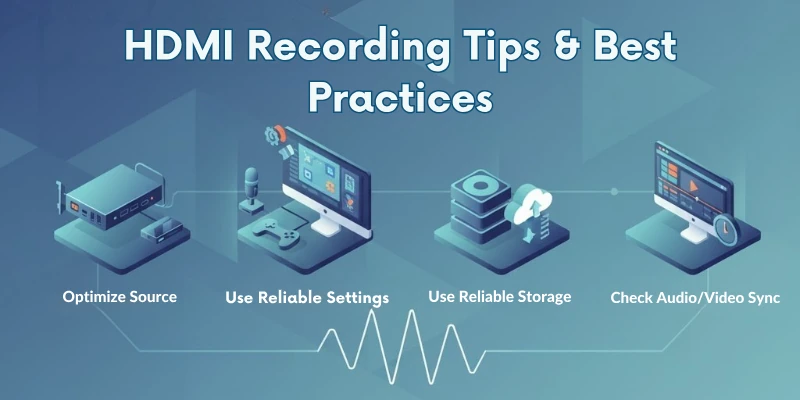
- Use a Good Quality Capture Card: Don’t use cheap or fake products. Always pick a trusted brand (like Elgato, AVerMedia, Razer, etc.).
- Use High-Speed HDMI Cables: Some old or low-quality HDMI cables cause signal loss. Use HDMI 2.0 or higher cables for better performance.
- Check Your Settings Before You Start: Make sure your recording software is using the right video source (capture card). Set the video resolution (like 1080p) and audio source properly.
- Close Unnecessary Apps: Close all extra apps or browser tabs while recording. This will make your PC run smoother and avoid video lag.
- Keep Your Device Charged or Plugged In: If you are using a laptop or camera, keep it fully charged or plugged in to avoid interruptions.
- Test Before Final Recording: Always do a test recording first. Check audio, video, and screen size before starting the real recording.
- Keep Enough Storage Space: Make sure your PC or laptop has enough free space. HD videos take a lot of space.
- Use External Microphone (Optional): For better sound quality, use an external mic instead of a built-in one.
Conclusion
In this article, we explained the difference between HDMI output and input in a very easy way. You also learned how to record HDMI output and input step by step, along with the best tools, common issues, and useful tips. Now it’s your turn — try HDMI recording with the right tools and follow the best practices to get great results.
If you still have any questions or feel confused about any step, feel free to drop your comment below — we’re happy to help!
Also, don’t forget to give a look at the FAQs — the next and last part of your guide!
FAQs
Here are some of the commonly asked questions related to “Input and Output HDMI Recording”:
Yes, but it’s not easy. Most devices need a capture card to record HDMI signals. Some TVs or monitors with built-in recording features can help, but they are limited. A few advanced software and USB recording sticks are available now this year but still not as reliable. A capture card is the best and most stable option.
Most laptops only have HDMI output ports. This means they can send video to a monitor or TV, but not receive it. Very few specialized laptops offer HDMI input, but they are rare and expensive. So generally, laptops are not made to take HDMI input.
Not directly. HDMI output and input are hardware functions and cannot be changed just by a cable. You need a capture card or converter device to receive HDMI signals on a device that only has output. There’s no simple plug-and-play solution for converting output to input.
Yes, but you need a capture card and a connected device like a PC. However, many TVs have HDCP protection, which blocks recording of protected content like movies or streaming apps. You may only be able to record free-to-air or non-protected sources.
OBS Studio (Open Broadcaster Software) is still the best free tool. It’s powerful, works with all capture cards, and supports high-quality recording. Other options include ShareX and FlashBack Express, but OBS remains the most popular.

- Be Respectful
- Stay Relevant
- Stay Positive
- True Feedback
- Encourage Discussion
- Avoid Spamming
- No Fake News
- Don't Copy-Paste
- No Personal Attacks
- Be Respectful
- Stay Relevant
- Stay Positive
- True Feedback
- Encourage Discussion
- Avoid Spamming
- No Fake News
- Don't Copy-Paste
- No Personal Attacks
