Connect 3.5 mm Jack to HDMI: Simple Setup Guide
Published: 2 Jan 2026
If you’re trying to connect your old audio device with a 3.5 mm jack to a modern display or media setup that only supports HDMI, you’re not alone. This situation is quite common, especially when using headphones, speakers, or older sound systems with TVs, projectors, or monitors.
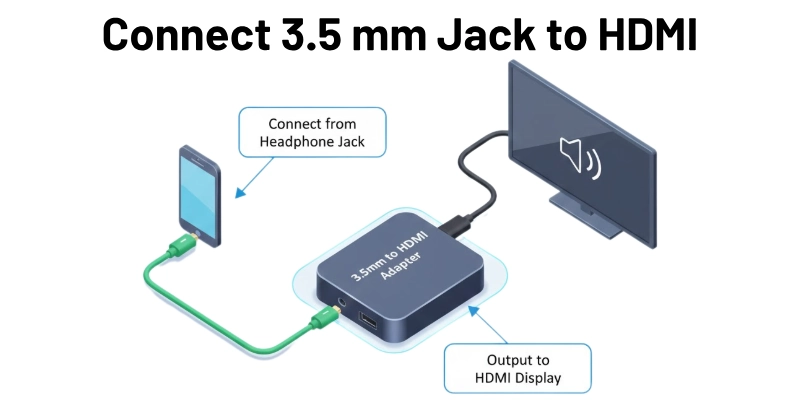
In this article, we’ll explain everything in simple steps on how to connect 3.5 mm jack to HDMI port, what you need, and how it works.
Why You Need to Convert 3.5 mm Jack to HDMI?
Devices like:
- Headphones
- Earphones
- Old speakers
- Audio systems
…often use a 3.5 mm audio jack, but many modern devices like TVs, monitors, and streaming boxes do not have a separate audio input port. They only have HDMI ports, which carry both audio and video signals together.
So, if you want to:
- Send audio from your 3.5 mm device to an HDMI-compatible display
- Combine audio and video signals into a single HDMI cable
Then you need a conversion setup.
Can You Directly Connect 3.5 mm Jack to HDMI?
No, you cannot connect a 3.5 mm jack directly to HDMI. Why?
Because:
- 3.5 mm jack carries only analog audio
- HDMI carries digital audio and video
So, the signal types and purposes are different. To make the connection work properly, you need a converter or adapter.
What You Need to Connect a 3.5 mm Jack to HDMI
You need a few important things to connect a 3.5 mm audio jack to an HDMI port. A simple cable won’t work—you need a unique device to convert the signal.
Here’s what you need:
1. 3.5 mm to HDMI Audio Converter
This is the most important device. It changes the analog audio signal from your 3.5 mm jack into a digital format that HDMI can understand.
2. 3.5 mm Audio Cable (AUX Cable)
You need this cable to connect your audio device (like headphones, speakers, mobile, etc.) to the converter. Most converters have a 3.5 mm input port.
3. HDMI Cable
This cable connects the converter to your TV, monitor, or other HDMI-supported display.
4. Power Source for the Converter
Most converters need power to work. Usually, they come with a USB cable that you can plug into a USB port or power adapter.
5. Optional (if required):
If your audio source has RCA output (Red & White cables) instead of a 3.5 mm jack, you’ll need an RCA to HDMI converter instead.
How Does 3.5 mm to HDMI Converter Work?
A 3.5 mm to HDMI converter is a small device that helps you combine your audio signal into an HDMI output.
Let’s break it down in simple words:
- The 3.5 mm jack gives analog audio (basic electrical signals).
- HDMI needs digital signals (advanced data format).
- So, the converter changes analog audio into digital format.
- Then it sends that digital signal through the HDMI output to your TV or monitor.
In some cases, converters also have a video input (like VGA or AV). This allows you to combine both video and audio into one HDMI output.
Step-by-Step Guide: How to Connect 3.5 mm Jack to HDMI
Here is the complete procedure:
Step 1: Get a Compatible 3.5 mm to HDMI Audio Converter
Buy a good-quality converter box from an electronics store or online marketplace (Amazon, etc.). Make sure it supports:
- 3.5 mm input
- HDMI output
- Power via USB (some also support AC adapters)
Step 2: Connect the 3.5 mm Jack
- Plug your 3.5 mm audio cable into the input port on the converter box.
- If your device has an AUX port, connect it using a male-to-male 3.5 mm cable.
Step 3: Connect HDMI Output
- Use an HDMI cable to connect the converter’s HDMI OUT port to your TV or display.
Step 4: Power the Converter
- Most converters need USB power.
- Connect the USB power cable to a wall adapter or a USB port on your TV.
Step 5: Select HDMI Input on TV
- On your TV or monitor, choose the HDMI port where the converter is connected.
- Now, the audio from your 3.5 mm jack device should play through your HDMI display system.
Alternative Option: Use an AV to HDMI Converter
If you don’t have a direct 3.5 mm to HDMI converter, there’s another option—you can use an AV to HDMI converter.
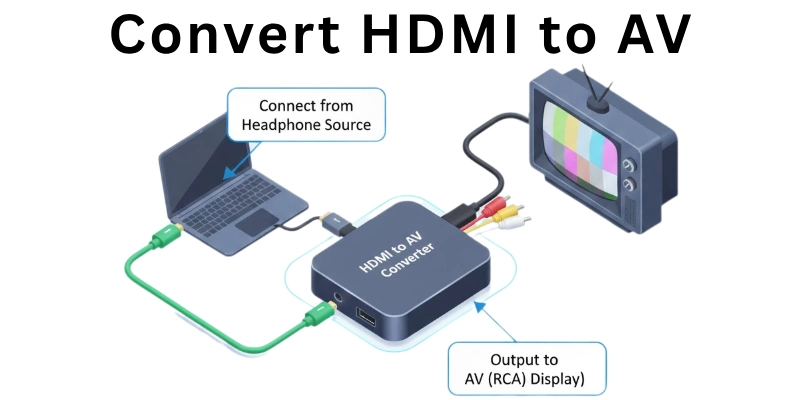
This type of converter is helpful when your audio device has RCA outputs (the red and white cables), which are also common in older devices like DVD players, stereo systems, or game consoles.
When to Use This Option:
- Your device doesn’t have a 3.5 mm jack but has RCA outputs.
- You want to connect both audio and video (for example, from a DVD player).
- You’re dealing with older audio systems.
Top Recommended 3.5 mm to HDMI Converters
If you want the best results when connecting your 3.5 mm jack to HDMI, choosing a good-quality converter is important. Here are some of the most popular and reliable options available online:
1. GANA 3.5mm Audio to HDMI Converter
- Converts analog audio into HDMI output
- Supports full HD 1080p resolution
- Easy plug-and-play setup
- Comes with USB power cable
2. Koopman 3.5mm to HDMI Adapter
- Good for combining 3.5 mm audio and VGA video to HDMI
- Ideal for connecting laptops or PCs to TVs
- Includes audio cable and USB power cable
- Supports 1080p HD output
3. AMANKA 3.5mm AUX + VGA to HDMI Converter
- Works with devices that have VGA and 3.5 mm ports
- Supports full HD resolution (1080p)
- Simple setup, USB powered
- Good for projectors, old laptops, and desktops
4. Tengchi VGA + Audio to HDMI Adapter
- Connects VGA and 3.5 mm audio devices to HDMI displays
- Comes with audio cable and power cable
- Supports HDMI audio and video output
- Works great for presentations and home theater setups
5. RuiPuo 3.5 mm Stereo Audio to HDMI Converter
- Focuses on high-quality audio conversion
- Durable and compact design
- Great for basic audio-to-HDMI needs
- Supports multiple devices like MP3 players, laptops, etc.
Final Words
In this article, we explained in simple terms how to connect a 3.5 mm jack to HDMI using the right tools. With a proper converter and cable setup, you can easily enjoy audio from older devices on modern HDMI systems. Just follow the steps carefully and choose a quality converter for the best results.
Have questions? Feel free to ask in the comments!
FAQs
Here are some of the most commonly asked questions related to 3.5 mm jack to HDMI:
No, you cannot use just a simple cable. A 3.5 mm jack gives analog audio signals, while HDMI accepts only digital signals. Both signals are different and not directly compatible. That’s why a converter box is necessary.
No, this setup sends only audio signals, not video. A 3.5 mm jack does not carry video data, only sound. If you want to send both video and audio, you need a converter that accepts video input too. Some converters support VGA or RCA video input. But standard 3.5 mm converters are for audio only.
Yes, it is possible if your phone still has a working 3.5 mm headphone jack. But most modern phones no longer support this feature. Also, you will still need a proper 3.5 mm to HDMI converter box. A direct cable won’t work by itself. Don’t forget to power the converter as well.
No, you don’t need to download anything. These converters are plug-and-play, meaning they work automatically. Just connect all cables in the correct ports and power the device. There is no need for extra settings or drivers. It starts working once properly connected.
First, check that the converter box is getting power. Make sure all cables are tightly connected. Also, check your TV’s settings and select the correct HDMI input. Sometimes, the volume on your source device might be too low or muted. Try reconnecting and testing with another cable if needed.



- Be Respectful
- Stay Relevant
- Stay Positive
- True Feedback
- Encourage Discussion
- Avoid Spamming
- No Fake News
- Don't Copy-Paste
- No Personal Attacks
- Be Respectful
- Stay Relevant
- Stay Positive
- True Feedback
- Encourage Discussion
- Avoid Spamming
- No Fake News
- Don't Copy-Paste
- No Personal Attacks
