Dolby Atmos and HDMI: Easy Sound Setup
Published: 21 Dec 2025
Dolby Atmos is a special sound technology that makes audio feel real and all around you, even from above. HDMI is a cable that connects devices like TVs, speakers, and gaming consoles to send both video and sound. To get the best Dolby Atmos experience, you need the right HDMI connection.
In this guide, we will explain how Dolby Atmos works with HDMI, the difference between HDMI ARC and eARC, which devices support it, how to set it up, and how to fix common problems.
How Dolby Atmos Works Over HDMI?
Here, we will explain step-by-step how Dolby Atmos works over HDMI and which HDMI version provides the best sound quality.
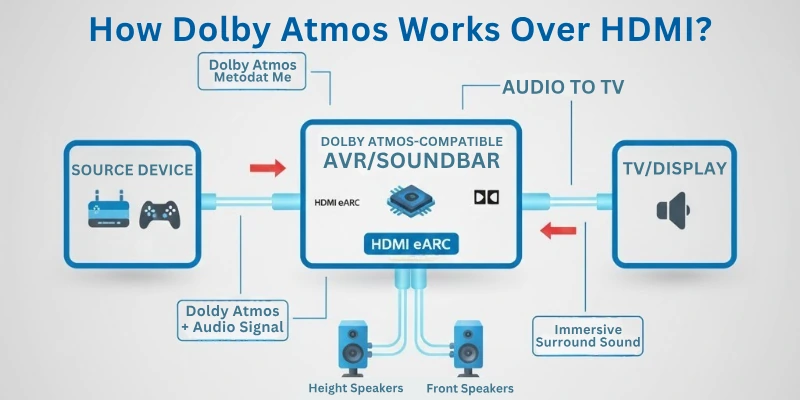
Step 1: Playing a Dolby Atmos Audio Source
- To experience Dolby Atmos, you need a source that supports it.
- This could be a movie, game, or music track from a streaming service (Netflix, Disney+), Blu-ray player, gaming console, or TV.
Step 2: Sending Dolby Atmos Audio via HDMI
- When you start playing a Dolby Atmos-supported movie or game, the audio is sent from your device through an HDMI cable.
- The HDMI cable carries both video and audio signals to your sound system.
Step 3: Processing Dolby Atmos Audio
- Your soundbar, AV receiver, or home theater system receives the Dolby Atmos signal through HDMI.
- It processes the sound to create a 3D effect, making it feel like audio is coming from multiple directions, including above.
Step 4: Understanding How HDMI Handles Dolby Atmos
There are two ways HDMI can transmit Dolby Atmos:
Bitstream (Recommended for Dolby Atmos)
- The audio is sent in a compressed format through HDMI.
- The sound system (AV receiver or soundbar) decodes it for the best 3D sound experience.
PCM (Not Ideal for Dolby Atmos)
- The source device (TV, gaming console) decodes the audio before sending it.
- This may not always support Dolby Atmos properly.
Step 5: Choosing Between HDMI ARC and HDMI eARC
Dolby Atmos works differently based on whether you’re using HDMI ARC or HDMI eARC:
| Feature | HDMI ARC | HDMI eARC |
| Dolby Atmos Support | Compressed (Dolby Digital Plus) | Uncompressed (Dolby TrueHD) |
| Bandwidth | Limited | High |
| Best For | Streaming services | Blu-ray, gaming, high-end audio |
| Sound Quality | Good | Best |
- HDMI ARC: Supports Dolby Atmos, but only in a compressed format (Dolby Digital Plus).
- HDMI eARC: Supports lossless Dolby Atmos (Dolby TrueHD), which offers the highest sound quality.
(The difference will be covered more clearly in the next part.)
Step 6: Enjoying Dolby Atmos Sound
- Once the sound system processes the audio, it plays the 3D surround sound through its speakers.
- You will hear sounds moving around you, just like in a movie theater.
HDMI ARC vs. HDMI eARC for Dolby Atmos
In the previous section, we discussed how Dolby Atmos works over HDMI.
Now, let’s focus on the difference between HDMI ARC and HDMI eARC so you can understand which one is better for Dolby Atmos.
1. Bandwidth (Data Capacity)
- HDMI ARC has limited bandwidth, meaning it can only send compressed Dolby Atmos audio.
- HDMI eARC has a much higher bandwidth, allowing it to transmit uncompressed, high-quality Dolby Atmos audio.
2. Sound Quality
- ARC supports Dolby Atmos in a compressed format (Dolby Digital Plus), which still sounds good but not as rich and detailed.
- eARC supports lossless Dolby Atmos (Dolby TrueHD), delivering the best possible sound clarity and depth.
3. Audio Delay & Sync
- ARC can sometimes cause audio delays or sync issues, especially with complex sound formats.
- eARC has better audio synchronization, reducing lag between sound and visuals.
4. Compatibility
- ARC is supported by most TVs and sound systems released in the past decade.
- eARC is only available on newer TVs and sound systems that support HDMI 2.1.
5. Additional Audio Features
- ARC only supports basic surround sound formats like Dolby Digital and DTS.
- eARC supports advanced surround formats, including Dolby TrueHD, DTS-HD Master Audio, and DTS:X, giving a cinematic experience.
Which One Should You Choose?
Quick overview:
| Feature | HDMI ARC | HDMI eARC |
| Dolby Atmos Support | Compressed (Dolby Digital Plus) | Uncompressed (Dolby TrueHD) |
| Audio Quality | Good | Best |
| Bandwidth | Low | High |
| Audio Sync | Can have delays | Improved sync |
| Compatibility | Older & newer TVs | Only on newer TVs with HDMI 2.1 |
How to Check If Your TV and Sound System Support eARC?
The steps are listed below:
1. Check HDMI Ports
- Look at the HDMI ports on your TV and sound system.
- If labeled “HDMI eARC”, it supports eARC.
2. Check TV Settings
- Go to Settings > Sound/Audio.
- Look for “HDMI eARC Mode”.
3. Check Online Specifications
- Search your TV or sound system model on the manufacturer’s website.
- Look under Audio or HDMI section for eARC support.
4. Test with a Dolby Atmos Source
- Play a Dolby Atmos movie on a compatible device.
- If your sound system shows “Dolby Atmos” or “Dolby TrueHD”, eARC is working.
If both your TV and sound system support eARC, you get the best Dolby Atmos sound!
Devices That Support Dolby Atmos Over HDMI
Here are some major ones:
1. AV Receivers & Soundbars
- Many AV receivers and soundbars support Dolby Atmos over HDMI.
- Look for models with HDMI eARC for the best sound quality.
2. Gaming Consoles & Streaming Devices
- Xbox Series X/S, PlayStation 5, and some PCs support Dolby Atmos.
- Streaming devices like Apple TV 4K, NVIDIA Shield, and Fire TV Stick 4K also support it.
3. TVs & Blu-ray Players
- Newer 4K and OLED TVs support Dolby Atmos over HDMI eARC.
- Ultra HD Blu-ray players can send Dolby Atmos audio to sound systems.
Setting Up Dolby Atmos Over HDMI
Just two steps to follow up:
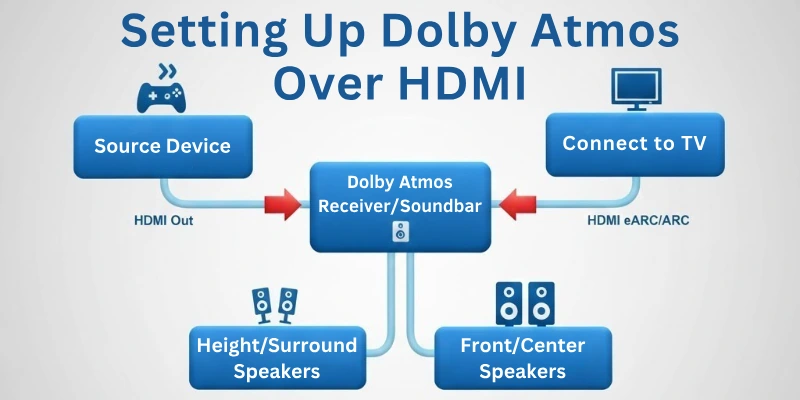
1. Enable Dolby Atmos in Sound Settings
- Go to TV or sound system settings.
- Find Audio Output and select Dolby Atmos or Bitstream.
2. Check HDMI Cables for Compatibility
- HDMI 2.0 supports compressed Dolby Atmos.
- HDMI 2.1 is needed for uncompressed Dolby Atmos with the best quality.
Common Issues & Fixes
Some of the major issues with their easy fixes:
1. No Dolby Atmos Sound Output
- Ensure both TV and sound system support Dolby Atmos.
- Check if HDMI eARC is enabled in settings.
2. Lip Sync Issues with HDMI eARC
- Adjust AV Sync settings in your TV or receiver.
- Use a high-speed HDMI cable for better performance.
3. Incorrect Audio Settings Affecting Dolby Atmos Quality
- Set audio output to Bitstream instead of PCM.
- Enable Passthrough Mode in streaming devices.
Conclusion
HDMI is the best way to enjoy Dolby Atmos sound. With HDMI eARC, you get clear, high-quality audio without losing details. To set up Dolby Atmos properly, make sure your TV, sound system, and HDMI cables support it.
If you run into any problems, check your sound settings and make sure you’re using the correct HDMI cable. A proper setup can greatly enhance your listening experience, making movies, games, and music feel much more lifelike.
FAQs
Here are some of the most commonly asked questions related to Dolby Atmos and HDMI:
No, but it gives much better sound quality. HDMI ARC can send Dolby Atmos, but it uses a lower-quality format. If you want the best sound with all details, HDMI eARC is the better choice.
Not all HDMI cables support Dolby Atmos properly. HDMI 2.0 cables can send Dolby Atmos, but they may not give the best sound. For the best quality, it is better to use an HDMI 2.1 cable.
Your TV, sound system, or device may not fully support Dolby Atmos. Check if HDMI eARC is turned on in your settings and make sure you have chosen the correct sound format. Also, check if your streaming device or Blu-ray player can send Dolby Atmos sound.
ARC can send Dolby Atmos, but the sound is not as clear because it is compressed. eARC can send Dolby Atmos without reducing the sound quality. If both your TV and sound system have eARC, you will get the best and clearest sound.
Some TVs have built-in Dolby Atmos, but the sound is not very powerful. A soundbar or an AV receiver with extra speakers will give you a much better experience. Without these, you may not feel the full effect of Dolby Atmos.





- Be Respectful
- Stay Relevant
- Stay Positive
- True Feedback
- Encourage Discussion
- Avoid Spamming
- No Fake News
- Don't Copy-Paste
- No Personal Attacks
- Be Respectful
- Stay Relevant
- Stay Positive
- True Feedback
- Encourage Discussion
- Avoid Spamming
- No Fake News
- Don't Copy-Paste
- No Personal Attacks
