Difference Between HDMI Switch & HDMI Splitter!
Published: 18 Sep 2025
Hey friends!
I know many of you know what is HDMI switch and what is HDMI splitter, but still, many of you get confused about what exactly makes them different. No worries — this article will help you understand everything clearly.
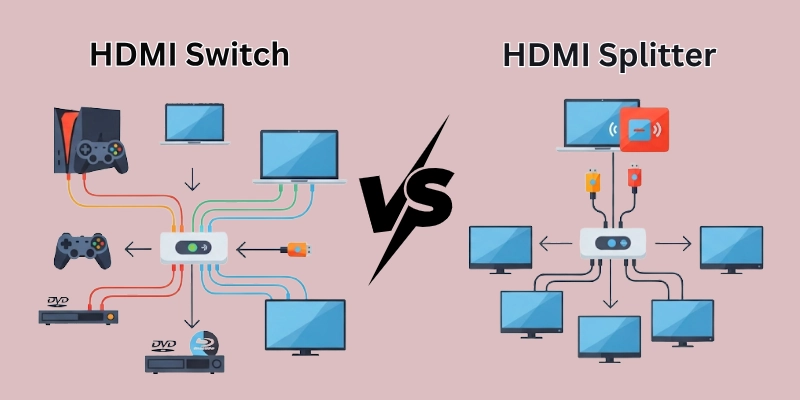
Here, we will talk in detail about the difference between HDMI switch and HDMI splitter in a very simple way.
So, let’s get started!
HDMI Switch vs HDMI Splitter: Key Differences
Guys, HDMI switches and splitters are two different HDMI accessories used for various purposes. So here I have listed major comparisons between HDMI splitter and switcher:
- Basic Purpose
- Connection Direction
- Device Setup
- Control Requirement
- Power Dependency
- Output Display Behavior
- Signal Strength & Quality
- Installation & Setup
- Price Factor
- Audio/Video Format Support
- Best Use Case
Let us discover HDMI switch vs HDMI splitter in detail.
1. Basic Purpose
Basic purpose means why a device is used or its main job. It helps us understand the primary function of any tool or device.
HDMI Switch
Here is the basic purpose of an HDMI Switch:
- An HDMI switch is used when you have many input devices (like a gaming console, laptop, or set-top box), but only one screen or TV.
- It helps you choose one device at a time to show on your screen.
- You can easily switch between devices without unplugging cables again and again.
HDMI Splitter
Here is the basic purpose of an HDMI Splitter:
- An HDMI splitter is used when you have only one input device (like a laptop or DVD player), but you want to show the same content on multiple screens.
- It helps you duplicate one signal and send it to two or more TVs or monitors at the same time.
What Makes Both Different?
Both devices work with HDMI cables, but their job are opposite.
- Switch helps you choose from many devices for one screen.
- Splitter helps you show one device on many screens.
2. Connection Direction
Connection direction means how the devices are connected — whether many devices connect to one screen or one device connects to many screens. It shows the flow of signal between input and output.
HDMI Switch
Connection Direction of an HDMI Switch:
- An HDMI switch connects multiple input devices (like a PC, gaming console, or DVD player) to one output screen (like a TV or monitor).
- So, the direction is: Many inputs → One output.
HDMI Splitter
Connection Direction of an HDMI Splitter:
- An HDMI splitter connects one input device (like a laptop or camera) to multiple output screens.
- So, the direction is: One input → Many outputs.
Why This Difference Matters?
This difference is important because it tells you which device you need.
- If you have many devices and one screen, choose a switch.
- If you have one device and want to show it on many screens, choose a splitter.
3. Device Setup
Device setup means how you connect your devices with the switch or splitter. It helps you understand which device goes where and how the whole system looks when connected.
HDMI Switch
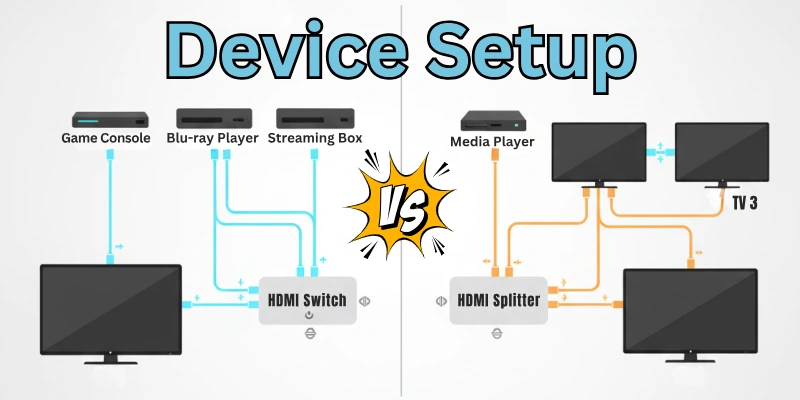
In an HDMI switch setup:
- You connect many input devices like a laptop, gaming console, or set-top box to the input ports of the switch.
- Then, you connect one screen (TV or monitor) to the output port of the switch.
So, you can easily switch between devices without changing cables.
HDMI Splitter
In an HDMI splitter setup:
- You connect one input device like a DVD player or laptop to the input port of the splitter.
- Then, you connect two or more screens (TVs or monitors) to the output ports of the splitter.
So, the same content plays on all screens at once.
How Setup Affects Use?
The setup shows how switch and splitter are used differently.
- If you often use different devices on one screen, a switch setup is best.
- If you want to share one device’s content on many screens, go for a splitter setup.
4. Control Requirement
Control requirement means whether you need to press a button or use a remote to manage the device. It shows how you change the input or output during use.
HDMI Switch
An HDMI switch needs control to work.
- You have to select which input device you want to see on the screen.
- This can be done by pressing a button on the switch or by using a remote control.
So, you have full control to choose the active device anytime.
HDMI Splitter
An HDMI splitter does not need any control.
- It automatically sends the signal from one input device to all connected screens.
- You don’t need to press any button or use a remote.
It works on its own once you plug everything in.
Why is This Control Difference Important?
This difference helps you decide based on your need:
- If you want to change devices manually or remotely, go for a switch.
- If you want automatic signal sharing on many screens, a splitter is easier.
5. Power Dependency
Power dependency means whether the device needs extra electricity (external power) to work properly or not. Some devices work without power, while some need it for better performance.
HDMI Switch
HDMI switches come in two types:
- Passive (no power needed) – Works directly from HDMI signal, but may not support all features.
- Active (needs power) – Comes with a power adapter and offers better performance and support for more devices.
So, some switches need power, and some don’t — it depends on the model.
HDMI Splitter
Most HDMI splitters need external power to work properly.
- Without power, the signal may become weak or may not reach all screens.
- A powered splitter gives a strong and stable signal to multiple screens.
Why Power Matters Here?
Give it a look:
- If you want simple setup without power cables, a passive switch may work.
- But if you need better quality and stable performance, powered devices (especially splitters) are a better choice.
6. Output Display Behavior
Output display behavior means how the content appears on your screen(s) after the signal passes through a switch or splitter. It shows how many screens show content and from which device.
HDMI Switch
With an HDMI switch:
- Only one input device can be displayed on the screen at one time.
- You choose which device to show (like PC, console, or DVD player).
- So, the screen will show only the selected device’s content.
HDMI Splitter
With an HDMI splitter:
- The same content from one device appears on all connected screens at the same time.
- No need to switch or select.
- Every screen shows the same video/audio together.
Why It’s Important to Know This?
Here is the reason:
- If you want to switch between devices on one screen, a switch is perfect.
- If you want to share one device’s content on multiple screens, a splitter is the right choice.
7. Signal Strength & Quality
Signal strength and quality mean how strong and clear the video/audio signal remains when passed through a switch or splitter. It affects the final display on your screen.
HDMI Switch
Signal Strength & Quality with HDMI Switch:
- HDMI switches usually keep the signal strong and clear.
- Most switches do not affect video or audio quality, especially if cables are not too long.
- Active switches (with power) give better and more stable quality.
HDMI Splitter
Signal Strength & Quality with HDMI Splitter:
- HDMI splitters can sometimes weaken the signal, especially with long cables or many output screens.
- You may face issues like signal loss or flickering screens if the splitter is low-quality or not powered.
- Powered splitters help maintain better quality and strong signals for all screens.
Why This Comparison Matters?
Here is the reason:
- If you want stable and strong quality, a powered switch or splitter is better.
- Always use good quality cables and hardware to avoid signal problems.
8. Installation & Setup
Installation and setup mean how easy or difficult it is to connect and start using an HDMI switch or splitter. It also includes things like cables, power, and ports.
HDMI Switch
Installation & Setup of HDMI Switch:
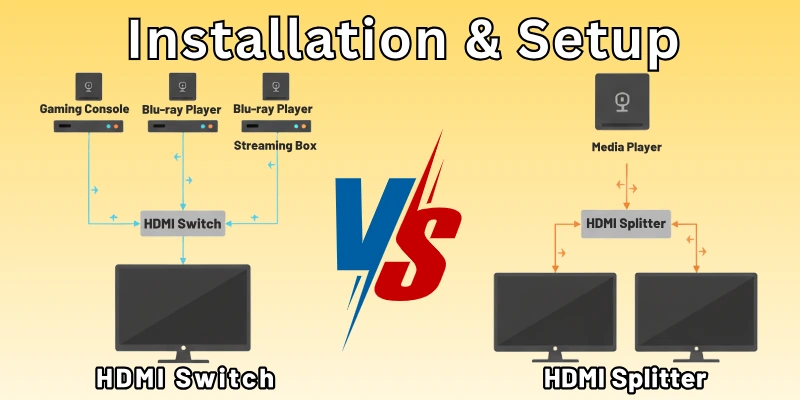
- HDMI switches are mostly plug-and-play.
- Just connect your input devices (like PC, console, DVD) and one output display (TV or monitor).
- Some switches also come with remote control, but setup stays very simple.
- Power is optional, depending on the type of switch.
HDMI Splitter
Installation & Setup of HDMI Splitter:
- HDMI splitters may require a bit more setup.
- You connect one input device and multiple output screens.
- Most splitters need external power, so you have to plug in a power adapter.
- Also, for best results, use equal cable lengths for each screen.
Why Setup Difference is Important?
Here is the answer:
- If you want a simple and fast setup, go with a switch.
- If you’re connecting many screens, a splitter setup needs more attention to cables and power.
9. Price Factor
Price factor means how much money you need to spend when buying an HDMI switch or splitter. It depends on the type, features, and quality of the device.
HDMI Switch
Price Factor of HDMI Switch:
- HDMI switches are usually cheaper than splitters.
- Basic manual switches are very affordable.
- Advanced switches with remote control or more ports may cost a bit more.
- But overall, switches are budget-friendly.
HDMI Splitter
Price Factor of HDMI Splitter:
- HDMI splitters are a little more expensive, especially powered ones.
- The price increases if the splitter has multiple output ports or supports 4K resolution.
- Still, prices vary based on brand and quality.
Why Price Comparison Matters?
Here is your answer:
- If you need a low-cost solution for switching between devices, go for a switch.
- If you want to share one device’s screen on many TVs, then a splitter is worth the extra cost.
10. Audio/Video Format Support
Audio/Video format support means which picture and sound quality formats your HDMI device can handle — like 4K video, HDR, Dolby Audio, DTS, etc.
HDMI Switch
Format Support in HDMI Switch:
- Most HDMI switches support Full HD (1080p) and many also support 4K and HDR.
- Good quality switches also support Dolby Audio and surround sound systems.
- Some cheaper switches may not support advanced formats, so always check before buying.
HDMI Splitter
Format Support in HDMI Splitter:
- HDMI splitters also support HD, 4K, and HDR, but it depends on the quality of the splitter.
- To get better audio and video output on all screens, choose a splitter that supports Dolby, DTS, or high-quality video formats.
- Low-quality splitters may downgrade the format or cause signal loss.
Why Format Support is Important?
Here is the reason:
- If you’re using 4K TV or soundbars, you must choose a switch or splitter that supports these formats.
- Always match your device formats with your HDMI accessory to get the best experience.
11. Best Use Case
Best use case means when and where you should use a switch or a splitter, depending on your setup and need.
HDMI Switch
Here is when to use HDMI switches:
- Home setup with many devices like gaming console, laptop, and Blu-ray player — all connected to one TV or monitor.
- Perfect when you want to switch between devices easily.
HDMI Splitter
Here is when to use HDMI splitters:
- Shops, offices, events, or presentations, where one device needs to show content on multiple screens at the same time.
- Best for multi-display setups like digital signage or display boards.
Why This Point is Useful?
Here is the reason:
- It helps you decide which one suits your needs better.
- Choose a switch if you want device control or a splitter if you want screen sharing.
HDMI Switch/Splitter Combo – Is It Available?
Yes, some devices work as both an HDMI switch and HDMI splitter. These are called combo devices.
What does this combo do?
- It can take multiple input devices (like a switch).
- It can also send a signal to multiple screens (like a splitter).
- So, it does both switching and splitting together.
Is it common
- No, this combo is not very common.
- Most people use a separate switch or splitter based on need.
- Combo devices are usually more expensive.
Is it a good choice
- If you need both features in one place, then yes — you can try a combo.
- But make sure it supports your screen resolution, sound format, and HDMI version.
Any downsides
- These devices may be hard to find.
- Some low-quality combo models don’t work well.
- They may weaken signal quality or cause lag issues.
Final Tip:
- If you only need one feature, it’s better to buy a dedicated switch or splitter.
- Use the combo only if you are sure you need both options in one device.
Conclusion
So, guys, the confusion between HDMI switch vs HDMI splitter is now clear. You’ve learned their differences, uses, and features in simple words. As per my recommendation, go for a switch if you keep changing devices on one screen. But for multiple screens from one source, splitter is best.
And yes, don’t forget to check the last FAQs — they will help you even more.
FAQs
Here are some of the confusing questions that can pop in your mind regarding HDMI Switch and HDMI Splitter:
No, HDMI switch and splitter are not the same. A switch connects many devices to one screen. A splitter connects one device to many screens. They both work in opposite directions. So, their purpose is totally different.
It depends on your need. If you have one screen and many devices, use a switch. If you have one device and want to show it on multiple screens, use a splitter. Both are good but used in different situations.
Yes, you can use both in one setup. First, use a switch to select a device. Then connect a splitter to show it on multiple screens. But it may need extra power and quality cables. Always check compatibility before setting up.
No, both are budget-friendly. Prices depend on the brand, features, and quality. Switches are usually cheaper than splitters. But for 4K or large setups, cost may increase a bit.
Sometimes yes, both look like small boxes with HDMI ports. But their ports are arranged differently. A switch has more input ports and one output, while a splitter has one input and many output ports. Always check the label before use.
No, they are made for opposite tasks. A switch connects many devices to one screen, while a splitter connects one device to many screens. You can’t replace one with the other. So, always choose the right tool based on your setup.

- Be Respectful
- Stay Relevant
- Stay Positive
- True Feedback
- Encourage Discussion
- Avoid Spamming
- No Fake News
- Don't Copy-Paste
- No Personal Attacks
- Be Respectful
- Stay Relevant
- Stay Positive
- True Feedback
- Encourage Discussion
- Avoid Spamming
- No Fake News
- Don't Copy-Paste
- No Personal Attacks
