What is HDMI Resolution Support: Compatibility Guide for 4K, 8K & Gaming
Published: 2 Feb 2026
Confused about why your TV, monitor, or laptop isn’t showing the resolution you expected through HDMI? Many users struggle with screen quality issues simply because they don’t understand HDMI Resolution Support and how compatibility works between devices.
Don’t worry, this easy compatibility guide will clearly explain which HDMI versions support which resolutions, how cables affect display quality, and how to check if your devices are fully compatible, so you can enjoy the best possible picture without technical headaches.
What Is HDMI Resolution Support?
HDMI Resolution Support refers to the maximum screen resolution and display quality that an HDMI connection can handle between two devices, such as a laptop and a monitor or a gaming console and a TV. It determines how clear, sharp, and detailed the image appears on your screen when using an HDMI cable.
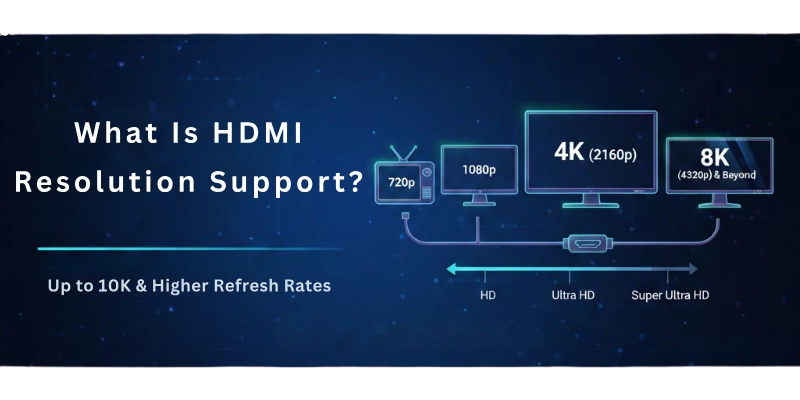
In simple terms, HDMI resolution support depends on three main things: the HDMI version used by your device, the HDMI cable type, and the resolution capability of the display itself.
If any one of these components does not support a higher resolution, the output will automatically drop to a lower level. This is why some devices fail to show 4K or 8K resolution even when the screen supports it.
HDMI resolution support helps you avoid compatibility issues, choose the right HDMI cable, and ensure your devices deliver the best possible visual performance.
Common HDMI Resolutions Explained
To better understand HDMI Resolution Support, it’s important to know the most common screen resolutions used today and where they are typically found. Each resolution level affects image clarity, sharpness, and overall viewing experience.
1. 720p (HD)
720p resolution is considered basic high-definition and is mostly used in older TVs, small displays, and low-bandwidth video streaming. While it works with almost all HDMI versions, it offers limited detail compared to modern standards.
2. 1080p (Full HD)
1080p is one of the most widely supported HDMI resolutions. It delivers clear and sharp visuals and is commonly used on TVs, monitors, laptops, and gaming consoles. Almost every HDMI version fully supports 1080p without any compatibility issues.
3. 1440p (QHD)
1440p provides higher clarity than Full HD and is popular among PC users and gamers. HDMI can support this resolution, but compatibility depends on the HDMI version and the display’s refresh rate.
4. 4K (Ultra HD)
4K resolution offers four times more detail than 1080p and is widely used in modern TVs, streaming devices, and gaming consoles. Full 4K support usually requires HDMI 2.0 or higher, especially for smoother motion and higher refresh rates.
5. 8K (Ultra HD)
8K is the latest and highest resolution currently supported by HDMI technology. It delivers extremely sharp visuals but requires HDMI 2.1 and compatible devices to work properly.
HDMI Versions and Their Supported Resolutions
Not all HDMI ports support the same resolutions. HDMI Resolution Support largely depends on the HDMI version available on your device. Each new HDMI version increases bandwidth, allowing higher resolutions and better performance.
1. HDMI 1.4
HDMI 1.4 supports resolutions up to 1080p at higher refresh rates and can handle 4K resolution at limited frame rates. It is commonly found on older TVs, monitors, and laptops. While it works for basic 4K video playback, it is not ideal for smooth motion or gaming.
2. HDMI 2.0
HDMI 2.0 significantly improves resolution support by allowing full 4K output with smoother performance. This version is widely used in modern TVs, streaming devices, and gaming consoles. It offers better compatibility for high-quality video and everyday use.
3. HDMI 2.1
HDMI 2.1 is the most advanced version and provides the highest level of HDMI resolution support. It supports 8K resolution, higher refresh rates, and advanced display features. This version is ideal for next-generation gaming, high-end home theaters, and future-proof setups.
4. HDMI 2.2 (Newest Version)
HDMI 2.2 is the newest version, announced in 2025. It supports very high resolutions like 10K and allows very smooth video without compression. It needs new Ultra96 HDMI cables and is mainly made for future technologies like AR, VR, and professional displays. For most users, HDMI 2.1 is still more than enough.
HDMI Cable Types and Resolution Compatibility
The HDMI cable you use also affects HDMI Resolution Support. Even if your TV or device supports high resolution, a wrong cable can limit the display quality.
- Standard HDMI Cable: This cable supports basic resolutions like 720p and 1080p. It is mostly used with older TVs and devices and is not suitable for 4K or higher resolutions.
- High-Speed HDMI Cable: High-Speed HDMI cables support Full HD and 4K resolution at lower refresh rates. They are commonly used for TVs, monitors, and streaming devices.
- Premium High-Speed HDMI Cable: These cables are designed for smooth 4K performance. They are tested for better quality and less signal loss, making them a good choice for modern TVs and consoles.
- Ultra High-Speed HDMI Cable: Ultra High-Speed HDMI cables support the highest HDMI resolution support, including 8K and future display standards. They are required for HDMI 2.1 and HDMI 2.2 features and are best for gaming, high-end home theaters, and future-proof setups.
Does Cable Length Matter?
Yes. Very long HDMI cables can reduce signal quality, which may lower resolution or cause screen flickering. Short, high-quality cables work best for high resolutions.
Refresh Rate and HDMI Resolution Support
Refresh rate means how many times your screen updates the image every second. It is measured in Hertz (Hz). Refresh rate is important because it affects how smooth the video or game looks. HDMI Resolution Support depends on both resolution and refresh rate.
Common Refresh Rates Explained
A refresh rate of 60Hz is standard and works well for watching videos and normal computer use. Higher refresh rates like 120Hz or 144Hz make motion smoother, which is very useful for gaming and fast-moving content.
Resolution and Refresh Rate Together
Higher resolutions need more data to be sent through HDMI. For example, 1080p at 60Hz works on almost all HDMI versions, but 4K at 120Hz needs HDMI 2.1 or higher and a compatible cable.
Why Refresh Rate Matters
If your HDMI version or cable does not support a high refresh rate, the screen may look less smooth or the resolution may drop automatically. This is common in gaming and high-quality video playback.
Device Compatibility Factors
Even with the right HDMI cable, HDMI Resolution Support also depends on the devices you are connecting. All connected devices must support the same resolution to work properly.
TV and Monitor Support: Your TV or monitor has a maximum resolution it can display. If the screen only supports 1080p, it cannot show 4K, even if the HDMI cable and device support it.
Graphics Card and GPU Limits: The graphics card in your PC or laptop controls how much resolution can be sent through HDMI. Older GPUs may not support high resolutions like 4K or 8K.
Laptop, PC, and Console Output: Different devices have different HDMI output limits. Gaming consoles, streaming devices, and laptops may limit resolution based on their hardware and HDMI version.
Operating System Settings: Sometimes the resolution problem is just a setting issue. Windows, macOS, and other systems allow you to change display resolution manually.
How to Check HDMI Resolution Support
To make sure your devices show the best picture, you need to check what resolutions your HDMI connection supports. Here’s how:
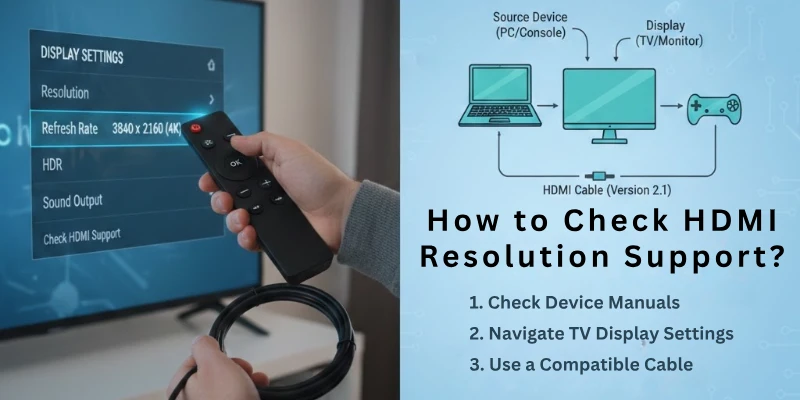
Check the HDMI Version on Your Device: Look at the specifications of your TV, monitor, laptop, or gaming console to find the HDMI version. This tells you the maximum resolution and refresh rate your device can handle.
Check Supported Resolution on Windows
- Right-click on the desktop and select Display Settings.
- Scroll down to Display Resolution.
- Choose the highest available resolution supported by your monitor and HDMI connection.
Check Supported Resolution on macOS
- Go to System Settings → Displays.
- Click Display Settings and see the Resolution options.
- Select the highest resolution supported by your screen.
Check TV or Monitor Menu: Most modern TVs and monitors have an on-screen menu where you can see supported resolutions and refresh rates. Check the input settings for your HDMI port.
Common HDMI Resolution Problems and Fixes
Sometimes HDMI doesn’t show the right resolution. Here’s why and how to fix it:
- Screen not full resolution → Check HDMI version and cable.
- Flickering or black screen → Try a shorter or better-quality cable.
- Wrong refresh rate → Adjust display settings on your device.
- Device limits → Make sure your TV, monitor, or GPU supports the resolution.
Simple checks usually fix most HDMI problems quickly.
HDMI Resolution Support for Gaming and Streaming
For gaming and streaming, using the right HDMI version and cable is important:
- Gaming Consoles: PS5, Xbox, and high-end PCs need HDMI 2.1 for 4K@120Hz or 8K.
- Streaming Devices: Most support 4K; use High-Speed or Premium HDMI cables for best quality.
- Smooth Motion: High refresh rates prevent lag and make games and videos look better.
Choosing the right HDMI setup ensures the best picture and smooth performance for both gaming and streaming.
HDMI vs DisplayPort Resolution Support (Quick Comparison)
HDMI and DisplayPort both carry video and audio, but they handle resolutions differently:
| Feature | HDMI | DisplayPort |
| Common Use | TVs, monitors, gaming consoles | PCs, high-end monitors |
| Maximum Resolution | Up to 8K (HDMI 2.1), future 10K (HDMI 2.2) | Can exceed 8K, often higher refresh rates |
| Refresh Rate Support | Good, depends on HDMI version | Excellent, better for high refresh rates |
| Best For | Home entertainment, consoles | PC gaming, professional displays |
| Audio Support | Yes, built-in | Yes, built-in |
| Future Proofing | HDMI 2.2 for AR/VR, 10K resolution | Limited adoption, mostly PC-focused |
Quick Tip: Use HDMI for TVs and consoles and DisplayPort for high-performance PC monitors.
Conclusion
In this guide, we have covered everything about HDMI Resolution Support, from common resolutions like 1080p, 4K, and 8K, to HDMI versions, cable types, refresh rates, and device compatibility. We also explained common problems and how to fix them, plus tips for gaming, streaming, and choosing the right connection.
For the future, HDMI is evolving quickly. The newest HDMI 2.2 version promises ultra-high resolutions like 10K, faster refresh rates, and support for technologies like AR and VR. While most users will still use HDMI 2.1 today, knowing these advancements can help you choose cables and devices that stay compatible for years to come.
By understanding HDMI resolution support and compatibility, you can enjoy the best possible picture quality on any screen without confusion or guesswork.
FAQs
Here are some of the most commonly asked questions related to the what is HDMI resolution support:
The maximum resolution depends on the HDMI version. HDMI 2.1 supports up to 8K resolution at high refresh rates, while the latest HDMI 2.2 can handle up to 10K. Older versions like HDMI 1.4 support 1080p or limited 4K.
Yes, HDMI supports both 4K and 8K, but the version matters. HDMI 2.0 works well for 4K, while HDMI 2.1 is needed for smooth 8K playback. Using the right cable and device ensures the best quality.
Yes. Old or standard HDMI cables may not support high resolutions like 4K or 8K. For modern devices, High-Speed or Ultra High-Speed HDMI cables are recommended to get full resolution and refresh rates.
HDMI 2.1 is not always necessary for 4K at 60Hz, but it is recommended for 4K gaming at higher refresh rates like 120Hz. It ensures smooth motion and better graphics. HDMI 2.0 works for standard 4K gaming and video playback.
You can check the TV’s manual, specifications, or the label near the HDMI port. Some TVs list the supported version directly in the input settings menu. Knowing the version helps pick the right cable for maximum resolution.
Yes. The HDMI version and cable quality can limit refresh rates. Higher resolutions with high refresh rates, like 4K@120Hz or 8K@60Hz, require HDMI 2.1 or higher. Using an older cable may reduce smoothness or drop the resolution automatically.
Yes, very long HDMI cables can reduce signal quality, causing lower resolution or flickering. For high resolutions like 4K or 8K, use high-quality cables and keep them as short as possible for best performance.



- Be Respectful
- Stay Relevant
- Stay Positive
- True Feedback
- Encourage Discussion
- Avoid Spamming
- No Fake News
- Don't Copy-Paste
- No Personal Attacks
- Be Respectful
- Stay Relevant
- Stay Positive
- True Feedback
- Encourage Discussion
- Avoid Spamming
- No Fake News
- Don't Copy-Paste
- No Personal Attacks
