What is HDMI Refresh Rate? Learn with Us!
Published: 27 Jan 2026
This guide explains everything someone needs to know about HDMI refresh rates, how they work, how HDMI versions change refresh rate limits, how to pick the right cable, and how to build the smoothest display setup without confusion.
What Is Refresh Rate in HDMI?
Refresh rate tells you how many times your screen updates the image each second. It appears as Hertz (Hz). A 60 Hz display refreshes sixty times per second, and a 144 Hz display refreshes one hundred twenty times per second.
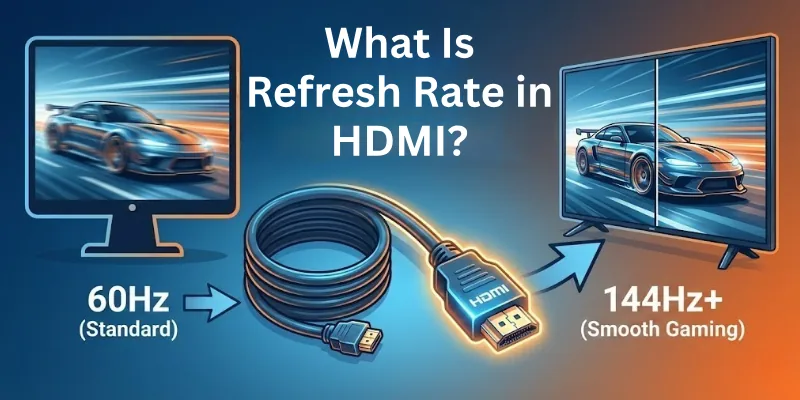
A higher refresh rate creates smoother motion, faster response, and a more stable viewing experience. HDMI acts as the pipeline that carries this refresh rate from the device to the screen.
Why Refresh Rate Matters in HDMI?
Refresh rate decides:
- Smoothness of motion
- Gaming responsiveness
- Clarity during fast movement
- How natural animations look
- Overall comfort for your eyes
If the HDMI cable or port does not support your intended refresh rate, the screen drops to a lower rate automatically. This reduces performance and creates blur during fast motion.
How HDMI Controls Refresh Rate?
HDMI controls refresh rate through bandwidth. Each frame carries pixel data. When the refresh rate increases, more frames transfer every second and the data load becomes heavier.
The HDMI cable and the HDMI version on both devices must support this increased data requirement. If any part cannot handle the required bandwidth, the refresh rate drops or the signal fails.
HDMI Versions & Their Refresh Rate Limits
HDMI versions define the maximum refresh rates you can achieve at different resolutions.
| HDMI Version | Max Bandwidth | 1080p | 1440p | 4K | 8K |
| HDMI 1.4 | 10.2 Gbps | 144 Hz | 75 Hz | 30 Hz | Not supported |
| HDMI 2.0 | 18 Gbps | 240 Hz | 144 Hz | 60 Hz | Not supported |
| HDMI 2.1 | 48 Gbps | 360 Hz | 240 Hz | 120 Hz and 144 Hz | 60 Hz |
HDMI 2.1 brings the biggest jump because it supports the high bandwidth required for modern gaming and high frame rate content.
Refresh Rate and Resolution Relationship
Higher resolution increases pixel count. Higher refresh rate increases frame count. Both stack bandwidth demands.
- 1080p supports the highest refresh rates because the pixel load is small.
- 1440p supports high refresh rates but needs HDMI 2.0 or 2.1.
- 4K needs a lot of bandwidth, so high refresh rates only work on HDMI 2.1.
- 8K works mostly at lower refresh rates unless DSC compression is used.
If the display tries to push both high resolution and high refresh rate at once, HDMI bandwidth becomes the deciding factor.
Refresh Rate and Color Depth
Color depth increases data per pixel. Higher bit depth uses more bandwidth which can limit refresh rate.
| Color Depth | Quality | Bandwidth Influence |
| 8 bit | Standard color | Low |
| 10 bit | HDR base requirement | Medium |
| 12 bit | Professional grade | High |
If you want 4K 120 Hz with HDR, you need HDMI 2.1 because it handles high bit depth and high frame rates together.
Chroma Subsampling and Refresh Rate
Chroma subsampling reduces color data to save bandwidth. It affects how much refresh rate you can push at higher resolutions.
| Format | Color Detail | Best For | Effect on Refresh Rate |
| 4:4:4 | Full color | PC use and sharp text | Highest bandwidth use |
| 4:2:2 | Medium color | Broadcast workflows | Reduced load |
| 4:2:0 | Reduced color | Movies and streaming | Lowest load |
If you want maximum refresh rate for gaming on a 4K display, 4:2:2 or 4:2:0 may be required on certain HDMI versions.
Refresh Rate in Gaming
Gaming performance depends heavily on refresh rate. Smooth gameplay needs a high and stable frame output.
Why Refresh Rate Matters for Gamers:
- Faster reaction time
- Less motion blur
- Smooth camera movement
- More natural aiming and tracking
- Reduced input delay
HDMI 2.1 adds features that help gaming such as:
- VRR
- ALLM
- Higher bandwidth
- 4K 120 Hz support
These features remove screen tearing and reduce input lag.
Refresh Rate in TVs and Monitors
Different displays use refresh rate in different ways.
- TVs: Most TVs refresh at 60 Hz or 120 Hz. HDMI bandwidth controls whether the TV can receive high frame rate signals from consoles or streaming boxes.
- Monitors: Monitors push much higher refresh rates. Many gaming monitors reach 144 Hz, 165 Hz, 240 Hz and even 360 Hz. These need the right HDMI version and color format.
Signs Your HDMI Cannot Handle the Refresh Rate
You may notice:
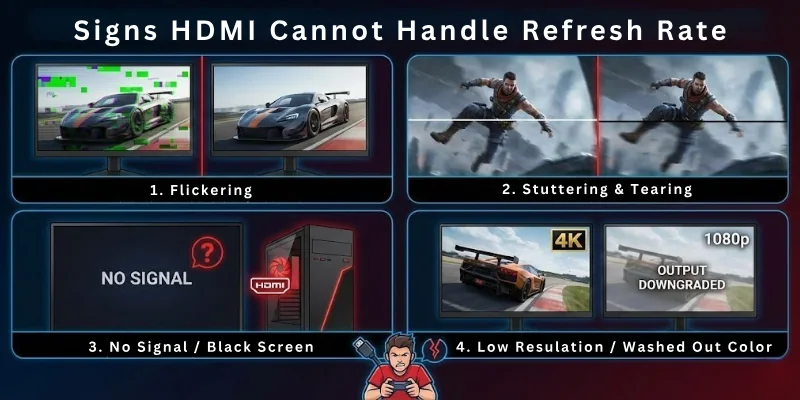
- Flickering
- Lower resolution
- Screen blackouts
- Disabled HDR
- Refresh rate locked at 60 Hz
- Random signal loss
- Washed out colors
These issues appear when the HDMI bandwidth reaches its limit.
How to Check If Your HDMI Setup Supports High Refresh Rates
Follow these quick steps:
- Check your HDMI version: Make sure both devices support high refresh rate modes.
- Check the cable rating: Use High Speed or Ultra High Speed HDMI cables.
- Check display settings: Set the refresh rate manually in the display menu.
- Check graphics card settings: Some GPUs scale output based on compatibility.
- Test different color formats: Switch between 4:4:4, 4:2:2 or 4:2:0.
Best HDMI Version For Different Refresh Rate Setups
Recommended HDMI version by use case:
- 1080p High Refresh Rate Gaming: Use HDMI 2.0 or HDMI 2.1 for 144 Hz to 240 Hz.
- 1440p High Refresh Rate Monitors: Use HDMI 2.0 for 144 Hz. Use HDMI 2.1 for 165 Hz to 240 Hz.
- 4K 120 Hz Consoles: Use HDMI 2.1 only.
- 8K Displays: Use HDMI 2.1 with DSC support.
Choosing the Best HDMI Cable for Smooth Refresh Rate
Use this guide to avoid problems:
- High Speed HDMI Cable: Good for 1080p and 1440p at moderate refresh rates.
- Premium High Speed HDMI Cable: Good for 4K at 60 Hz.
- Ultra High Speed HDMI Cable: Required for 4K at 120 Hz and all HDMI 2.1 features.
Final Words
In this guide, we have covered everything about HDMI refresh rates for a smooth display setup.
You learned how refresh rate works, how HDMI bandwidth affects frame delivery, how color depth and chroma subsampling influence performance, and how different HDMI versions handle high refresh rate demands.
This guide also showed how to pick the right cable, how to check display compatibility, and how to remove common refresh rate issues. With the right HDMI setup, you get a smooth, stable, and responsive viewing experience on any monitor or TV.
FAQs
Here are some of the most commonly asked questions related to the HDMI refresh rate:
HDMI refresh rate refers to the number of times per second a display updates its image, measured in Hertz (Hz). A higher refresh rate provides smoother motion, making it essential for gaming, video editing, and watching high-speed action content.
You can check the HDMI refresh rate in your display’s settings menu or through your computer’s display settings. It usually lists the resolution and refresh rate together, such as 1920×1080 at 60Hz.
Yes, different HDMI versions support different maximum refresh rates and resolutions. For example, HDMI 2.0 supports 4K at 60Hz, while HDMI 2.1 can handle 4K at 120Hz or 8K at 60Hz.
Absolutely. Using a low-quality or outdated HDMI cable may limit your display’s maximum refresh rate. Always use high-speed or Ultra High-Speed HDMI cables for optimal performance.
For competitive gaming, a refresh rate of 120Hz or higher is recommended. Casual gamers may find 60Hz sufficient, but higher refresh rates provide smoother motion and better responsiveness.
Yes, most devices allow you to adjust the refresh rate in display or graphics settings. Ensure your display and HDMI cable support the chosen refresh rate to avoid compatibility issues.
This could be due to cable limitations, outdated HDMI ports, or incorrect display settings. Upgrading your cable, enabling the correct HDMI version, or adjusting your device’s output settings can help achieve the desired refresh rate.




- Be Respectful
- Stay Relevant
- Stay Positive
- True Feedback
- Encourage Discussion
- Avoid Spamming
- No Fake News
- Don't Copy-Paste
- No Personal Attacks
- Be Respectful
- Stay Relevant
- Stay Positive
- True Feedback
- Encourage Discussion
- Avoid Spamming
- No Fake News
- Don't Copy-Paste
- No Personal Attacks
