HDMI Cable Buying Tips: Easy Checklist Before You Buy
Published: 9 Jan 2026
So, you’re planning to buy an HDMI cable but feeling confused about what to check, which one to choose, and what to do next? Don’t worry; you’re not alone!
In this HDMI Cable Buying Guide: Step-by-Step Checklist Before You Buy, I’ll walk you through everything you need to know before making the right purchase. From Step 1 to the final check, this guide covers it all simply and clearly.
What to Look for When Buying HDMI Cable?
Based on my extensive research and practical insights, I’ve compiled a complete step-by-step guide to help you choose the right HDMI cable.
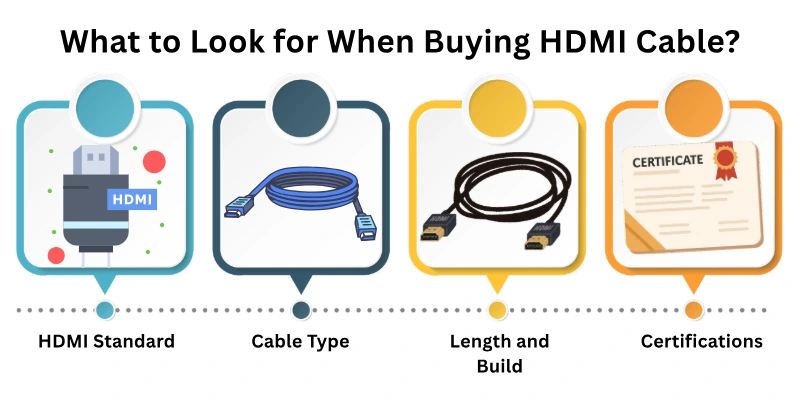
Whether you’re a beginner or someone upgrading your setup, this hdmi guide will help you avoid misleading sales tactics and common misconceptions. By the end, you’ll be equipped with all the right knowledge to make a smart, scam-free purchase.
Step 1: Identify Your Connection Purpose
Before you choose an HDMI cable, first think about what you want to connect. Every setup is a little different, and the cable you need depends on what you’re using it for.
Some examples:
- TV to set-top box or Blu-ray player
- Laptop to a monitor or projector
- Gaming console (like PS5 or Xbox) to a TV
- AV receiver, soundbar, or home theater system
Why this step matters: Each connection needs a certain cable type or quality. If you know your purpose from the start, choosing the right cable that works best for you becomes easier.
Step 2: Check the Maximum Supported Resolution & Features
Now, check what quality and features your devices support. This helps you pick a cable that can handle everything smoothly without issues.
Look at things like:
- Video resolution – Does your device support 1080p, 4K, or 8K?
- Picture quality features – Does it work with HDR or Dolby Vision?
- Smooth display – Is the refresh rate 60Hz, 120Hz, or 144Hz?
- Sound features – Does it support Dolby Atmos or DTS:X audio?
- Audio return channel – Is there ARC or eARC for better sound system support?
Tip: Always choose a cable that supports equal or higher features than your devices. That way, you’ll get the best performance now — and your cable will also work with future upgrades.
Step 3: Measure the Required Cable Length
Before buying, check how long the HDMI cable needs to be. Measure the distance between both devices’ ports — not just in a straight line, but how the cable will actually run.
Add a little extra length if:
- Your devices are wall-mounted or placed behind furniture
- You plan to unplug and move the cable often
Note: If you need a cable longer than 10 feet (3 meters), make sure to buy a high-quality or active HDMI cable. Longer cables can lose signal if they’re not made to handle the distance properly.
Step 4: Choose the Right HDMI Cable Category
Not all HDMI cables are the same. Each type supports different video quality, features, and distance. Pick the one that fits your needs best.
Here are the common types:
- High-Speed HDMI Cable – Good for 1080p and basic 4K setups
- Premium High-Speed HDMI Cable – Ideal for 4K at 60Hz and HDR content
- Ultra High-Speed HDMI Cable – Needed for 4K at 120Hz or 8K resolution
- Active HDMI Cable – Has built-in signal booster, great for long distances
- Optical Fiber HDMI Cable – Best for 25 feet or more, perfect for in-wall setups
Tip: Always choose a cable type based on your display quality and distance. Don’t overspend on features you won’t use — but also don’t buy low-grade if you need higher specs.
Step 5: Passive vs. Active Cables (Only for Long Runs)
If you’re planning to use a long HDMI cable, you need to understand the difference between passive and active cables.
- Passive Cable – These are regular HDMI cables. They work well for short distances, usually up to 10 feet (3 meters).
- Active Cable – These cables have a built-in signal booster. They are designed for longer runs, helping the signal travel without loss or drop.
Tip: If your cable needs to go across a room or behind walls over a long stretch, choose active HDMI cables to keep the performance strong and stable.
Step 6: Check for Build Quality & Durability
A well-made HDMI cable not only lasts longer but also keeps your signal clear and stable. So, don’t ignore how the cable is built.
Look for these important features:
- Gold-plated connectors – Help protect against rust and wear
- Braided or reinforced outer layer – Adds strength and prevents tearing
- Triple shielding – Blocks outside signals that can cause interference
- Strain relief sleeves – Protect the cable ends from bending or breaking
Good quality materials mean fewer problems and longer cable life.
Step 7: Look for Certified HDMI Cables
To make sure you’re buying a reliable cable, always choose a certified one. These cables are tested and approved for quality and performance.
What to check:
- Look for the official HDMI sticker or QR code on the packaging.
- Certified cables meet proper standards and give you safe, smooth performance.
- Stay away from cheap, fake, or overhyped cables that may not work properly.
Tip: A certified cable gives peace of mind and saves you from future problems.
Step 8: Consider Your Surrounding Setup
Before buying, think about where and how you’ll use the HDMI cable. The right shape and style can make a big difference.
Choose based on your setup:
- Tight spaces? Go for Flat, Slim, or Right-Angle HDMI cables — they fit easily behind furniture or close to walls.
- Long distances? Pick Active or Fiber Optic HDMI cables to avoid signal issues.
- For travel or portable use? Choose short and compact cables that are easy to carry.
- Wall-mounted devices? Plan your cable route ahead of time and keep extra slack to avoid pulling or damage.
Tip: A cable that fits your setup well, looks cleaner, and works better.
Step 9: Check Audio Support (Especially for eARC setups)
If you’re using a soundbar, home theater, or AV receiver, it’s important to choose a cable that supports the right audio formats.
Make sure your cable can handle:
- ARC or eARC – Needed for sending sound from your TV to your audio system. eARC supports high-quality formats like Dolby Atmos and DTS:X.
- LPCM, DTS-HD Master Audio, Dolby TrueHD – For rich and detailed sound experience.
Tip: Without proper audio support, you may not get the best sound from your system — especially in high-end setups.
Step 10: Match Cable With Refresh Rate (Gamers Especially)
If you’re a gamer or use high-performance displays, pay attention to the refresh rate your cable can handle.
Here’s what you should know:
- 60Hz is good enough for watching movies or regular TV shows.
- 120Hz or 144Hz gives a smoother and faster experience, especially for gaming.
- To enjoy 4K at 120Hz or higher, you’ll need an Ultra High-Speed HDMI cable that can handle this level of performance.
Tip: If your monitor or console supports high refresh rates, don’t let a weak cable hold you back.
Step 11: Prefer Reputed Brands Over Unknown Sellers
When it comes to buying an HDMI cable, brand matters. Trusted brands usually offer better quality, proper certification, and warranty support.
Why choose known brands?
- You get tested and reliable performance.
- There’s less risk of fake or poor-quality cables.
- Many come with customer support and replacements if anything goes wrong.
Some popular and trusted options:
- Zeskit
- Belkin
- Monoprice
- Cable Matters
- AmazonBasics
- BlueRigger
Tip: Spending a little more on a good brand can save you from future problems.
Step 12: Compare Prices Smartly (Avoid Overpaying)
When shopping for an HDMI cable, don’t assume that higher price means better quality. What matters most are the specs and certifications, not fancy names.
What to watch out for:
- Avoid overpriced cables with flashy labels like “Diamond HDMI”, “Platinum Grade”, or “Audiophile Cable” — these are often just marketing tricks.
Focus on what really counts:
- Supported features (4K, 8K, HDR, etc.)
- Certification (Ultra High-Speed, Premium, etc.)
- Correct length for your setup
Tip: Many affordable cables offer excellent performance — just make sure they meet your device requirements.
Step 13: Read Reviews & Check Warranty
Before buying, take a few minutes to read customer reviews. It helps you know what to expect in real use.
What to check in reviews:
- Build quality – Is the cable strong and well-made?
- Signal stability – Does it work smoothly without dropouts?
- Compatibility issues – Any problems with certain devices?
Also, look for cables that come with a replacement warranty or money-back guarantee. It gives you extra peace of mind if something goes wrong.
Tip: A well-rated cable with warranty support is always a safer choice.
Step 14: Final Checklist Before Purchase
Before you hit that “Buy Now” button, take a quick look at this final checklist:
- What devices are you connecting?
- What resolution and features (4K, 8K, HDR, eARC) do you need?
- Have you measured the required cable length?
- Did you choose the correct HDMI cable category?
- Passive or Active cable — what suits your setup?
- Is the build quality durable (braided jacket, gold-plated connectors, shielding)?
- Is the cable certified (QR code / official HDMI sticker)?
- Does the cable suit your space – flat, slim, or right-angle?
- Does it support the needed audio formats (ARC/eARC, Dolby Atmos, etc.)?
- Is the refresh rate support right for your TV or gaming display?
- Are you choosing a trusted brand?
- Did you compare prices smartly and avoid marketing gimmicks?
- Have you read real user reviews and checked warranty details?
Tip: If everything above checks out, you’re all set to make a smart and safe HDMI cable purchase.
Step 15: Test the Cable After You Receive It
Once your HDMI cable arrives, don’t wait—test it right away to make sure everything works perfectly.
Here’s what to do:
- Connect your devices (TV, gaming console, monitor, etc.)
- Check video quality — Is the picture clear, sharp, and stable?
- Check audio output — Make sure the sound is working fine without delay.
- Test features — See if HDR, eARC, high refresh rate, or 4K/8K resolution are working properly (based on your setup).
- Look for any loose connections or flickering issues.
Tip: If you face any problems, return or replace the cable within the warranty or return period. It’s better to solve issues early rather than later.
Step 16: Keep an Extra Spare Cable (Optional)
It’s always a smart idea to keep one extra HDMI cable at home, just in case.
Why it helps:
- Quick replacement if your current cable stops working.
- Useful for future upgrades or new devices.
- No last-minute hassle during meetings, events, or gaming sessions.
Note: A spare cable doesn’t have to be expensive—just make sure it meets your basic specs like 4K, HDR, or ARC support.
Tip: Keeping a backup saves time and stress, and avoids interruptions when you least expect them.
Step 17: Don’t Forget HDMI Adapters or Converters (If Needed)
Sometimes, your devices may have different ports, not just HDMI. In that case, you’ll need a suitable adapter or converter.
Common adapters you may need:
- HDMI to VGA (for older monitors or projectors)
- HDMI to DisplayPort / USB-C / DVI
- Mini HDMI or Micro HDMI to Standard HDMI
Tip: Check your device ports before buying. If you need an adapter, add it to your order right away to avoid extra trips later.
Common Myths About HDMI Cables – Busted!
Let’s clear up some common misunderstandings people have while buying HDMI cables:
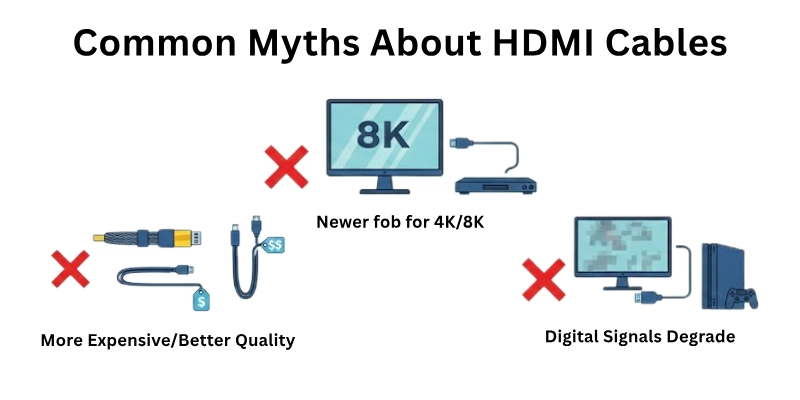
Myth 1: Expensive HDMI cables give better picture quality
- Truth: HDMI is digital — either it works or it doesn’t. A $10 certified cable can perform just as well as a $50 one, as long as it supports the required specs (4K, HDR, etc.).
Myth 2: All HDMI cables are the same
- Truth: Not true. There are different categories (Standard, High-Speed, Ultra High-Speed, etc.) and not all cables support advanced features like 4K 120Hz or eARC.
Myth 3: Longer cables are always better
Truth: Longer cables can cause signal loss if they’re not of good quality or active type. Only buy the length you actually need.
Myth 4: Gold-plated connectors improve signal quality
- Truth: Gold plating helps prevent corrosion, but it doesn’t enhance signal quality. It’s good for durability, not performance.
Myth 5: You always need the latest HDMI version
- Truth: You only need a cable that supports the features your current devices require. No need to overpay for features you won’t use.
Conclusion
In this HDMI Cable Buying Guide, we’ve covered everything you need to know before purchasing. From identifying your device requirements to checking resolution support, cable categories, build quality, and even the common buying myths — now you have a clear checklist to follow.
So, the next time you’re planning to buy an HDMI cable, come back to this step-by-step HDMI Cable Buying Guide and shop confidently like a pro! If you have questions or want to share your experience, drop your thoughts in the comments below—I’d love to hear from you!
FAQs
Here are some of the most commonly asked questions related to “buying HDMI cable”:
No, not always. As long as the cable is certified and supports the required features, a low-cost cable can perform just as well as a costly one. Don’t pay extra for fancy marketing terms.
Yes, it’s safe if you buy from reputed sellers or trusted brands. Avoid unknown brands or cables without proper specs and certifications. Always read reviews before placing your order.
No, HDMI cables may look similar but not all offer the same performance. Some are designed for higher resolutions and refresh rates. Always check specs like bandwidth support, certification, and shielding before buying.
Not necessarily. Unbranded or budget cables can also work well if they’re certified and tested properly. But branded cables often give better reliability, durability, and warranty. So if you’re unsure, going for a known brand is a safer option.
Gold-plated connectors don’t improve picture or sound quality but help protect from rust and wear. They can last longer in humid or dusty environments. It’s a good feature but not essential for most people. You can still get great performance from non-gold cables.
Always look for HDMI certification, supported resolutions (like 4K/8K), refresh rates, eARC support, and length. Check your device’s HDMI version (like 2.0 or 2.1). Also, read customer reviews if buying online. Don’t rely only on fancy branding.
It’s better to buy separate cables for each device based on their needs. Not all devices require Ultra-High-Speed cables. You can save money by using standard cables where advanced features aren’t needed. Choose wisely for each setup.
A better HDMI cable usually has a strong build, gold-plated connectors, and supports higher bandwidth (like HDMI 2.0 or 2.1). Check if it supports 4K, 8K, HDR, or high refresh rates. Also, look for certified cables from trusted brands—they offer better durability and performance.


- Be Respectful
- Stay Relevant
- Stay Positive
- True Feedback
- Encourage Discussion
- Avoid Spamming
- No Fake News
- Don't Copy-Paste
- No Personal Attacks
- Be Respectful
- Stay Relevant
- Stay Positive
- True Feedback
- Encourage Discussion
- Avoid Spamming
- No Fake News
- Don't Copy-Paste
- No Personal Attacks
