Convert HDMI to Component: Easy Step-by-Step Guide
Published: 2 Oct 2025
There are many types of video connections in today’s world. HDMI (High-Definition Multimedia Interface) is most commonly used in modern devices like TVs, gaming consoles, and computers.
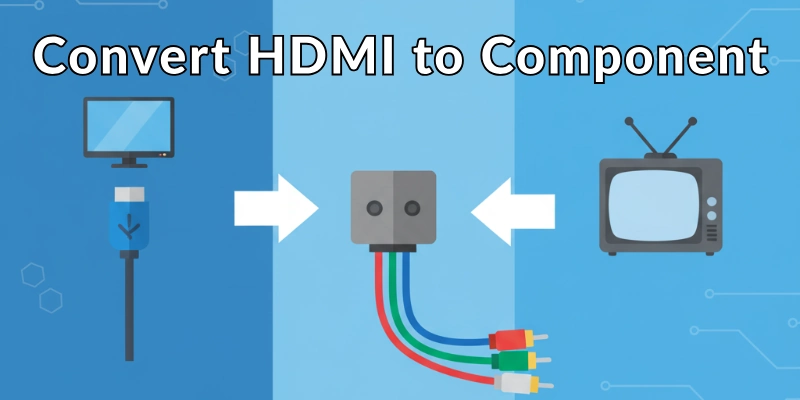
However, some older devices, like older TVs or projectors, still use component video (the red, green, and blue cables). If you want to connect a modern HDMI device to an older component display, you’ll need to convert HDMI to component.
This guide will explain everything you need to know in simple English.
What is HDMI and Component Video?
Simple and to-the-point explanation of both terms:
HDMI
HDMI is a digital connection used to send high-quality video and audio signals between devices. It’s the standard for modern TVs, gaming consoles, Blu-ray players, and more. HDMI supports high-definition (HD) and even 4K resolutions.
Component Video
Component video is an older analog connection that uses three cables (red, green, and blue) to send video signals. It doesn’t carry audio, so you’ll need separate cables for sound. Component video supports high-definition resolutions but not as high as HDMI.
Why You Need to Convert HDMI to Component?
You might need to convert HDMI to component if:
- You have an older TV or projector that only has component inputs.
- You want to connect a modern device (like a PlayStation 5 or a streaming device) to an older display.
- You’re working with legacy equipment in a home theater or professional setup.
Can You Directly Convert HDMI to Component?
No, you cannot directly convert HDMI to component because they are different types of signals:
- HDMI is digital.
- Component video is analog.
To convert between them, you need a special device called an HDMI to Component Converter. This device changes the digital HDMI signal into an analog component signal.
What Do You Need to Convert HDMI to Component?
To convert HDMI to component, you’ll need the following:
- HDMI to Component Converter Box: This is the main device that does the conversion. Make sure it supports the resolution you need (e.g., 1080p).
- HDMI Cable: To connect your HDMI device (like a gaming console) to the converter.
- Component Cables: To connect the converter to your TV or projector.
- Audio Cables (Optional): If your converter doesn’t handle audio, you may need separate cables for sound.
Step-by-Step Guide to Convert HDMI to Component
Follow these steps to convert HDMI to component:
Step 1: Buy the Right Converter
- Look for an HDMI to Component Converter that matches your needs. Check the resolution (e.g., 1080p) and make sure it has good reviews.
Step 2: Connect the HDMI Cable
- Plug one end of the HDMI cable into your HDMI device (like a gaming console or Blu-ray player).
- Plug the other end into the HDMI input on the converter.
Step 3: Connect the Component Cables
- Take the component cables and plug them into the converter’s component outputs. Match the colors: red to red, green to green, and blue to blue.
- Plug the other end of the component cables into your TV or projector.
Step 4: Connect Audio (If Needed)
- If your converter doesn’t handle audio, use a separate audio cable (like RCA or 3.5mm) to connect the audio from your device to your TV or speakers.
Step 5: Power the Converter
- Most converters need power. Plug the converter into a power outlet using the included adapter.
Step 6: Turn On Your Devices
- Turn on your HDMI device, converter, and TV or projector.
- Use your TV’s remote to switch to the component input.
Step 7: Adjust Settings (If Needed)
- Some converters have switches or buttons to adjust the resolution or aspect ratio. Check the manual for instructions.
Common Problems and Solutions
Here are some of the problems that can occur while HDMI to Component conversion so have a look:
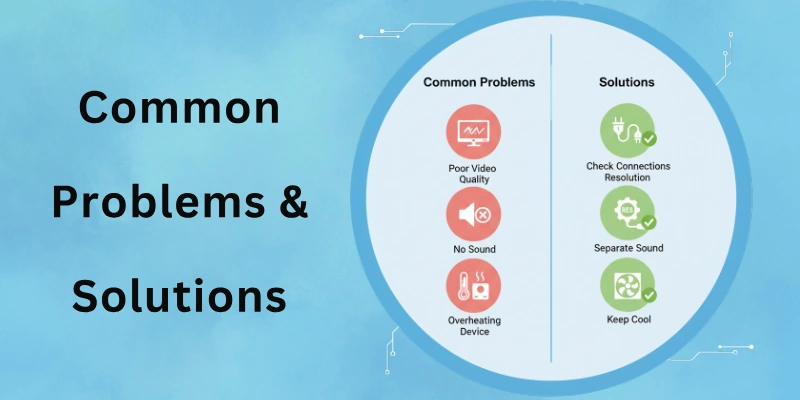
- No Picture on the TV: Check all cable connections. Make sure the converter is powered on and the TV is set to the correct input.
- Poor Video Quality: Ensure the converter supports the resolution of your HDMI device. Use high-quality cables.
- No Sound: If your converter doesn’t handle audio, connect a separate audio cable from your device to your TV or speakers.
- Converter Gets Hot: Some converters get warm during use. Make sure it’s in a well-ventilated area. If it gets too hot, unplug it and check for defects.
Conclusion
Converting HDMI to component is a simple process if you have the right tools. By using an HDMI to Component Converter, you can connect modern devices to older displays and enjoy your favorite content.
Just remember to check the resolution, use good-quality cables, and follow the steps carefully. Whether you’re setting up a home theater or connecting a gaming console, this guide should help you get the job done easily.
FAQs
Here are some of the most commonly asked questions related to “How to Convert HDMI to Component”:
Yes, you can convert component to HDMI using a component to HDMI converter. This is the reverse of HDMI to component conversion. It’s useful for connecting older devices to modern HDMI TVs. Just make sure the converter supports the resolution you need.
No, the quality won’t be the same. HDMI is digital and supports higher resolutions, while component is analog and has lower quality. However, for older TVs, the difference might not be very noticeable. Always use a good-quality converter to minimize quality loss.
No, you don’t need an expensive converter. A mid-range HDMI to component converter works fine for most home setups. Expensive converters may offer extra features, but basic ones are usually sufficient for standard use.
Yes, you can use it for gaming, but some converters may cause a slight delay (lag). For gaming, choose an HDMI to component converter with low latency to avoid this issue. Check reviews to find a gamer-friendly option.
Most HDMI to component converters work with common devices like gaming consoles, Blu-ray players, and streaming devices. However, always check the converter’s specifications to ensure it’s compatible with your specific device.
It depends on the converter. Some HDMI to component converters include audio support, so no extra cables are needed. Others only handle video, so you’ll need separate audio cables to connect sound to your TV or speakers.
Yes, you can use it for a projector with component inputs. An HDMI-to-component converter lets you connect modern HDMI devices to older projectors. Just ensure the converter supports the projector’s resolution.
First, check all cable connections and ensure the converter is powered on. Make sure your TV is set to the correct input. If it still doesn’t work, the converter might be faulty or incompatible with your devices. Try a different converter or contact the manufacturer for support.

- Be Respectful
- Stay Relevant
- Stay Positive
- True Feedback
- Encourage Discussion
- Avoid Spamming
- No Fake News
- Don't Copy-Paste
- No Personal Attacks
- Be Respectful
- Stay Relevant
- Stay Positive
- True Feedback
- Encourage Discussion
- Avoid Spamming
- No Fake News
- Don't Copy-Paste
- No Personal Attacks
