Convert HDMI to HDMI ARC: Easy Steps and Setup Tips
Published: 16 Nov 2025
Many people ask, “How to convert HDMI to HDMI ARC?” The truth is, a standard HDMI port cannot be directly turned into an HDMI ARC port. However, you can achieve ARC functionality using external devices like HDMI ARC extractors, AV receivers, or HDMI switches with ARC support.
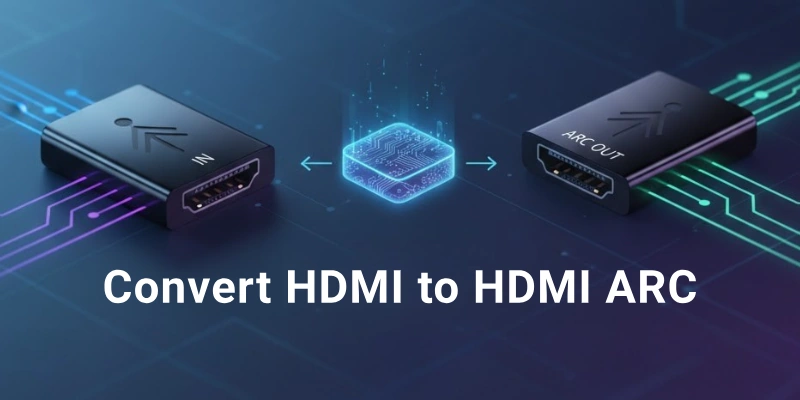
In this article, we will explore different methods to convert HDMI to HDMI ARC, provide a step-by-step setup guide, and discuss troubleshooting tips for common issues.
Can You Convert HDMI to HDMI ARC?
As we mentioned above, a standard HDMI port cannot be directly converted into an HDMI ARC port.
This is because regular HDMI ports are designed only for transmitting video and audio from a source (like a streaming device or gaming console) to a display (like a TV). On the other hand, HDMI ARC allows two-way communication, enabling the TV to send audio back to a soundbar or AV receiver.
However, with ARC support, you can still achieve ARC functionality using external devices like HDMI ARC extractors, AV receivers, or HDMI switches. In the next sections, we’ll explore different methods to make this work.
Methods to Convert HDMI to HDMI ARC
Below are the most effective methods:
Using an HDMI ARC Audio Extractor
An HDMI ARC audio extractor is a device that takes an HDMI signal and separates the audio, allowing it to be sent to an external sound system. This is the most straightforward way to enable ARC functionality on a non-ARC HDMI port.
How It Works:
- Connect the HDMI source (TV, streaming device, etc.) to the extractor’s input.
- Connect the extractor’s HDMI ARC output to the sound system (soundbar, AV receiver).
- Adjust your TV’s audio settings to enable ARC and external audio output.
Pros:
- Easy to set up.
- Works with most TVs and soundbars.
- No need to replace your TV or sound system.
Cons:
- Some extractors may not support high-quality formats like Dolby Atmos.
- Compatibility issues may arise with certain TVs.
Using an AV Receiver with ARC Support
An AV receiver is a central hub for audio and video connections, often supporting HDMI ARC. If your TV lacks ARC but your AV receiver supports it, you can route your audio through the receiver.
How It Works:
- Connect your TV’s HDMI output to the AV receiver’s HDMI input.
- Use the receiver’s HDMI ARC output to send audio to your sound system.
- Enable ARC in your TV and receiver settings.
Pros:
- Supports high-quality audio formats like Dolby Atmos and DTS:X.
- Ideal for home theater setups with multiple devices.
Cons:
- Requires an AV receiver with ARC support.
- More expensive than other solutions.
Using an HDMI Switch with ARC Support
An HDMI switch with ARC support allows multiple HDMI devices to connect to a single ARC-enabled output, helping you manage audio and video connections more efficiently.
How It Works:
- Connect multiple HDMI sources (gaming console, Blu-ray player, etc.) to the switch’s inputs.
- Connect the switch’s ARC-enabled HDMI output to your sound system.
- Configure the settings to pass ARC audio.
Pros:
- Useful for setups with multiple devices.
- Helps manage HDMI ports efficiently.
Cons:
- Requires a switch that specifically supports ARC.
- Some models may have latency issues.
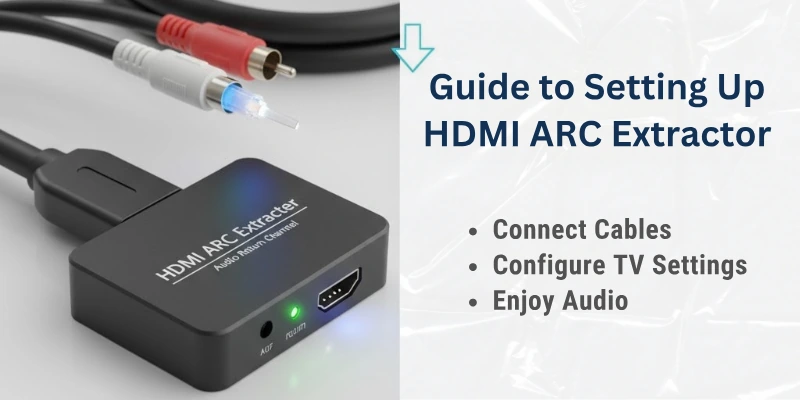
Step-by-Step Guide to Setting Up HDMI ARC Extractor
Follow these steps to set it up properly:
Step 1: Gather the Required Equipment
Before starting, make sure you have the following:
- An HDMI ARC audio extractor
- An HDMI cable (for video and ARC signal)
- An optical (TOSLINK) or AUX cable (if your sound system requires it)
- A power adapter (if your extractor needs external power)
Step 2: Connect the HDMI Source to the Extractor
- Plug an HDMI cable from your TV’s HDMI output into the HDMI input port of the extractor.
- If using an external media device (like a streaming stick or gaming console), connect it to the TV normally.
Step 3: Connect the Extractor to Your Sound System
- Use another HDMI cable to connect the ARC output from the extractor to your soundbar, AV receiver, or external speakers.
- If your sound system does not support HDMI ARC, use an optical (TOSLINK) cable or 3.5mm AUX cable to connect the extractor to the speakers.
Step 4: Power Up the Extractor
- If your HDMI ARC extractor requires external power, plug it into a wall outlet or USB power source using the provided adapter.
Step 5: Configure TV Audio Settings
- Go to your TV’s settings menu and find the Audio Output or Sound Settings section.
- Select HDMI ARC or External Speakers as the preferred audio output.
- If available, enable CEC (Consumer Electronics Control) to allow seamless communication between devices.
Step 6: Test the Setup
- Play audio from your TV or a connected device to check if the sound comes through the external sound system.
If you don’t hear the audio, try the troubleshooting steps discussed in the next section.
Common Issues and Troubleshooting
You may encounter some issues even after setting up an HDMI ARC extractor. Here are the most common problems and their solutions:
Issue 1
No Sound from the Soundbar or AV Receiver. Here are its possible causes & fixes:
- Make sure the HDMI ARC extractor is properly connected and powered on.
- Check if your TV’s audio output is set to HDMI ARC or External Speakers in the settings.
- Enable CEC (Consumer Electronics Control) in your TV’s settings if available.
- Try using a different HDMI cable in case the current one is faulty.
- Restart all devices (TV, extractor, soundbar/AV receiver) and try again.
Issue 2
Audio Delay or Sync Problems. Here are its possible causes & fixes:
- Check if your TV or soundbar has an Audio Delay or Lip Sync setting and adjust it
- Use a high-speed HDMI cable that supports ARC.
- If using an optical cable instead of HDMI, check the extractor’s settings for delay adjustments.
- Restart your devices to reset any potential sync issues.
Issue 3
ARC Not Detected by the TV. Here are its possible causes & fixes:
- Make sure your TV supports ARC functionality (some older models may not).
- If using an HDMI switch, ensure it has ARC passthrough support.
- Check if the HDMI port on the TV is labeled “ARC”—if not, try another port.
- Update your TV’s firmware to the latest version.
Issue 4
Sound Cutting In and Out. Here are its possible causes & fixes:
- Ensure the HDMI cables are firmly connected.
- Avoid using very long HDMI cables (over 10 feet) as they may cause signal loss.
- If your extractor has a power adapter, use it instead of relying on USB power.
- Check for interference from other electronic devices.
Issue 5
Limited or No Surround Sound (Dolby/DTS Not Working). Here are some possible causes & fixes:
- Check if your TV supports Dolby Digital or DTS passthrough via HDMI ARC.
- In your TV’s audio settings, select Bitstream or Dolby Digital instead of PCM.
- If using an optical cable, note that it doesn’t support advanced formats like Dolby Atmos—use HDMI instead.
Some extractors may not support high-resolution audio formats, so check the specifications before buying.
Alternative Solutions If Conversion Doesn’t Work
If you can’t convert HDMI to HDMI ARC using the methods above, don’t worry!

There are alternative ways to achieve high-quality audio output from your TV to an external sound system.
Use an Optical (TOSLINK) Cable
If your TV and sound system support optical audio output, you can use a TOSLINK (optical) cable as an alternative to HDMI ARC.
How It Works:
- Connect one end of the optical cable to the TV’s optical output port.
- Connect the other end to your soundbar, AV receiver, or speakers.
- Go to your TV’s audio settings and select optical output or SPDIF.
Pros:
- Supports digital audio, including Dolby Digital and DTS.
- Works with most TVs and sound systems.
Cons:
- No support for Dolby Atmos or TrueHD.
- Requires a separate remote to control volume.
Use a Bluetooth Audio Transmitter
If your TV has Bluetooth support or a headphone jack, you can send audio wirelessly to a Bluetooth-enabled sound system.
How It Works:
- Connect a Bluetooth transmitter to your TV’s headphone jack or optical output.
- Pair the transmitter with your Bluetooth speaker, soundbar, or headphones.
- Adjust the TV’s audio output settings if necessary.
Pros:
- Wireless solution with fewer cables.
- Works with any Bluetooth-enabled sound system.
Cons:
- Audio delay (latency) may occur.
- Sound quality may not match HDMI ARC.
Upgrade to HDMI eARC-Compatible Device
If you want the best audio quality, consider upgrading to a TV or sound system with HDMI eARC (Enhanced Audio Return Channel).
How It Works:
- HDMI eARC supports high-bitrate audio formats, including Dolby Atmos and DTS:X.
- Requires both your TV and sound system to have HDMI eARC support.
- Simply connect an HDMI eARC cable between your TV and sound system for high-fidelity audio.
Pros:
- Best sound quality with advanced audio formats.
- Supports uncompressed audio for home theaters.
Cons:
- Requires buying new equipment.
- Not compatible with standard HDMI ARC devices.
Final Thoughts
I hope this guide has helped you understand how to convert HDMI to HDMI ARC and find the best solution for your setup. With the right approach, you can enjoy high-quality sound without unnecessary upgrades. If you’re still unsure or need more guidance on HDMI-related topics, feel free to check out [hdmi.io] for expert insights.
Happy watching, and enjoy your enhanced audio experience!
FAQs
Here are some of the most commonly asked questions related to HDMI to HDMI ARC:
No, a regular HDMI port doesn’t support the Audio Return Channel (ARC) feature. HDMI ARC allows audio to be sent from your TV to external speakers or a sound system. If your TV doesn’t have an ARC-labeled port, you’ll need an HDMI ARC extractor or an optical audio cable for sound output.
Not necessarily—most high-speed HDMI cables support ARC. However, using an older or low-quality HDMI cable might cause issues like no sound or audio lag. If you face problems, consider using a high-speed HDMI cable with Ethernet for better performance.
There could be multiple reasons, including wrong TV settings, disabled CEC, or a faulty HDMI cable. First, check if CEC (Consumer Electronics Control) is enabled in your TV’s settings. Also, ensure you’ve selected HDMI ARC as the audio output and try restarting your devices.
It depends on your TV and sound system. Standard HDMI ARC supports Dolby Digital and DTS, but it may not support Dolby Atmos or DTS:X. For the best audio experience, consider using HDMI eARC, which can handle high-resolution formats.
If your TV lacks an HDMI ARC port, you can use an HDMI ARC extractor to convert a standard HDMI signal into an optical or analog audio output. Alternatively, connect your TV’s optical or AUX output directly to your sound system.
No, HDMI ARC is only for sending audio from the TV to an external sound system. If you’re using a gaming console or streaming device, plug it directly into an HDMI input on your TV. The TV will then send audio to the sound system via HDMI ARC.





- Be Respectful
- Stay Relevant
- Stay Positive
- True Feedback
- Encourage Discussion
- Avoid Spamming
- No Fake News
- Don't Copy-Paste
- No Personal Attacks
- Be Respectful
- Stay Relevant
- Stay Positive
- True Feedback
- Encourage Discussion
- Avoid Spamming
- No Fake News
- Don't Copy-Paste
- No Personal Attacks
