HDMI and Dolby Vision: Easy Setup for Better Picture
Published: 18 Dec 2025
Have you ever wondered why some movies look more colorful and lifelike on certain TVs? The secret is Dolby Vision, a special HDR (High Dynamic Range) technology that makes pictures brighter, clearer, and more detailed.
But to enjoy Dolby Vision, you need the right HDMI connection. HDMI (High-Definition Multimedia Interface) is what connects your TV, gaming console, or streaming device to deliver the best picture quality.
In this article, we’ll explore how HDMI and Dolby Vision work together, why compatibility matters, and how you can set up Dolby Vision on your devices.
Dolby Vision & HDMI: The Connection
Dolby Vision needs HDMI (High-Definition Multimedia Interface) to send high-quality video from one device to another. But not all HDMI versions support Dolby Vision properly.
The connection between Dolby Vision and HDMI makes sure:
- The video quality stays bright, clear, and colorful.
- Devices can work together, like TVs, game consoles, and media players.
- Smooth playback happens without issues if both devices support Dolby Vision.
In short, Dolby Vision only works with HDMI, and for the best results, you need the right version and cable.
How HDMI Enables Dolby Vision?
HDMI helps Dolby Vision work properly by sending special HDR (High Dynamic Range) video signals between devices. Here’s how it works:
- Sends HDR Video – HDMI moves high-quality video from a streaming device, Blu-ray player, or game console to the TV.
- Supports Scene-by-Scene Adjustments – Dolby Vision changes brightness, contrast, and colors for every scene, and HDMI helps make these changes smoothly.
- Needs High-Speed Data – Dolby Vision needs fast data transfer, so HDMI 2.0 (18 Gbps) or HDMI 2.1 (48 Gbps) is required.
- Uses Content Protection (HDCP) – This prevents video piracy and keeps Dolby Vision content secure.
- Helps Devices Communicate (EDID) – HDMI allows TVs and media players to recognize each other and adjust settings for Dolby Vision.
With the right HDMI version and cable, Dolby Vision gives sharper, brighter, and more colorful visuals.
HDMI Versions and Dolby Vision Compatibility
Not all HDMI versions support Dolby Vision properly. The ability to display Dolby Vision depends on the HDMI version and cable. Here’s a simple breakdown of which HDMI versions work with Dolby Vision:
1. HDMI 1.4 – Limited Support
- Dolby Vision may not work properly because HDMI 1.4 has low bandwidth.
- Some older TVs and devices may support Dolby Vision on lower resolutions (like 1080p).
- Not recommended for a smooth Dolby Vision experience.
2. HDMI 2.0 – Basic Dolby Vision Support
- Supports Dolby Vision at 4K (60Hz) resolution.
- Works well with streaming devices, Blu-ray players, and gaming consoles.
- Needs a Premium High-Speed HDMI Cable (18 Gbps) for best results.
- May struggle with higher frame rates (e.g., 120Hz gaming).
3. HDMI 2.1 – Best for Dolby Vision
- Fully supports Dolby Vision at 4K 120Hz and even 8K resolutions.
- Ideal for next-gen gaming consoles (PS5, Xbox Series X) and high-end TVs.
- Requires an Ultra High-Speed HDMI Cable (48 Gbps).
- Supports VRR (Variable Refresh Rate) and ALLM (Auto Low Latency Mode) for gaming.
4. HDMI 2.2 (Upcoming – 2025)
- Announced on January 6, 2025, expected release in the first half of 2025.
- Increases the maximum bit rate to 96 Gbps, doubling HDMI 2.1’s speed.
- Likely to support higher refresh rates, better HDR performance, and even 12K resolution.
Which HDMI Version Do You Need for Dolby Vision?
- For basic streaming and movies → HDMI 2.0 is enough.
- For high-performance gaming and 8K content → HDMI 2.1 is the best choice.
- For future-proofing and next-gen displays → HDMI 2.2 (once available) will be ideal.
- Avoid HDMI 1.4 if you want smooth Dolby Vision at higher resolutions.
Choosing the latest HDMI version and cable allows you to enjoy Dolby Vision’s stunning brightness, contrast, and colors without issues.
Benefits of Dolby Vision with HDMI
Using Dolby Vision with HDMI improves the viewing experience in many ways. Here’s why it matters:
1. Brighter and More Vivid Colors
- Dolby Vision expands brightness and contrast for a more realistic picture.
- HDMI ensures these enhanced colors are displayed correctly on compatible screens.
2. Scene-by-Scene Picture Adjustment
- Dolby Vision adjusts brightness, contrast, and colors for each scene.
- HDMI carries these dynamic HDR signals smoothly for a lifelike experience.
3. Higher Resolution and Smoother Playback
- Dolby Vision with HDMI 2.0+ supports 4K and even 8K resolutions.
- HDMI 2.1+ allows up to 120Hz refresh rate, making movies and games feel smoother.
4. Best Experience for Gaming
- HDMI 2.1+ supports VRR (Variable Refresh Rate) and ALLM (Auto Low Latency Mode).
- Dolby Vision enhances game graphics with more depth, detail, and color accuracy.
5. Future-Proofing for Newer Devices
- HDMI 2.1 and 2.2 ensure Dolby Vision works with upcoming TVs, consoles, and media players.
- Provides long-term compatibility with the latest technology.
Setting Up Dolby Vision via HDMI
To get the best Dolby Vision experience, you need to set it up correctly on your TV, gaming console, or streaming device.
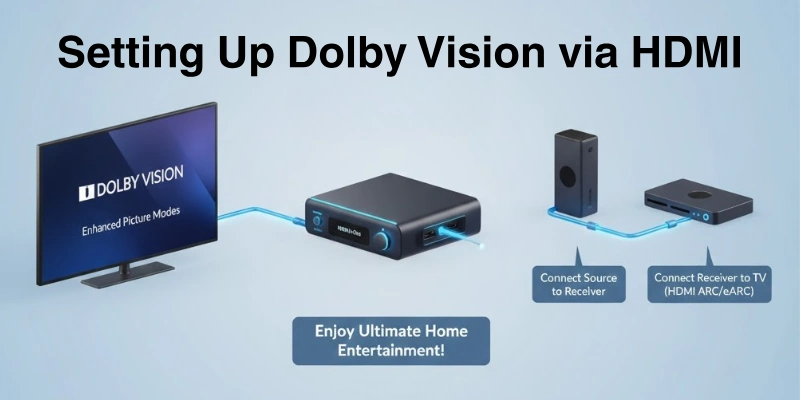
Here’s a step-by-step guide.
Checking If Your HDMI Device Supports Dolby Vision
Before setting up, ensure your TV, streaming device, or console is compatible with Dolby Vision.
1. How to Find Out if Your Device Supports Dolby Vision
- Check your TV’s specifications on the official website or manual.
- Look for Dolby Vision support in the settings menu under Display or HDR settings.
- Verify your HDMI version (HDMI 2.0 and above is required).
2. List of Compatible Devices
Here are some of the major ones:
Dolby Vision-Compatible TVs:
- LG OLED and NanoCell TVs
- Sony Bravia OLED and LED TVs
- Samsung (some high-end models)
- TCL and Hisense 4K HDR TVs
Streaming Devices:
- Apple TV 4K
- Roku Ultra and Streaming Stick+
- Amazon Fire TV Stick 4K
- Chromecast with Google TV
Gaming Consoles:
- Xbox Series X & Series S (Dolby Vision for gaming and movies)
- PlayStation 5 (supports HDR but not Dolby Vision for gaming)
Adjusting TV and Streaming Settings for Dolby Vision
Once you confirm compatibility, adjust the settings for Dolby Vision playback.
1. Enabling Dolby Vision Mode on Your TV
- Go to Settings → Display/Picture → HDR/Dolby Vision → Enable Dolby Vision.
- Some TVs require Enhanced HDMI mode to activate Dolby Vision.
- If your TV doesn’t support Dolby Vision, it may still work with HDR10.
2. Selecting the Right HDMI Input Port
- Many TVs only support Dolby Vision on specific HDMI ports (e.g., HDMI 1 or HDMI 2).
- Check your TV’s manual and connect your device to the correct HDMI input.
3. Adjusting Streaming Service Settings
To watch Dolby Vision content, make sure your streaming service is properly set up:
- Netflix: Requires Premium Plan + 4K streaming enabled.
- Disney+ & Apple TV+: Automatically play content in Dolby Vision if supported.
- Amazon Prime Video: Some movies/series support Dolby Vision—check before watching.
Common Setup Issues and Troubleshooting
Even if your devices support Dolby Vision, you may face setup issues. Here’s how to fix them.
1. HDMI Handshake Issues (TV Not Detecting Dolby Vision)
- Restart both devices (TV and streaming device).
- Try a different HDMI port (some ports don’t support Dolby Vision).
- Use a high-speed HDMI cable (HDMI 2.0+ required, HDMI 2.1+ recommended).
2. Fixing Bandwidth Problems
- Some HDMI cables don’t support Dolby Vision at 4K/60Hz.
- Upgrade to an Ultra High-Speed HDMI Cable (48 Gbps or higher).
- Make sure your internet speed is at least 25 Mbps for smooth streaming.
3. Ensuring Firmware Updates Are Installed
- Update your TV’s firmware (Dolby Vision may not work on older software).
- Update your streaming device or console for the latest Dolby Vision support.
Future of HDMI and Dolby Vision
The future of HDMI and Dolby Vision is very bright.
HDMI 2.2, coming in 2025, will support higher speeds (96 Gbps), making Dolby Vision even better for 8K TVs and beyond. Gaming will also improve as more consoles and games will support Dolby Vision for brighter colors and better contrast.
AI technology will help TVs automatically adjust brightness and colors based on the room’s lighting. More devices like phones, tablets, laptops, and monitors will support Dolby Vision, making high-quality video more common.
Streaming platforms and live broadcasts will also start using Dolby Vision, which will make movies and TV shows look even better.
Conclusion
This article explored HDMI and Dolby Vision, including how they work together, compatibility, benefits, setup, and future advancements. For the best picture quality, I recommend using an HDMI 2.1 or newer cable with a Dolby Vision-supported TV.
For more clarity on common concerns, don’t forget to check out the FAQs section, it’s packed with useful information!
FAQs
Here are some of the most commonly asked questions related to Dolby Vision and HDMI:
Yes, HDMI 2.0 supports Dolby Vision, but with some limitations. It can handle 4K at 60Hz with Dolby Vision, but higher resolutions or refresh rates need HDMI 2.1 or later. Make sure your TV, player, and cable support Dolby Vision for the best performance.
There is no special “Dolby Vision HDMI cable,” but you need a high-speed HDMI cable to use Dolby Vision. HDMI 2.0 and 2.1 cables work well, but HDMI 2.1 Ultra High-Speed cables are recommended for the best performance.
Dolby Vision is not just 4K, it is an advanced HDR format. It improves brightness, contrast, and colors, making the picture look better than standard HDR. While most Dolby Vision content is in 4K, it also works with 1080p and 8K resolutions.
Dolby Digital Plus is an audio format, while HDMI is a connection standard. HDMI cables can transmit Dolby Digital Plus audio from devices like streaming sticks, Blu-ray players, and gaming consoles. To enjoy it, use an HDMI ARC or eARC port on your TV or sound system.
To use Dolby Vision, you need three things:
- A Dolby Vision-compatible TV or monitor
- A device that supports Dolby Vision (like a Blu-ray player, gaming console, or streaming stick)
- A high-speed HDMI cable (preferably HDMI 2.0 or 2.1)
There are several reasons why Dolby Vision might not work. Your TV or device may not support Dolby Vision, or the settings might be incorrect. Try using a different HDMI port, checking cable quality, and updating the firmware to fix the issue.
Yes, HDMI supports Dolby Vision, but your devices must be compatible with it. HDMI 2.0 and 2.1 work best, but older versions may not handle Dolby Vision properly. Use a Dolby Vision-supported TV, streaming device, and HDMI cable to get the best results.



- Be Respectful
- Stay Relevant
- Stay Positive
- True Feedback
- Encourage Discussion
- Avoid Spamming
- No Fake News
- Don't Copy-Paste
- No Personal Attacks
- Be Respectful
- Stay Relevant
- Stay Positive
- True Feedback
- Encourage Discussion
- Avoid Spamming
- No Fake News
- Don't Copy-Paste
- No Personal Attacks
