What is HDMI Deep Color: Complete Guide
Published: 27 Dec 2025
What is HDMI Deep Color, and why does it matter for your screen’s picture quality? If you’ve seen this term in your TV or monitor settings and wondered what it means, you’re not alone.
In this article, we will explain HDMI Deep Color, how it works, where it is used, and why it can improve your viewing experience. We’ll also discuss its benefits, how to enable it, and whether you need it for your setup.
What is HDMI Deep Color?
HDMI Deep Color is a feature that allows your screen to show more colors and smoother color shades. This means the display can show millions or even billions of colors instead of just a few basic ones. This helps make the picture look more natural, rich, and detailed.
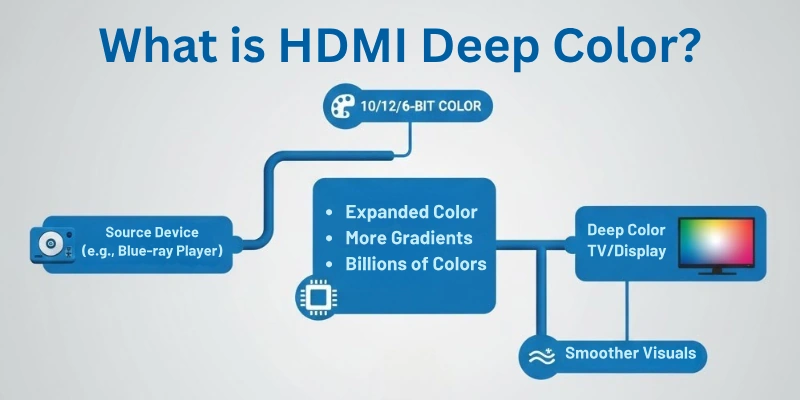
With Deep Color, images look better because there are no hard lines between color shades. Everything blends smoothly, and you get a more realistic and high-quality picture.
This feature works by increasing the color depth, which means the screen can show more color information for each image.
Understanding Bit Depth in HDMI Deep Color
To understand HDMI Deep Color better, you need to know what bit depth means.
Bit depth is the number of colors a screen can show. The higher the bit depth, the more colors your display can show, and the smoother the colors look on your screen.
- 8-bit color (also called standard color) can show about 16.7 million colors.
- 10-bit color (used in HDMI Deep Color) can show over 1 billion colors.
- 12-bit color can show even more—over 68 billion colors.
- 16-bit color goes beyond that, offering trillions of colors.
The difference between color shades becomes very smooth when the bit depth increases. This helps to remove color banding (lines or blocks in color areas) and gives a clean, soft, and more realistic image.
So, in simple words: more bit depth = more colors = better picture quality.
Available Bit Depth Options in HDMI Deep Color
Depending on your device and display, HDMI Deep Color supports different bit depth options, which determine how many colors your screen can show.
Here are the standard bit depth levels used in HDMI Deep Color:
- 8-bit (Standard Color): This is the most basic level. It shows around 16.7 million colors. Most regular TVs and monitors use this by default.
- 10-bit (Deep Color): This level shows over 1 billion colors. It gives much better color accuracy and smoother color transitions. Many HDR TVs and 4K displays use this bit depth.
- 12-bit (Enhanced Deep Color): This level can show over 68 billion colors. It offers even more detailed and rich visuals. It is used in some high-end displays and professional setups.
- 16-bit (Very High Color Depth): This is the highest bit depth, showing trillions of colors. It is mostly used in professional video editing and studio monitors, but it is not common in regular TVs.
Not all devices and HDMI cables support higher bit depths. So, your TV, monitor, graphics card, and HDMI cable must all support Deep Color to use these options properly.
HDMI Versions and Deep Color Compatibility
Not all HDMI versions support Deep Color in the same way. The ability to use HDMI Deep Color depends on which HDMI version your device or cable supports.
Here’s a simple breakdown of HDMI versions and their Deep Color support:
- HDMI 1.3 and above: This version introduced HDMI Deep Color for the first time. It supports 10-bit, 12-bit, and 16-bit color depths. If your TV or monitor has HDMI 1.3 or higher, it likely supports Deep Color.
- HDMI 1.4: Supports Deep Color and adds support for 4K resolution, making it great for better picture quality.
- HDMI 2.0: Supports Deep Color with 4K at higher frame rates (60Hz). It’s common in modern TVs and gaming monitors.
- HDMI 2.1: Offers even more improvements. It supports Deep Color with 8K resolution and advanced features like HDR, variable refresh rate (VRR), and more. This version is ideal for high-end setups and gaming.
Important Note: To enjoy the full benefits of HDMI Deep Color, all parts of your setup must support it — your TV/monitor, source device (like a game console or Blu-ray player), and HDMI cable.
Do All Devices Support HDMI Deep Color?
The simple answer is no, not all devices support HDMI Deep Color.
To use HDMI Deep Color, your entire setup must support it — not just one part. This includes:
- Your TV or Monitor: It must support higher bit depths like 10-bit or 12-bit. Older or budget displays may only support standard 8-bit color.
- Your Source Device: This can be a gaming console, Blu-ray player, streaming box, or computer. The device must support Deep Color output through HDMI.
- Your HDMI Cable: You need a High-Speed HDMI cable or Ultra High-Speed HDMI cable to handle Deep Color signals properly. Old or low-quality cables may not work well.
If even one device in your setup does not support Deep Color, you might not be able to use this feature fully. In that case, your display will just show standard color (like 8-bit), even if other parts support Deep Color.
So, before turning on HDMI Deep Color, check your devices and cable compatibility to avoid screen issues like flickering or no display.
How to Enable HDMI Deep Color on Your Device
If your devices support it, you can turn on HDMI Deep Color easily from the settings menu. Depending on your TV, monitor, or source device, the steps may differ slightly. But here’s a general guide to help you:
Steps to Enable HDMI Deep Color:
Have a look:
Go to Display Settings on Your TV or Monitor:
- Use your remote control and open the Settings menu.
- Look for options like “HDMI Settings,” “Input Settings,” or “Color Settings”.
Find HDMI Deep Color Option:
Look for a setting called:
- HDMI Deep Color
- Enhanced HDMI
- Ultra HD Deep Color
It may be listed under a specific HDMI port (e.g., HDMI 1, HDMI 2).
Turn It ON
- Select the HDMI port your device is connected to.
- Turn Deep Color ON or Enabled.
Restart Your Device (if needed)
- Some devices may need a restart after enabling this feature to apply the new settings.
Note:
- If your screen flickers or goes blank, it may mean your cable or device does not support Deep Color properly.
- You can always switch it OFF if you face issues.
Pros and Cons of HDMI Deep Color
Like every feature, HDMI Deep Color has both advantages and disadvantages. Let’s take a look at both sides:
Pros of HDMI Deep Color:
- Better Picture Quality: It offers more colors and smoother shades, making images look more natural and realistic.
- Improved Color Depth: You get richer and deeper colors, which is especially helpful in HDR content and high-quality videos.
- Great for Gaming and 4K/8K Content: It enhances the visual experience for gamers and people who watch high-resolution movies or use advanced displays.
- Less Color Banding: It reduces visible lines between color transitions, making the picture clean and smooth.
Cons of HDMI Deep Color:
- Not All Devices Support It: If one device in your setup doesn’t support Deep Color, you may not get the full benefit or face screen issues.
- May Cause Display Problems: Turning it on may lead to flickering, a black screen, or a poor signal, especially with low-quality HDMI cables.
- Higher Bandwidth Needed: It uses more data, so you must have high-speed HDMI cables to avoid issues.
- Not Always Noticeable: On some screens, the difference between standard and Deep Color is very small or hard to notice for regular users.
HDMI Deep Color vs HDR – Are They the Same?
No, HDMI Deep Color and HDR are not the same, but they work together.
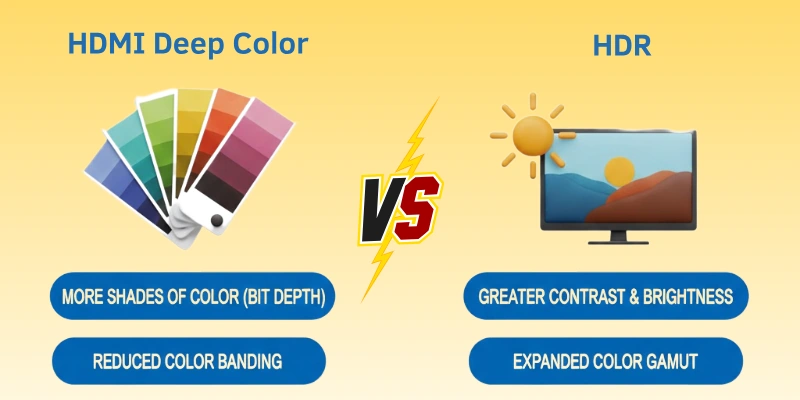
- HDMI Deep Color increases the number of colors your display can show (bit depth).
- HDR (High Dynamic Range) improves brightness, contrast, and color details.
Deep Color helps HDR work better, but just enabling Deep Color does not mean you have HDR. Your device and display need to support both features.
Do You Really Need HDMI Deep Color?
You don’t always need HDMI Deep Color, but it can make a difference if you care about high-quality visuals. It works best with 4K TVs, HDR content, and gaming setups, where deeper colors and smoother images really stand out.
However, the improvement may not be very noticeable if you’re just watching regular videos or using an older display. So, it’s a nice-to-have feature, not a must for everyone.
Best Practices for Using HDMI Deep Color
Key points:
- Use high-speed or ultra high-speed HDMI cables.
- Make sure all connected devices support Deep Color.
- Enable Deep Color only on the HDMI port in use.
- Restart devices after changing display settings.
- Test for screen flickering or blackouts after enabling.
- Use with 4K, HDR, or gaming content for best results.
- Keep your device firmware updated for better compatibility.
- Turn it off if you notice display issues or no visual improvement.
Conclusion
In this article, we explored definition of HDMI Deep Color, how it works, and why it matters. HDMI Deep Color helps deliver richer colors, smoother images, and better picture quality, especially with 4K displays, HDR content, or gaming setups.
However, it only works well when all your devices and cables support it. While it’s not a must-have for everyone, HDMI Deep Color can enhance your viewing experience if used correctly. Make sure to check compatibility and follow best practices to get the most benefit from this feature.
FAQs
Here are some of the most commonly asked questions related to HDMI deep color:
Yes, it can improve picture quality by showing more colors and smoother shades. It makes images look more realistic and detailed. You may notice better visuals, especially in 4K and HDR content.
No, not all TVs support HDMI Deep Color. Your TV must support higher bit depth like 10-bit or 12-bit. You can check this in your TV’s settings or user manual.
Yes, you need a high-speed or ultra high-speed HDMI cable. Regular old cables may not handle the extra data. Using a better cable helps avoid signal problems.
No, they are different features. Deep Color increases the number of colors your screen can show. HDR improves brightness and contrast. They often work together for better visuals.
Your screen may go black, flicker, or show no signal. This happens if your device or cable can’t handle Deep Color. You can turn it off in settings to fix the issue.
It doesn’t change speed or frame rate in games. But it makes the colors and graphics look more smooth and rich. Gamers may enjoy a better visual experience.
No, you only need to enable it on the port you are using. Not all ports may support it. Check your device’s manual for the right port.
Some older HDMI versions support Deep Color, like HDMI 1.3 and above. But newer versions offer better support and stability. It’s best to use newer devices for full benefits.




- Be Respectful
- Stay Relevant
- Stay Positive
- True Feedback
- Encourage Discussion
- Avoid Spamming
- No Fake News
- Don't Copy-Paste
- No Personal Attacks
- Be Respectful
- Stay Relevant
- Stay Positive
- True Feedback
- Encourage Discussion
- Avoid Spamming
- No Fake News
- Don't Copy-Paste
- No Personal Attacks
