Connect HDMI to Cable Box: Easy Steps for Setup
Published: 18 Jan 2026
Wondering how to connect HDMI to cable box? Don’t worry; it’s a simple process that anyone can do at home. With just a few easy steps, you can enjoy high-quality video and sound on your TV.
In this guide, we’ll explain how to connect HDMI to cable box in a clear and simple way, so you can set up your devices without any confusion.
What You’ll Need
Before you start, make sure you have the following things ready:
- HDMI Cable – This is the cable that will connect your cable box to your TV.
- Cable Box – The device that brings the TV channels to your screen.
- Television (TV) – Make sure your TV has at least one HDMI input port.
- Power Supply – Both your TV and cable box should be plugged into power sockets.
That’s all! Once you have these things, you’re ready to move on to the connection steps.
How to Connect HDMI to Cable Box: Step-by-Step Process
Follow these easy steps to connect your HDMI cable to the cable box and enjoy smooth TV viewing:
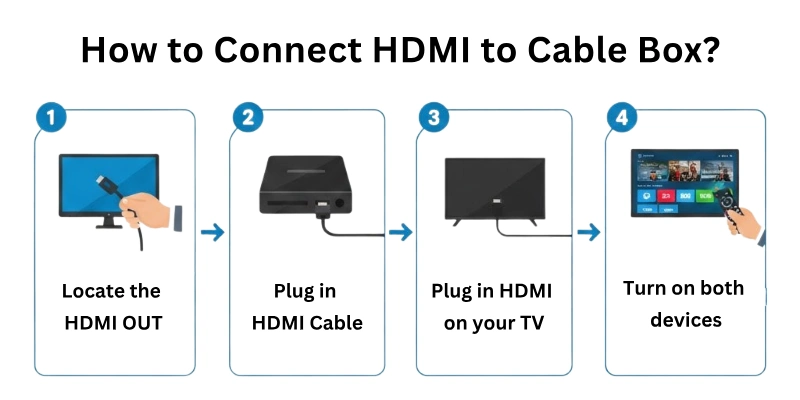
Let’s start.
Step 1
Turn off your TV and cable box:
- Before you begin, it’s best to turn off both the TV and the cable box. This keeps the connection safe and prevents any technical issues.
Step 2
Find the HDMI ports:
- Look at the back of your cable box and find the HDMI OUT port.
- Then look at the back or side of your TV and find the HDMI IN port.
Step 3
Connect the HDMI cable:
- Plug one end of the HDMI cable into the HDMI OUT port of the cable box.
- Plug the other end into the HDMI IN port on the TV.
Step 4
Turn on your TV and cable box:
- After the cable is properly connected, switch on your TV and cable box.
Step 5
Select the HDMI input on your TV:
- Use your TV remote and press the “Input,” “Source,” or “AV” button.
- A list of input sources will appear on the screen.
- Choose the correct HDMI input (for example: HDMI 1, HDMI 2, etc.).
Step 6
Check for a signal on TV:
- If everything is connected properly, your TV screen will now show the cable box display.
- If you see “No Signal”, go back and check the cable connections or try another HDMI port.
Troubleshooting Tips
If your TV is not showing the cable box screen after connecting the HDMI cable, don’t worry. Here are some easy solutions you can try:
1. Check the HDMI Cable
- Make sure the HDMI cable is firmly connected to both the TV and cable box.
- Sometimes, a loose connection can cause a “No Signal” message.
2. Select the Correct HDMI Input
- Double-check that you’ve selected the right HDMI input on your TV.
- Try switching to HDMI 1, HDMI 2, or whichever port you used.
3. Restart Both Devices
- Turn off your TV and cable box.
- Unplug them for a few seconds, then plug them back in and turn them on again.
- This can help fix small connection errors.
4. Try a Different HDMI Port
- If one HDMI port is not working, try another one on your TV.
- Some ports may not work properly or could be damaged.
5. Try a Different HDMI Cable
- If the problem continues, your HDMI cable might be faulty.
- Try using a new or different cable.
6. Check Cable Box Settings (Optional)
- Some cable boxes have Display Settings.
- Make sure the HDMI output is selected in the settings menu.
Helpful Tips for Better Setup
Here are some extra tips to help you get the best experience after connecting your HDMI to the cable box:
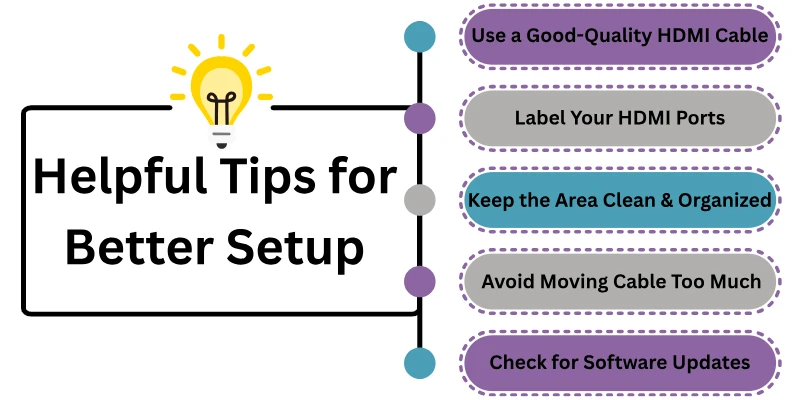
Use a Good-Quality HDMI Cable
- A high-quality cable gives better picture and sound.
- It also reduces the chances of connection problems.
Label Your HDMI Ports
- If your TV has more than one HDMI port, label them like “Cable Box – HDMI 1”, “DVD Player – HDMI 2”, etc.
- This makes it easier to switch between devices later.
Keep the Area Clean and Organized
- Don’t let the cables get tangled or messy.
- Use cable ties or clips to keep wires neat and tidy.
Avoid Moving the Cable Too Much
- Try not to move the HDMI cable again and again.
- Frequent plugging and unplugging can damage the port or cable.
Check for Software Updates (Optional)
- Some smart TVs and cable boxes get updates.
- Keeping them updated helps improve performance and fixes bugs.
Final Note
In this article, we explained in simple steps how to connect HDMI to cable box without any confusion. Following the right process can help you enjoy smooth and high-quality performance.
As a content and tech writing expert, I always recommend using a good-quality HDMI cable and handling your ports carefully to avoid future issues. If you still have questions in mind, don’t forget to check out the FAQs section below; it covers common problems and helpful tips.
Thanks for reading, and I hope this guide made everything clear for you. Stay connected and keep learning. Goodbye!
FAQs
Here are some of the commonly asked questions related to HDMI with Cable boxes:
Yes, you can use any regular HDMI cable with your cable box. Most HDMI cables work the same way and support high-quality signals. Just make sure the cable is not broken or too old. A good cable gives better performance without issues.
The HDMI OUT port is where you connect the HDMI cable. This port sends both audio and video signals from the cable box to other devices. It’s the main way to transfer content in good quality. Always plug the cable into the HDMI OUT port, not any other.
This may happen if the HDMI cable is loose or damaged. The HDMI port on the cable box might also be faulty. Sometimes, the cable box needs to be restarted to refresh the connection. Try unplugging and plugging everything back carefully.
Usually, the cable box detects HDMI automatically and starts working. But some cable boxes have settings where you can choose or check the output mode. If there is no signal, check the box’s display settings and make sure HDMI is selected.
Most cable boxes have only one HDMI OUT port, so you can connect only one HDMI cable at a time. If you want to connect to more than one screen, you’ll need an HDMI splitter. But for general use, one HDMI connection is enough.
HDMI does not change how fast or slow the cable box works. It only improves the quality of the output, like sound and video clarity. A good HDMI connection ensures that your cable box delivers the best results without interruption.


- Be Respectful
- Stay Relevant
- Stay Positive
- True Feedback
- Encourage Discussion
- Avoid Spamming
- No Fake News
- Don't Copy-Paste
- No Personal Attacks
- Be Respectful
- Stay Relevant
- Stay Positive
- True Feedback
- Encourage Discussion
- Avoid Spamming
- No Fake News
- Don't Copy-Paste
- No Personal Attacks
