Convert HDMI to Coaxial Cable: Easy How-To Guide
Published: 13 Jan 2026
Are you wondering how to connect HDMI to coaxial cable or how to convert HDMI to coax? If you have a new device like a laptop, streaming stick, or game console with an HDMI output, but your TV is old and only supports coaxial input, don’t worry, it’s possible to connect them!
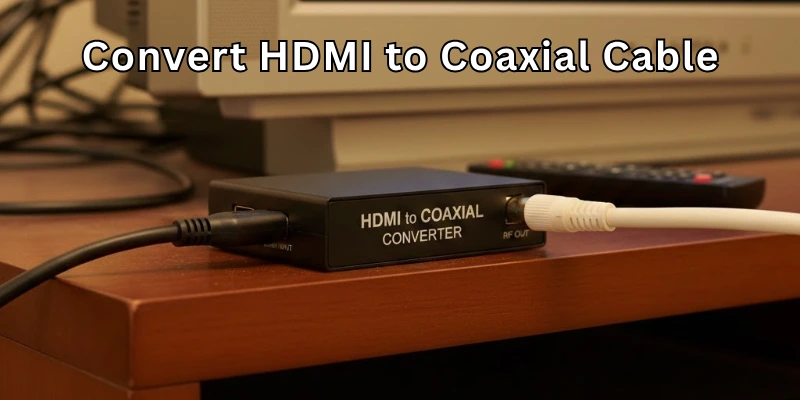
In this blog post, we’ll explain how to convert HDMI to coaxial cable in very simple and easy words so that anyone can understand and follow the process step by step.
Can HDMI and Coaxial Work Together?
Yes, they can—but not directly. HDMI and coaxial cables are made for different systems. HDMI is used in modern devices, while coaxial is found in older TVs and setups.
They speak different “languages,” so you need a converter to help them understand each other. This converter makes it possible to connect HDMI to a coaxial input.
Why Convert HDMI to Coax?
You might wonder—why do I even need to convert HDMI to coaxial cable? The answer is simple: old and new devices don’t always match.
Here are the main reasons:
1. You Have an Old TV
Many old televisions do not have an HDMI port. They only have a coaxial input, which is usually labeled as “ANT IN” or “RF IN.” So, if you want to use a modern device like a laptop, gaming console, DVD player, or streaming stick, you must convert the HDMI signal into a coaxial signal that the old TV can understand.
2. To Use Modern Devices with Old Systems
Sometimes, in schools, hotels, or homes, there are old systems still in use, but you want to connect modern HDMI-based devices. In such cases, converting HDMI to coax helps you avoid buying a new TV or system.
3. For Long-Distance Signal Transmission
Coaxial cables are stronger over long distances than HDMI cables. So, some people convert HDMI to coax if they want to send a signal to another room or a far-away area using a coaxial cable.
4. For Compatibility
Not all setups support HDMI. Sometimes, you may need to connect to a device or setup that only accepts coaxial input, such as an RF modulator or an older recording system. In such cases, conversion is necessary.
Quick Example:
Let’s say you want to connect a modern DVD player (HDMI) to your old box TV (coaxial). They don’t match directly. So, you use an HDMI to Coax Converter Box, and now your old TV can show the video.
What Do You Need to Convert HDMI to Coax?
To connect your HDMI device to a coaxial cable, you need some basic items. Nothing complex is needed—just a few tools to help old and new devices talk to each other.
Here’s what you will need:
1. HDMI to Coaxial Converter Box (Modulator)
- This is the most important device.
- It changes the HDMI signal (digital) into a coaxial signal (analog).
- It usually has an HDMI input port and a coaxial (RF OUT) output port.
Note: Sometimes it’s called an RF modulator or HDMI to RF converter.
2. Coaxial Cable
- This cable will carry the converted signal from the converter box to your old TV.
- One end of the cable goes into the RF OUT on the converter box, and the other end goes into the “ANT IN” or “Coax IN” port on your TV.
3. Power Adapter for the Converter Box
- Most converter boxes need electricity to work.
- You’ll usually get a power adapter in the box, which you plug into a power socket.
4. Your HDMI Device
- This could be a laptop, Blu-ray/DVD player, game console, streaming stick (like Fire Stick or Chromecast), or any other device with an HDMI output.
5. TV with Coaxial Input
- You need a TV that has a coaxial (RF) input port, usually labeled as “ANT IN” or “RF IN.”
How to Convert HDMI to Coaxial – Step-by-Step Guide
Let’s go through the process step by step so you can connect your modern HDMI device to an old TV with a coaxial input.
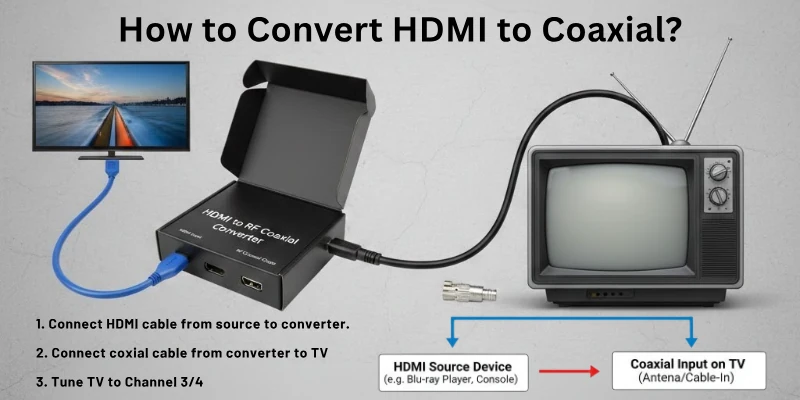
It’s simple if you follow each step carefully.
Step 1: Get an HDMI to Coaxial Converter Box
- Buy a good-quality HDMI to Coax converter (also called RF modulator).
- Make sure it has both HDMI input and RF coaxial output (RF OUT).
Step 2: Connect Your HDMI Device
- Take an HDMI cable.
- Plug one end into your HDMI device (like a laptop, DVD player, or console).
- Plug the other end into the HDMI IN port on the converter box.
Step 3: Connect the Coaxial Cable
- Take a coaxial cable (also called RF cable).
- Connect one end to the RF OUT port on the converter box.
- Connect the other end to your TV’s coaxial input (usually marked as “ANT IN” or “RF IN”).
Step 4: Power the Converter Box
- Plug the power adapter into the converter box.
- Plug it into a power socket and turn the device ON (if it has a power switch).
Step 5: Set the Converter Box Channel
- Most converters allow you to select a TV channel number like Channel 3 or Channel 4.
- Select the channel on the converter that you will use to watch the signal on your TV.
Step 6: Tune Your TV
- Turn ON your TV.
- Use your TV remote and go to the input/source menu.
- Select “TV” or “ANTENNA” mode (not HDMI or AV).
- Use the remote to switch to the channel (e.g., Channel 3 or 4) that matches the converter box.
- Now, you should see and hear the HDMI device output on your old TV screen.
That’s It! You’re Done.
You have successfully converted your HDMI signal into a coaxial signal and connected your modern device to an old TV.
Things to Keep in Mind
Before or while converting HDMI to coaxial, here are some helpful tips and things you should remember. These will help you avoid problems and get the best results from your setup.
1. HDMI to Coax Only Works One Way
- This method only converts HDMI output to coaxial input.
- It does not work the other way around (you can’t send coax signal into an HDMI device with this).
2. Picture Quality Will Be Lower
- HDMI gives high-definition (HD) quality.
- Coaxial cables use analog signals, so the video quality will not be as sharp or clear as HDMI.
- This is normal when converting modern to old systems.
3. Choose a Good Converter Box
- Don’t buy the cheapest converter, as some low-quality devices may not work properly.
- Choose one with good reviews and strong signal output for better performance.
4. Make Sure TV is on the Right Channel
- After setup, if you don’t see any picture, check if your TV is set to Channel 3 or Channel 4 (whichever you set on your converter box).
- Some converter boxes allow you to select the output channel manually.
5. Use the Right Cables
- Always use good-quality HDMI and coaxial cables to avoid signal loss or poor picture.
- Check that the cables are firmly connected and not loose.
6. Some TVs Need Auto-Scan
- In some old TVs, you may need to run a channel scan or auto-tune before the signal appears.
- This helps your TV find the signal from the converter.
7. Audio Sync May Vary
- Sometimes, there may be a tiny delay between video and audio, depending on your converter box quality.
- A better converter will reduce this issue.
Alternative Option: Try Other Ways to Connect
If you don’t want to use an HDMI to coaxial converter, or if you face problems with it, there are other options you can try. These methods might give you better video quality or be easier to use, depending on your device and TV.
1. HDMI to AV (RCA) Converter
- This converter changes HDMI into red, yellow, and white AV cables.
- Most old TVs have RCA (AV) input ports.
- The video quality is a bit better than coax, but not HD.
- It’s easy to set up—just like HDMI to coax.
This is a good option if your TV has AV input but no HDMI.
2. Buy a Digital-to-Analog Converter Box with AV & Coax Output
- Some converter boxes offer both AV and coax outputs.
- You can choose which one works best for your TV.
- This is useful if you want more flexibility for different types of TVs.
3. Upgrade to a TV with HDMI Port
- If your budget allows, consider buying a TV with HDMI support.
- It will save you from buying converters again and again.
- You will enjoy better picture and sound quality too.
4. Use a Media Player or Streaming Box with AV Output
- Some older media players or TV boxes still come with AV output options.
- You can use those to connect to your old TV directly, without any converter.
Final Words
In this article, we explained how to connect HDMI to coaxial cable using a special converter. This method will help you if you have an old TV and want to use a modern HDMI device with it.
Buy a converter, connect the cables, and tune your TV. That’s it!
If you have any questions, feel free to ask in the comments. Also, share this blog post with anyone who is facing the same problem.
FAQs
Here are some of the most commonly asked questions related to HDMI to coaxial cable connecting:
No, you cannot use this method for antennas. Antennas receive over-the-air TV signals, which are different from HDMI signals. This method is only used to send HDMI output to an older TV through a coaxial cable. It won’t work for antenna connections.
No, the HDMI to coax converter does not need an internet connection. It works completely offline. Its only job is to convert the signal from HDMI to coaxial. You can use it anytime without Wi-Fi or mobile data.
No, the picture quality will not be the same. HDMI gives high-definition (HD) video, but coaxial is analog and has lower quality. You may see a difference in sharpness and clarity. But it still works fine for normal viewing.
The price of an HDMI to coax converter usually ranges from $20 to $50 USD. Some basic models may cost less, but better ones give stronger signal output. Higher-priced converters may also offer extra features like channel selection. Always check reviews before buying.
You can use this converter with any TV that has a coaxial input port (RF IN). Most older TVs have this input. Make sure your TV supports analog signals. Also, don’t forget to set the TV to the correct channel like 3 or 4.
No, you don’t need any software, app, or driver. It is a plug-and-play device, so you just connect the cables and power it on. It starts working immediately. There is no technical setup required.


- Be Respectful
- Stay Relevant
- Stay Positive
- True Feedback
- Encourage Discussion
- Avoid Spamming
- No Fake News
- Don't Copy-Paste
- No Personal Attacks
- Be Respectful
- Stay Relevant
- Stay Positive
- True Feedback
- Encourage Discussion
- Avoid Spamming
- No Fake News
- Don't Copy-Paste
- No Personal Attacks
